


Translation mode
This mode is designed primarily for use by the people performing the translations for the GEOVIA Software, providing a cut-down set of features relating to editing translation files that do not require access to the master translation database. If you are unfamiliar with the Translation Manager, you may wish to examine the Translators Quick Start Guide.
A translation file simply contains the message ID's/keys, the English text messages, and the translated text for a single language, which can be created by the Source Code Administrator or the user. The translator is allowed to create their own translation files to provide them with the flexibility to identify messages that need translating as they are encountered, rather than having to wait for data from the Source Code Administrator.
This mode also provides a useful feature allowing the translator to
merge changes
within a translation file into an existing Surpac installation. This allows
the translator to view their changes in a working copy of Surpac before submitting
them to the Source Code Administrator for integration into the master database.
Note: Only the translation file needs to be submitted to QA after changes
are made, the Surpac message files are not necessary
To run the software in this mode, the following command line can be used:
|
|
If you do not specify a translation file, you must enter one in the Paths panel after invoking the software. The active translation file may be changed while the program is running.
Examples
Detailed below are several different scenarios for using the Translation Manager in Translator mode, depending on the data that has been provided to the translator and whether they have access to a Surpac distribution.
These examples assume that any files provided to the translator via email etc. have been unzipped if necessary and saved locally in C:\translations.
Remember too that the paths given as command line arguments are always relative to the current working directory, therefore the full paths given for files/folders below arent necessary if you are already in the appropriate folder.
- Scenario 1 - The translator has been provided with a copy of
ssiclient.jar and a translation file in French to be edited and returned
to the Source Code Administrator. The translator does not have Surpac installed,
therefore Java has been installed separately on the translators computer in
the folder C:\jdk1.3.1.
This is the simplest case. The user can only edit the entries they have been given in the translation file. Use the following to invoke the Translation Manager:
C:\jdk1.3.1\bin\java.exe -classpath C:\translations\ssiclient.jar com.surpac.mlt.TranslationEditor -l C:\translations\french.uni - Scenario 2 - The translator has Surpac installed on their computer
in C:\ssi_V5.0-J, which they have been asked to use to translate a supplied
Russian translation file.
This is similar to the previous example, except the Surpac installation gives us access to Java and the jar file. (It is always best to use the version of Java shipped with Surpac to avoid issues) Use the following to invoke the Translation Manager:
C:\ssi_V5.0-J\nt_i386\jre\bin\java.exe -classpath C:\ssi_V5.0-J\share\java\ssiclient.jar com.surpac.mlt.TranslationEditor -l C:\translations\russian.uni - Scenario 3 - The translator has Surpac installed on their computer
in C:\ssi_V5.0-J, which they have been asked to use to find some messages
without Chinese translations. These are to be translated and emailed back to the
Source Code Administrator.
Translator mode can be used to extract the messages and translations present in a Surpac installation. This is a more complicated task but is invoked in the same way:
C:\ssi_V5.0-J\nt_i386\jre\bin\java.exe -classpath C:\ssi_V5.0-J\share\java\ssiclient.jar com.surpac.mlt.TranslationEditor
  -l
The translator must then create a translation file containing all or a subset of the untranslated entries, select the new translation file, translate the entries and then return the resulting translation file to the Source Code Administrator. The translator is also able to verify their changes by setting the Surpac path and then merging the translation file into their Surpac installation, and running Surpac to ensure that the changes appear correctly before submitting them.
Further technical information:
The translation mode of the software looks like this:
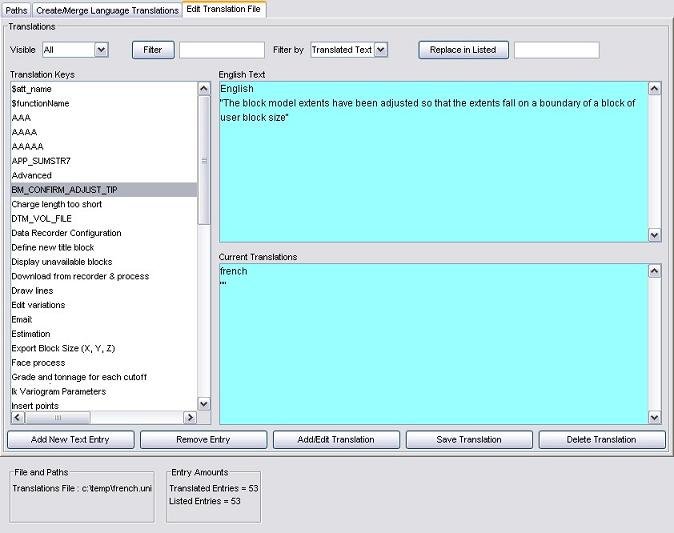
The translation mode uses only three of the five available frames, since the others are designed for working with master and work files, which are not applicable to the translation process. The functions available on the QA panel in this mode are very limited.
For more information on how to use the Translation Manager software, please see: