


Edit Translation File
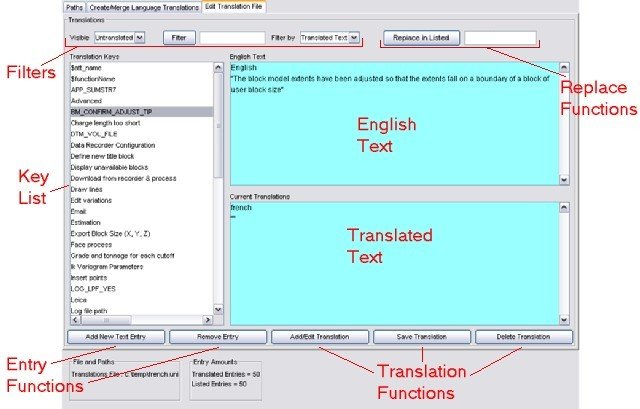
This frame allows a translator to take a subset of the messages (supplied by the Source Code Administrator or created by the user themselves) and translate the english text into another language. It is a fairly simple process, aided by several useful filtering tools. The functions available are as follows:
- Filter the displayed messages
- Text Replacement
- Add/Edit/Delete a Translation
- Add/Remove an entry from the Translation File
Translating a Message
Translation of a message is fairly simple. It has a number of steps outlined below:
- Select the message to translate from the list of message keys on the left. This list may be Filtered to cut down on the number of entries.
- Use the "Add/Edit Translation" button, and you can then edit the message in the lower right panel (The top right panel will display the english text).
- Once the translation of the message is complete, press the "Save Translation" button.
The first time you translate a message, the lower right panel will be filled with the english text. The reason for this is that Surpac messages can contain Variable Arguments, which are used to output information which might contain different values each time, using the same message. (for example - the name of the file just opened). It is very important that the variable arguments stay the same in all languages, so the Translation Manager copies the english text for you to so that you can take the positions of the variable arguments within the english text into consideration when translating. If the number of arguments in the translated language does not equal the number in the english text, then the translation cannot be saved.
If you need to modify the translation of a message at a later date, simply repeat the above steps. Your old changes will be displayed, and you just need to edit them, and press the "Save Translation" button again.
If you make a mistake, and decide it's easier to start again, simply select the message key (as per point 1 above) and then press the "Delete Translation" button. This will clear any translation you have added, and will let you start again.
Filtering Operations
It is often useful to cut down the size of the list when looking for or adding a new message. The filtering functions allow you to do this. There is a number of filtering functions, and each has a different purpose.
- Visible drop-down menu
- Filter button and text field
- Filter by drop-down menu
- Entry ID
- English Text
- Translated Text
This menu allows the user to limit the entries displayed in the list to those that are translated or untranslated, or to display all entries. Selecting any of these options will reset the list, removing any filtering operations performed so far.
To filter the entries by a keyword, enter the desired text in this text field and click the Filter button. When a filter is applied, it acts only on messages currently listed in the entries list. It is therefore possible to create complex searches by filtering the results of previous searches, on all of the main or work entries. This filter uses a case-insensitive, keyword search, so partial matches in upper or lower case will be included. Note that clicking Filter when the text field is empty will have no effect.
This menu indicates the message field that will be used for subsequent filter operations, and includes the following options:
This will apply the search for the given keyword to the message ID's in the message list.
This will apply the search for the given keyword to the English text of each message in the entry list.
This will apply the search for the given keyword to the translated text of each message in the entry list.
Text Replacement
A text replacement function is made available when the user selects Translated Text from the Filter By drop-down menu:

The text in the Filter field is taken as the text to search for, and the replacement text should be entered into the field next to the Replace in Listed button. Applying the replacement will search in all currently listed entries, in the text of the translated language, and replace all matches.
Add/Edit/Delete a Translation
A translation for a given entry is created, changed, saved or deleted by selecting an entry from the list and clicking one of these buttons:

Adding/Editing a translation will copy the contents of the English text to the translated text field, or allow existing text to be edited if there is already translated text. The user should ensure that all variable arguments in the English version are also present in the translation. For an explanation of variables, click here.
After making changes to a translation it should be saved with the Save Translation button. To remove the translated text of an entry, select it in the list and click Delete Translation. This will reset the translated text to "".
Add/Remove an entry from the Translation File
Entries may also be added and removed from the translation file, rather than just adding a translation to an existing entry, using these buttons:

Adding a new text entry allows the translator to provide translations for English text messages as the need for them is discovered, rather than requiring the Source Code Administrator to identify the phrase to translate and include this in a new translation file.
Removing an entry as the name of the function suggests will completely remove the entry from the translation file, rather than just the translated text, so exercise caution when using this function.