


GuidoForm
Overview
A form is a rectangular popup window upon which you define widgets to collect information from the macro script user. The GuidoForm command is the start point for the form as it is the main container for the form definition. All other Guido containers and widgets are contained within the GuidoForm definition.
The form definition can be defined and stored into a normal Tcl variable in your main script or can be defined in a separate file from your Tcl/Scl script. Unless you use a form that is common among a number of your scripts then the recommended method is to define the form in the Tcl/Scl script and store it into a Tcl variable.
Synopsis
GuidoForm Name Body
Description
The GuidoForm command when processed will define a rectangular popup window on the screen that contains any number of Guido widgets and containers. The form by default contains the standard Window controls to dismiss, maximise and minimise the window. All other contents of the form window must be defined using switches and other Guido objects.
Arguments
Name Name is a unique identifier that you assign and is used to differentiate this object from other Guido objects in the form definition.
Body The body of the form will contain any Guido switches used to modify the default behaviour of the form and then further definitions of Guido containers and widgets. The body begins with an opening curly brace and ends with a closing curly brace. If there is no required body the curly braces {} are required as a place holder for this argument.
Switches The following switches can be used to modify the default behaviour of the form.
| -label text | The -label switch will place the specified text
into the title bar of the form as the form heading.
If the label text contains spaces then the entire label must be enclosed in double quotes
-label "A Guido Form Heading" |
| -buttons applyButton cancelButton | The -buttons switch allows you to specify your own
apply and cancel buttons instead of using the forms default buttons. Using
the names of your buttons you must specify the apply button and then the
cancel button
-buttons $myApplyButton $myCancelButton |
| -default_buttons applyLabel cancelLabel | The -default_buttons switch places the standard Apply
Cancel and Help buttons onto the form. You can optionally assign your
own labels to the default buttons by specifying the label text as part
of the switch
-default_buttons -default_buttons "Previous" "Next"If you do not use this switch in the GuidoForm definition there will be no way to apply the form unless you code a special purpose GuidoButton into the form and use either the -buttons switch or the -legacy_button on the Guido button itself. |
| -save_defaults_status | The -save_defaults_status switch sets the form apply
status text that will cause all field defaults to be written to the defaults
database. The default value of "apply" will normally not need
to be modified. Use this switch with caution.
-save_defaults_status |
| -defaults_key keyName | The -defaults_key switch allows you to interface with
the software's User Defaults Manager to remember values that have
been entered into the form on previous runs. By specifying a unique key
name for each of your forms the defaults management system will store
these values into the system defaults database. Care should be taken when
choosing a key name so that it does not conflict with existing keys. A
key prefix system is advised to assist in keeping keys unique.
-defaults_key MineSolutions_sectioning -defaults_key vComp_survey_import |
| -defaults_management true|false | The -defaults_management switch allows you to turn
off software's User Defaults Manager for a particular form. Note
that this only has an effect if you had previously used the -defaults_key
switch. You would normally only do this to debug problems in the script.
-defaults_key false -defaults_key true |
| -defaults_management_calls_actions | The -defaults_management_calls_actions can be used
to enforce a valueChanged event to be
fired when the defaults management system changes a value on the form.
By default the defaults management system does not cause valueChanged
events to be fired.
-defaults_management_calls_actions |
| -help_url url |
The -help_url switch allows you to link to a html file, or a pdf file, that contains comprehensive information about your script. You can use a logical or a full path for the address of the URL.
Some examples are:
|
 Note: You can use a full path only if the folder and file name contain no spaces.
Common Guido switches reference
Examples
Example 1
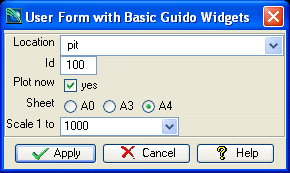
The example form below demonstrates a standard Guido form definition that incorporates a number of the basic Guido widgets. Note how the form 'contains' the various widgets within the command body which starts with the opening brace '{' at the end of the GuidoForm statement line and finishes with the closing brace '}' near the end of the example. Also note the method of defining the form into a Tcl variable called formDef which is later passed to the SclCreateGuidoForm command.
# GuidoForm Example 1
# Define the form and store into a Tcl variable called formDef
set formDef {
  GuidoForm form {
    -label "User Form with Basic Guido Widgets"
    -help_url SSI_REFMAN:english/content/tcl/TCLvariableSubstitution.htm
    -default_buttons
    GuidoFileBrowserField location {
      -label "Location"
      -width 20
      -file_mask "*.str"
      -link id
      -null false
    }
    GuidoField id {
      -label "Id"
      -width 3
      -null false
    }
    GuidoCheckBox plotNow {
      -label "Plot now"
      -caption "yes"
      -height 1
      -selected_value "yes"
      -unselected_value "no"
      -default "yes"
    }
    GuidoButtonGroupPanel plotSize {
      -label "Sheet"
      -default "A4"
      -dependency {"[$plotNow getCurrentValue]" == "yes"}
      GuidoRadioButton A0 {
        -caption "A0"
        -height 1
        -selected_value "A0"
      }
      GuidoRadioButton A3 {
        -caption "A3"
        -height 1
        -selected_value "A3"
      }
      GuidoRadioButton A4 {
        -caption "A4"
        -height 1
        -selected_value "A4"
      }
    }
    GuidoComboBox plotScale {
      -label "Scale 1 to"
      -width 8
      -value_in 250 500 1000 2000 5000
      -null false
      -default 1000
      -dependency {"[$plotNow getCurrentValue]" == "yes"}
    }
  }
}
# Create and run the form (note that the form definition was stored in the formDef variable above)
SclCreateGuidoForm formHandle $formDef {}
$formHandle SclRun {}
puts "The form status was $_status"
|
Example 2
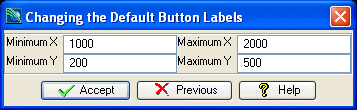
The following example demonstrates how to change the labels on the default buttons to something other than 'apply' and 'cancel' by using the -default_buttons switch.
# GuidoForm Example 2
# Define the form and store into a Tcl variable called formDef
set formDef {
  GuidoForm aForm {
    -label "Changing the Default Button Labels"
    -default_buttons Accept Previous
    -layout BoxLayout X_AXIS
    GuidoPanel leftSide {
      -layout CentreLineLayout
      GuidoField xMin {
        -label "Minimum X"
        -width 10
      }
      GuidoField yMin {
        -label "Minimum Y"
        -width 10
      }
    }
    GuidoPanel rightSide {
      -layout CentreLineLayout
      GuidoField xMax {
        -label "Maximum X"
        -width 10
      }
      GuidoField yMax {
        -label "Maximum Y"
        -width 10
      }
    }
  }
}
# Create and run the form (note that the form definition was stored in the formDef variable above)
SclCreateGuidoForm formHandle $formDef {}
$formHandle SclRun {}
puts "$_status"
|
Example 3
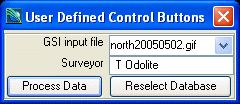
The following example demonstrates how to define your own control buttons on the form instead of using the default buttons.
# GuidoForm Example 3
# Define the form and store into a Tcl variable called formDef
set formDef {
  GuidoForm aForm {
    -label "User Defined Control Buttons"
    GuidoFileBrowserField location {
      -label "GSI input file"
      -width 11
      -file_mask "*.gsi"
      -file_access read
      -null false
    }
    GuidoField surveyor {
      -label "Surveyor"
      -width 11
      -null false
    }
    GuidoButton processBut {
      -caption "Process Data"
    }
    GuidoButton reselectBut {
      -caption "Reselect Database"
    }
    # note that the switch comes after the button definitions just above
    -buttons $processBut $reselectBut
  }
}
# Create and run the form (note that the form definition was stored in the formDef variable above)
SclCreateGuidoForm formHandle $formDef {}
$formHandle SclRun {}
puts "$_status"
|
Setting Form Default Values
The naming of your Guido widgets is important and you should endeavour to use meaningful names that describe the information that you are collecting from the user. The names that you use for the Guido widget directly correspond to variables in the Tcl interpreter. If Tcl variables with the same name as your widgets exist prior to executing the SclCreateGuidoForm command then the values of those variables will be used as the default values for the Guido widgets on the form.
Example – Setting default values
The following example demonstrates how to set default values for widgets on a form
# Example - Setting default values
# Define the form and store into a Tcl variable called formDef
set formDef {
  GuidoForm aForm {
    -label "Setting Default Values"
    -default_buttons
    GuidoField northing1 {
      -label "Minimum northing"
      -width 8
      -format double
      -null false
    }
    GuidoField easting1 {
      -label "Minimum easting"
      -width 8
      -format double
      -null false
    }
    GuidoField northing2 {
      -label "Maximum northing"
      -width 8
      -format double
      -null false
    }
    GuidoField easting2 {
      -label "Maximum easting"
      -width 8
      -format double
      -null false
    }
  }
}
# define some variables that will be used as defaults on the form
set northing1 1000
set easting1  1000
# you can even use runtime calculations to determin defaults
set northing2 [expr $northing1 * 2]
set easting2  [expr $easting1 + ($easting1 / 2)]
# now create the form which will use the above values as defaults
SclCreateGuidoForm formHandle $formDef {}
# display the form
$formHandle SclRun {}
|
The SclCreateGuidoForm command has a section dedicated to setting widget default values. This is to assist you in keeping your default value initialisation contained in one section of code. It is not necessary to perform this task here because if the Tcl variable exists prior to form creation then it will be used to set the default value; this is just a coding style issue.
Example – setting default values in SclCreateGuidoForm
The following example demonstrates how to set default values for widgets on a form within the context of the SclCreateGuidoForm
# Example - setting default values in SclCreateGuidoForm
# Define the form and store into a Tcl variable called formDef
set formDef {
  GuidoForm aForm {
    -label "Setting Default Values"
    -default_buttons
    GuidoField northing1 {
      -label "Minimum northing"
      -width 8
      -format double
      -null false
    }
    GuidoField easting1 {
      -label "Minimum easting"
      -width 8
      -format double
      -null false
    }
    GuidoField northing2 {
      -label "Maximum northing"
      -width 8
      -format double
      -null false
    }
    GuidoField easting2 {
      -label "Maximum easting"
      -width 8
      -format double
      -null false
    }
  }
}
# now create the form and set default values for the fields
SclCreateGuidoForm formHandle $formDef {
  set northing1 1000
  set easting1  1000
  set northing2 [expr $northing1 * 2]
  set easting2  [expr $easting1 + ($easting1 / 2)]
}
# display the form
$formHandle SclRun {}
|
Default values for Guido widgets can also be set using the -default switch that can be used with any Guido widget. Using the default switch provides a constant default for the widget. Note that it is not dynamic like the methods above as values cannot be calculated at run time.
Retrieving Values from a Form
To gain access to the information that has been entered into your Guido form you simply access Tcl variables with corresponding names to the widgets that you defined on the form. For example if you named a GuidoField widget northing1 then once the form has been applied, the SclRun command will create a variable in the Tcl interpreter called northing1 that will contain the information as entered into the field on the form.
If the form was cancelled the SclRun command does not create these variables in the interpreter and upon your first attempt to access them, the script will fail with an undefined variable error. You should always check the value of the _status variable after the SclRun command has completed. This variable will contain either the value apply or cancel to tell you if the form was applied or cancelled. See SclRun for further information.
Example – Retrieving Values from a Form
The code segment below shows how to access widget values as Tcl variables and includes a typical test (if statement) to perform to trap for a form cancelled action.
# Example - Retrieving Values from a Form
# Define the form and store into a Tcl variable called formDef
set formDef {
  GuidoForm aForm {
    -label "Setting Default Values"
    -default_buttons
    GuidoField northing1 {
      -label "Minimum northing"
      -width 8
      -format double
      -null false
    }
    GuidoField easting1 {
      -label "Minimum easting"
      -width 8
      -format double
      -null false
    }
    GuidoField northing2 {
      -label "Maximum northing"
      -width 8
      -format double
      -null false
    }
    GuidoField easting2 {
      -label "Maximum easting"
      -width 8
      -format double
      -null false
    }
  }
}
# now create the form and set default values for the fields
SclCreateGuidoForm formHandle $formDef {
  set northing1 1000
  set easting1  1000
  set northing2 [expr $northing1 * 2]
  set easting2  [expr $easting1 + ($easting1 / 2)]
}
# display the form and test for the user pressing cancel at the end
$formHandle SclRun {}
if {"$_status" == "cancel"} {
  puts "Macro cancelling"
  return
}
# now access the values from the form using variables of the same name
# these variable will contain the values as entered on the form
puts "northing range is $northing1 to $northing2"
puts "northing range is $easting1 to $easting2"
|
When using widgets that are defined within a GuidoTable the SclRun command will create a Tcl array of the same name as the widget. To access the values you need to provide an array reference as well. See GuidoTable for more information.
See Also
Guido
GuidoForm
GuidoTable
Common guido switches
SclCreateGuidoForm
SclRun