


GuidoButton
GuidoButtons are more commonly used on toolbars to invoke a function or user script. They are occasionally used as replacements for the default buttons on a form; see example 3 in the GuidoForm reference. A button may contain a text caption, an icon, or both.
GuidoButtons are also used in advanced form processing to invoke form procedures that perform custom operations while the form is displayed. See the reference on Guido action events and callbacks for further information.
Synopsis
GuidoButton Name Body
Description
The GuidoButton command when processed will define a small rectangular region on the form that will contain a text caption and/or icon. It may be selected with the mouse or space bar on the keyboard when it has focus. When selected it will cause a stateChanged action event to fire.
Arguments
Name Name is a unique identifier that you assign and is used to differentiate this object from other Guido objects in the form definition.
Body The body of the button may contain a number of switches to modify the default behaviour. The body begins with an opening curly brace and ends with a closing curly brace. If there is no required body the curly braces {} are required as a place holder for this argument.
Switches The following switches can be used to modify the default behaviour of the button.
| -caption text | The -caption switch allows you to specify the text
that appears inside the buttons boundary
-caption "OK" -caption "Select All" |
| -selected_value value | The -selected_value switch sets the current value
for the button if it is queried.
-selected_value "Activate" -selected_value "Sort" |
| -command type function | The -command switch sets the button to perform some
action. Note that this switch should only be used when the button is defined
on a toolbar and not as a button on a form!
The command can take one of three types as follows:
-command server "CLEAR GRAPHICS" -command client "TOOGLE MESSAGE LOG" -command script "MACROS:grade_control.tcl" |
| -no_border | The -no_border switch removes the light etched border
that normally surrounds a button.
-no_border |
GuidoButtons when defined on forms are used to invoke form procedures. See the reference on Guido action events and callbacks for further information.
Common Guido switches reference
Examples
Example 1
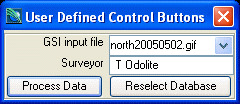
The example form below demonstrates using GuidoButtons to redefine the default buttons on a form. See GuidoForm for further information.
# GuidoButton Example 1
# Define the form and store into a Tcl variable called formDef
set formDef {
  GuidoForm aForm {
    -label "User Defined Control Buttons"
    GuidoFileBrowserField location {
      -label "GSI input file"
      -width 11
      -file_mask "*.gsi"
      -file_access read
      -null false
    }
    GuidoField surveyor {
      -label "Surveyor"
      -width 11
      -null false
    }
    GuidoButton processBut {
      -caption "Process Data"
    }
    GuidoButton reselectBut {
      -caption "Reselect Database"
    }
    # note that -buttons the switch comes after the button definitions just above
    -buttons $processBut $reselectBut
  }
}
# Create and run the form
SclCreateGuidoForm formHandle $formDef {}
$formHandle SclRun {}
puts "$_status"
|
Further Examples
See GuidoToolbars and Guido action events and callbacks for further information and examples of GuidoButtons.
See Also
Guido
GuidoForm
Common guido switches
Guido action events and callbacks
Common guido switches
Guido action events and callbacks