GuidoComboBox
Overview
A GuidoComboBox is similar to a GuidoField in that it provides a text entry box into which characters can be typed. It differs because a list of values can also be supplied allowing you to quickly pick an entry from the list. Any of the common Guido switches for widgets can be used to modify the default behaviour of a combo box.
Combo boxes can be either exclusive or non exclusive. When a combo box is exclusive it disallows keyboard input and an entry into the field can only be made by picking an item from the supplied list of values. A non exclusive combo box behaves exactly the same as GuidoField in that characters can be entered from the keyboard but a list of values is also provided to assist with the input. The default behaviour is for a combo box to be exclusive.
Exclusive combo boxes have a list searching facility that assists with selecting items when the list is very large. When the combo box drop down list is visible you can type into the text area portion of the widget and the first matching list item will be scrolled into view. See the -sorted_list switch below for more information.
The standard -null true switch will affect a combo box by automatically populating the list of values with a blank item. This is important for exclusive combo boxes as it is the only way for a null or blank value to be specified.
The list of values for a combo box can be supplied in the form definition using the -value_in switch or can be set at runtime using the SclCreateGuidoForm command. See example 2 below for further information.
Synopsis
GuidoComboBox Name Body
Description
The GuidoComboBox command when processed will define a rectangular text entry region on the form with a triangle icon on the right that allows the list of supplied values to be selected. Any of the common Guido switches for widgets can be used to modify the default behaviour of a combo box.
Arguments
Name Name is a unique identifier that you assign and is used to differentiate this object from other Guido objects in the form definition. The name you assign will become the name of a variable in the Tcl interpreter that will contain the value as entered into the combo box on the form.
Body The body of the combo box may contain a number of switches to modify its default behaviour. The body begins with an opening curly brace and ends with a closing curly brace. If there is no required body the curly braces {} are required as a place holder for this argument.
Switches The following switches can be used to modify the default behaviour of the combo box
| -exclusive flag | The -exclusive switch is used to make a combo box
operate in either exclusive or non exclusive mode. Setting the flag
value to true makes the combo box exclusive which is the default
behaviour or setting the flag value to false makes the combo
box non exclusive
-exclusive true -exclusive false |
| -value_in value1 value2 ... | The -value_in switch provides the mechanism to set
the list of selectable values on a combo box. Simply list the values behind
the switch separated with spaces. If you want a space to be included in
an item value then the whole value must be enclosed in double quotes
-value_in A0 A1 A2 A3 A4 -value_in "North Pit" "South Pit" "East Pit" "West Pit"The list of values can also be set at runtime using the SclCreateGuidoForm command. See example 2 below for further information. |
| -alternative_values val1 val2 ... | The -alternative_values switch allows you to set a
different set of display values for the combo box list. Note that this
is only for the display list and it is the values that are set using the
value_in switch that are returned to your script.
-value_in NP SP EP WP -alternative_values "North Pit" "South Pit" "East Pit" "West Pit"In this brief example the descriptive names are displayed in the list box but the shorter coded names NP SP EP WP are returned to your script. See example 3 below for further information. |
| -no_mlt true|false | The software will endeavour to convert text into the current
language using the Multi Lingual Translator (MLT). Specifying -no_mlt
true will prevent the MLT from translating text values specified with
the -value_in switch.
-no_mlt false -no_mlt true |
| -alternative_mlt_keys value1 value2 ... | The -alternative_mlt_keys switch will ignore the setting
of the -no_mlt switch and will always attempt to translate text
into the current language.
-alternative_mlt_keys North South East West |
| -assist_key true|false | The -assist_key switch allows you to stop the assigned
assist key (usually F1) from displaying the combo boxes display list.
-assist_key false -assist_key true |
| -shared_list GuidoWidgetName | The -shared_list switch is used when two or more combo
boxes wish to share the same list of values in memory. It is used to save
memory space and to increase performance when you have extremely large
lists of values where two or more combo boxes on the form have the same
list of values. It is more typically used with a GuidoDatabaseColumnBrowser
which is a special implementation of a combo box that allows for all values
in a database column to be inserted into a list.
To share the list the second and subsequent combo boxes specify the name of the GuidoComboBox that has the original list defined on. The example below assumes the original combo box was called firstStation -shared_list firstStationSee example 4 below for more information and also GuidoDatabaseColumnBrowser for further examples. |
| -sorted_list true|false | The -sorted_list switch allows you to specify whether
the list of values is sorted in alphabetical order to help with the combo
boxes list searching techniques. By default the list is assumed to be
unsorted and a linear search technique is used. When you have extremely
large lists that are sorted, by specifying that the list is sorted you
direct the combo box to use a binary search technique that is magnitudes
faster than the linear method.
The -sorted_list switch is more typically used with a GuidoDatabaseColumnBrowser which is a special implementation of a combo box that allows for all values in a database column to be inserted into a list. See example 4 below for more information and also GuidoDatabaseColumnBrowser for further examples -sorted_list truePlease note the list searching facility is only available for exclusive combo boxes. |
Common Guido switches reference
Examples
Example 1
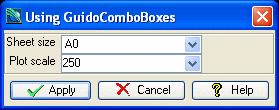
The example form below demonstrates using GuidoComboBoxes. Note that the first combo box for sheet size is exclusive while the second is non exclusive, meaning any value can be typed for the plot scale.
# GuidoComboBox Example 1
# define the form
set formDef {
  GuidoForm form {
    -label "Using GuidoComboBoxes"
    -default_buttons
    GuidoComboBox sheetSize {
      -label "Sheet size"
      -width 10
      -format none
      -value_in A0 A1 A2 A3 A4
      -null false
    }
    GuidoComboBox scale {
      -label "Plot scale"
      -width 10
      -format integer
      -low_bound 100
      -high_bound 1000
      -value_in 250 500 1000
      -exclusive false
      -null false
    }
  }
}
# Create and run the form
SclCreateGuidoForm formHandle $formDef {}
$formHandle SclRun {}
puts "Plotting on a $sheetSize sheet at a scale of 1 is to $scale"
|
Example 2
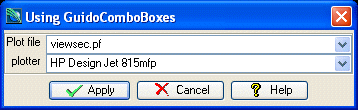
The following example demonstrates using the runtime setValues clause available within the SclCreateGuidoForm command to set the values of the combo box lists. This method allows a more dynamic set of values to be set such as a list of file names which will be different most times you run the macro script.
# GuidoComboBox Example 2
# define the form
set formDef {
  GuidoForm form {
    -label "Using GuidoComboBoxes"
    -default_buttons
    GuidoComboBox plotFile {
      -label "Plot file"
      -width 25
      -format none
      -null false
    }
    GuidoComboBox plotter {
      -label "plotter"
      -width 25
      -format none
      -null false
    }
  }
}
# use the standard Tcl glob command to get a list of *.pf files in the current directory
set plotFileList [glob -nocomplain *.pf]
# Create the form and set the combobox lists at form creation time
SclCreateGuidoForm formHandle $formDef {
  # this will set the values used in the plotFile combobox
  set plotFile.setValues $plotFileList
  # this builds a list of plotter names to then set as the comboxbox list of values
  set plotter.setValues  [list "HP Design Jet 815mfp" "HP Design Jet 4000" "HP Design Jet 500"]
}
$formHandle SclRun {}
puts "Plotting $plotFile on the $plotter plotter"
|
Example 3
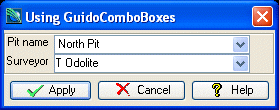
The following example demonstrates the use of the -alternative_values switch and the -no_mlt. On the pitId combo box the display list set with alternative values is more descriptive than the returned value_in list which is a pitId code. On the surveyor name combo box the -no_mlt switch has been used to prevent any language translation of the surveyor name. This combo is also exclusive false to allow a name that is not on the list to be entered.
# GuidoComboBox Example 3
# define the form
set formDef {
  GuidoForm form {
    -label "Using GuidoComboBoxes"
    -default_buttons
    GuidoComboBox pitId {
      -label "Pit name"
      -width 15
      -format none
      -value_in NP SP EP WP
      -alternative_values "North Pit" "South Pit" "East Pit" "West Pit"
      -null false
    }
    GuidoComboBox surveyor {
      -label "Surveyor"
      -width 15
      -format none
      -exclusive false
      -no_mlt true
      -value_in "T Odolite" "B Sight" "S Point" "F Station"
      -null false
    }
  }
}
# Create and run the form
SclCreateGuidoForm formHandle $formDef {}
$formHandle SclRun {}
puts "Selected pit is $pitId"
puts "Surveyor is $surveyor"
|
Example 4
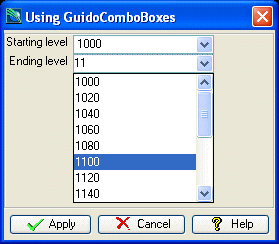
The following example demonstrates the use of the -sorted_list switch and the -shared_list switch. On the form the second combo box called endLevel is set to share the list from the first combo box via the statement -shared_list startLevel. As the list of values is sorted both combo boxes have specified -sorted_list true to indicate to use the binary search method when searching the list.
The example screen capture has been slightly modified to display the drop down list with a search in progress. As the user types the first matching value is located in the list. In this instance "11" has been typed and the value "1100" has been found as the first match in the list.
# GuidoComboBox Example 4
# define the form
set formDef {
  GuidoForm form {
    -label "Using GuidoComboBoxes"
    -default_buttons
    GuidoComboBox startLevel {
      -label "Starting level"
      -width 10
      -format none
      -value_in 1000 1020 1040 1060 1080 1100 1120 1140 1160 1180 1200 1220 1240 1260 1280 1300
      -sorted_list true
      -null false
    }
    GuidoComboBox endLevel {
      -label "Ending level"
      -width 10
      -format none
      -shared_list startLevel
      -sorted_list true
      -null false
    }
  }
}
# Create and run the form
SclCreateGuidoForm formHandle $formDef {}
$formHandle SclRun {}
puts "Start level $startLevel"
puts "  End level $endLevel"
|