

Planes
Planes definitions are "corridors" in space used for displaying data. Plane definitions are created by defining a flat plane (horizontal, vertical, or inclined) with a 'towards' and 'away' distance. The corridor width is equal to the 'towards' distance plus the 'away' distance. Planes definitions are simply referred to as planes. When a plane is active, data within the corridor is displayed, and data outside the corridor is hidden.
Viewing planes can be useful for a number of tasks. Geologists use planes to view vertical cross-sections of drillhole and surface topography data. Engineers use planes to view horizontal sections of a block model while creating a pit design. Surveyors use planes to create cross-sections of areas which have been mined to display the cut for a specified period.
Active plane
The "active plane" is the plane on which the data is projected in Graphics. By default, if you have not selected a plane, the initial plane that is active when you start Surpac is a horizontal plane that has an elevation of zero with projection distances of 10000 above and below. Any data that is beyond the projection distances from this plane (that is, outside the "corridor") is hidden.
You can find out which is the active plane in Graphics by looking at the Status bar or the Planes panel. The Status bar shows you the name of the active plane.

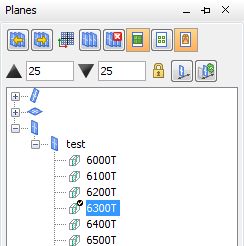
The Planes panel shows a check mark next to the active plane.
Storing planes
You can create, view, and interact with a group of planes and store them temporarily or permanently to planes files in the Plan view, Vertical sections, or Incline sections folders. If you store planes temporarily, when you exit Surpac, the planes are removed from the planes folders. However, if you store planes permanently, the planes will be available for future uses of Surpac.
Planes panel
The Planes panel is available on start-up at the upper right of Graphics. By default, the panel is collapsed. You can view the panel by clicking it, and you can unpin the panel to change its location.
Other topics in this section: