


Planes panel
To open the Planes panel, click the Planes tab in the top right of the Surpac main window.
 Tip: If the Planes tab is hidden, choose View > Dockable Windows > Planes to show it.
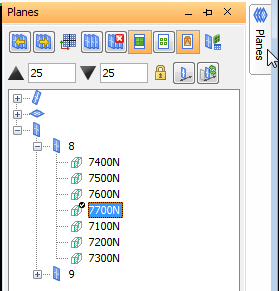
Planes are grouped, and displayed in the Planes panel, by type (inclined, horizontal, and vertical). Underneath each type, planes are organised by plane group. In the previous image, under the vertical type, there are two groups called 8 and 9 respectively. Plane group 8 contains seven planes.
 Note: The types, groups, and planes are stored in the folder specified as your PLANES logical. The PLANES logical is defined in the translate.ssi file.
The following the buttons and fields are available at the top of the Planes panel. ToolTips are available for each button.
| Button or Field | Description |
|---|---|
| Previous plane (F11) | View the previous plane, in a plane group, in Graphics. |
| Next plane (F12) | View the next plane, in a plane group, in Graphics. |
| 2D/3D planes mode | 2D mode is useful for locking the view to the active plane. 3D mode is useful when you want to rotate the view. The status bar displays the current planes mode (2D or 3D). |
| Quick Planes | You can use this to create a group of planes. |
| End section view | Deactivates the current plane and returns to 3D viewing mode. |
| Draw block model as blocks or polylines | Displays the line of intersection between the perimeter of the blocks of the block model, and the active plane |
| Block shrinkage | Reduces the size of the blocks displayed in a plane. You might use this after using the COLOUR MODEL BY ATTRIBUTE function. |
| Display attributes on section | |
| Draw triangulations as triangles or polylines | Displays the line of intersection between any triangles in the current viewport and the active plane. |
| Away | The width of the plane corridor is the Away distance plus the Towards distance. You can type a different Away distance to temporarily expand the width of the plane. When you make a different plane active, Away reverts to its original value. |
| Towards | You can type a different Towards distance. |
| Lock plane corridor | When this option is selected, you can keep the temporary projection plane distances you have defined, using SET PLANE CORRIDOR, when you view a different plane. |
| Set large projections | Display all of the data that is not contained in the projection distances set for the plane. |
| Revert to plane corridor | Reset the projection distances to the default values set for the active plane. |
In the Planes panel, you can right-click a planes group to:
- refresh
- rename
- delete
- view the planes properties
Refresh is useful when your PLANES logical is a network location, and someone else is working with the planes at the same time.
Delete allows you to delete all the planes in a group in a single operation.
In the Planes panel, you can right-click a plane to:
- refresh
- rename
- delete
- view the plane properties
- make the plane active
- move the position of the plane, up or down, in the planes group.
You can also drag a plane to a new position in a planes group.
Tip: You can record the rename, delete, and refresh commands to a macro.