


Setting Up Whittle to Use the Licence Server
Before you can use a network licence, ensure that the Licence Manager service is installed and running on a computer on your local area network.
Set Up Whittle to Use the Licence Server
- Install Whittle on a computer that can contact the Licence Manager through the network.
- Start Whittle.
- Choose File > License Validation.
- Select Network, and click Ok.
The Whittle Network License Request form appears. You can use this form to request a new licence.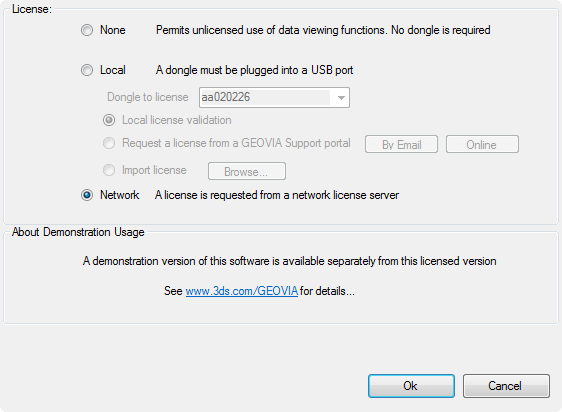
- In the License Server field, type the name, or IPv4 address, of your network licence server, for example server1.company.priv.
- In the Licence Class field, type the name of the licence class that you want to use.
- Click Validate.
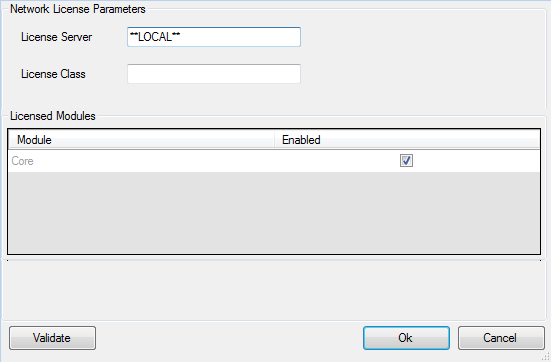
 Tip: If you do not receive a network licence, try specifying the UDP port, for example server1.company.priv:1234.
The lower right corner of Whittle shows you that you have been granted a licence and displays the name of the licence server.
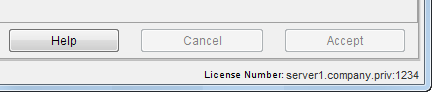
If the licence has been revoked, and all available licences have been granted to other users, you will not be able to obtain a licence to continue your work. If you are running a function that permits you to save data and does not require a licence, you can save your work.