


Setting Up MineSched to Use the Licence Server
Before you can use a network licence, ensure that the Licence Manager service is installed and running on a computer on your local area network.
Set Up MineSched to Use the Licence Server
- Install MineSched on a computer that can contact the Licence Manager through the network.
- Start MineSched.
- Choose Scenario > Licensing.
- Select Network.
- In the Server field, type the server name, or click the arrow and select the server from the list.
- Click Connect.
- In the Class field, type the class name or click the arrow and select the class from the list.
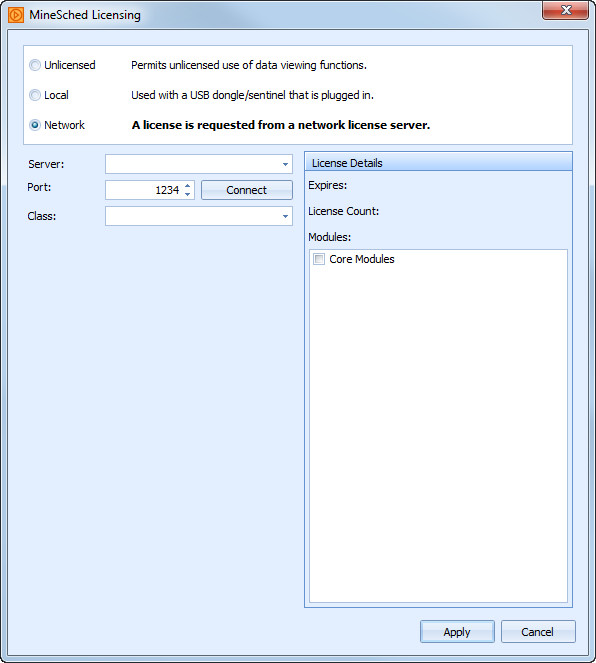
- Click Apply.
The MineSched Licensing form appears.
The licence classes available on the server are populated into the Class list.
If the licence is granted, all MineSched functions are available.
If the licence is revoked, and all available licences are granted to other users, you cannot obtain a licence to continue your work. The word "Unlicensed" will appear in the title of the MineSched window.
Without a licence, you can save your work and continue to define parameters for an open scenario, but you cannot extract data from your models, use the evaluation tools, define locations, define material movement, manage workbook linking, run the schedule, create reports, or create a new MineSched scenario.
 Note: MineSched retains the licence settings. Each time you open MineSched, the licence settings from the previous session are used.