


Downloading Licence Manager Installer
Licence Manager is available on every installation disk. Alternatively, go to the GEOVIA support website and download the Licence Manager installer.
 Note: GEOVIA recommends that you install the latest version of Licence Manager when you upgrade your program.
Download the Licence Manager Installer
- Type https://www.GEOVIAsupport.com into the web browser, and press Enter.
- If you have a user name and password, enter them and click Sign In.
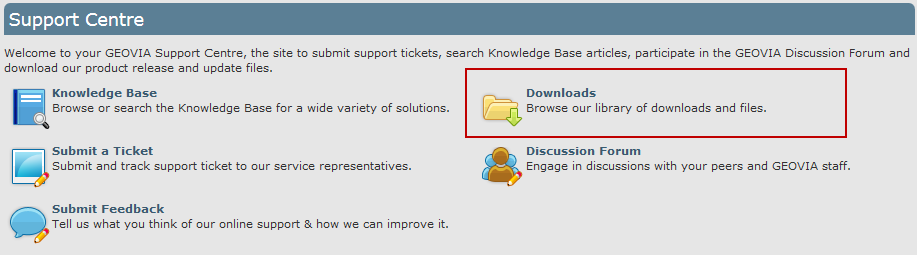
- Click Downloads.
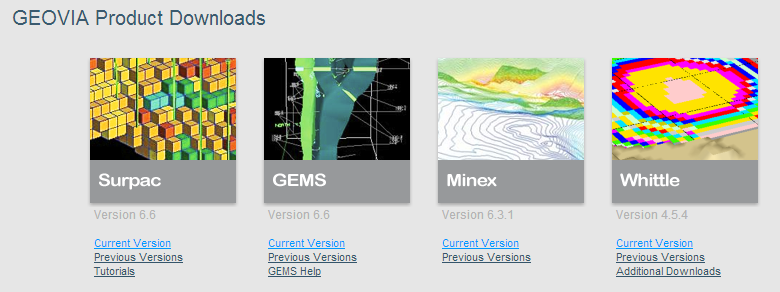
- If you are downloading Licence Manager for the most recent release of a program, under the program heading, click Current Version.
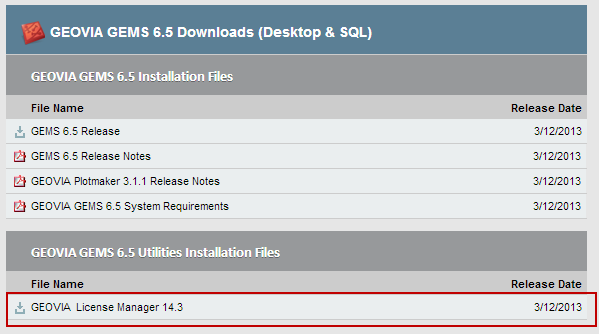
If you are downloading Licence Manager for a previous release of a program, under the program heading, click Previous Versions, and then click the version you need. - In the list of files that appear, find a link named GEOVIA Licence Manager <version number>. Click the link, which prompts you to save the installation file to your computer.
This file appears below a section name Utilities Installation Files (as in the following image) or Required Installations.
- Using Windows Explorer, go to the folder where the Licence Manager Installer is saved.
- To run the installer, double-click the file, and follow the prompts.
If the file that you saved is a .zip file, extract the .msi file before running the installer.
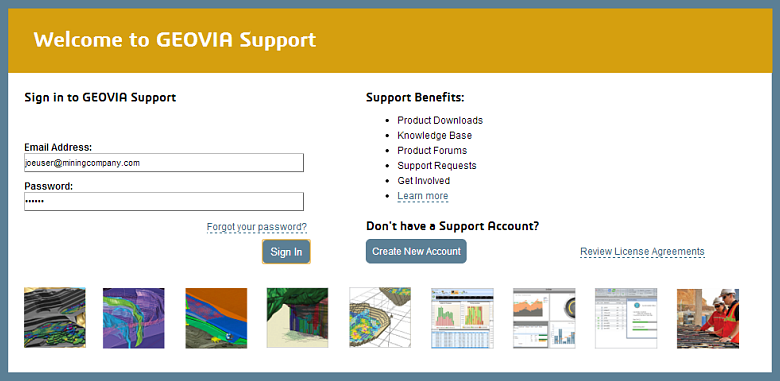
Note: If you do not have any logon credentials, click Create New Account and follow the prompts.
Note: The file that you save to your computer can be a .zip file or a .msi file.