


Installing Licence Manager
For the installation prerequisites, see the Requirements section .
The User Defaults folder contains user settings and customized files. When you install Licence Manager, you can change the default location of the User Defaults folder. The default location is C:\Users\Public\GEOVIA\LicenceManager\share\etc for the following operating systems: Windows 7, Windows Server 2008, and Window Server 2012.
Install Licence Manager
- Stop the Licence Manager service.
- If the dongle (or sentinel) is plugged into the computer, unplug it.
 Caution: When you install the dongle driver, ensure that you remove the dongle from the computer. If the dongle is plugged into the computer, the data saved on the dongle could be erased.
 - Insert the installation disc for the GEOVIA program into the disc drive on the computer.
- Run the Licence Manager installation file.
- Surpac - Click Install, click Utilities, and then click Licence Manager
- Continue clicking Next in the wizard, making the following changes:
- accept the terms of the licence agreement
- if you are prompted for a seat number, enter the seat number that GEOVIA provided
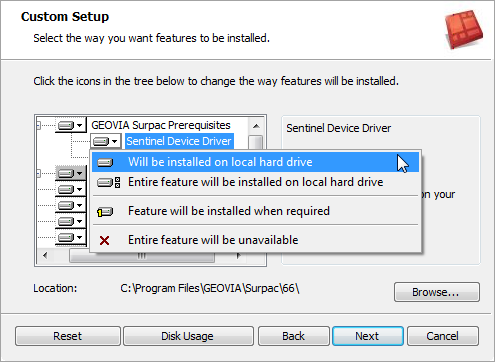
- on the Custom Setup page, select the setting for the Sentinel Device Driver to be installed on the local hard drive
- Click Install.
- When the installation finishes, click Finish.
To start Licence Manager, use the desktop icon that is automatically created, or go to Start > All Programs > GEOVIA > GEOVIA Licence Manager.