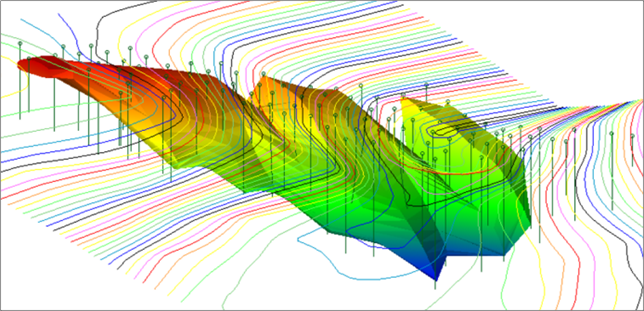
Three dimensional plotting
Task: Create a three dimensional plot
- Click Reset graphics
 .
. - Open three_dimensional_view.swa in Graphics.
- Click Autoplot
 .
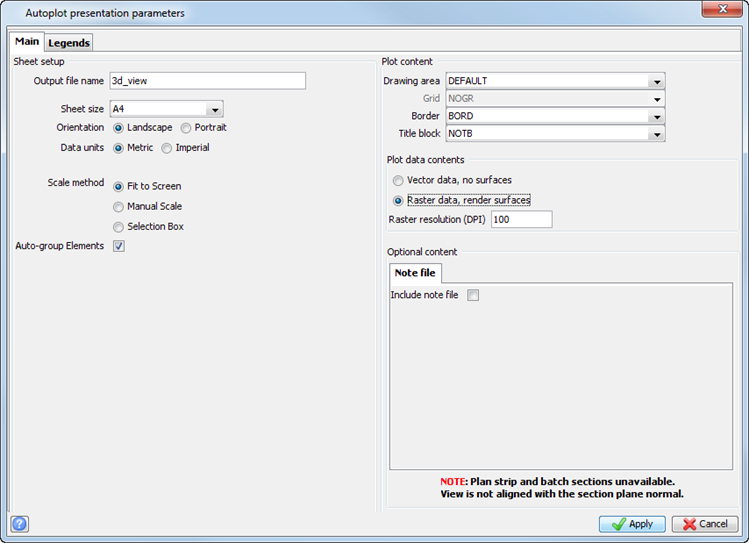
. - Enter the information as shown, and click Apply.
- Choose File > Close to exit the Plot Preview window.
The plot is displayed.
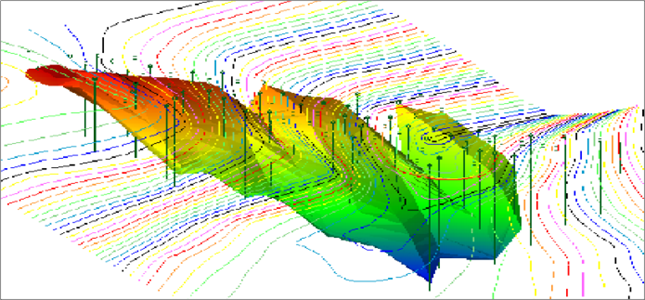
 Note: The image is of poor quality. This will be corrected in the next task.
Note: To see all of the steps performed in this section, run
_01a_autoplot_3d.tcl. You need to click Apply on any forms presented.
Task: Fix the quality of images in the Plot Preview window
- Click Reset Graphics.
- Choose Customise > Default Preferences.
- Click the Plotting folder.
- Click the Plot preview image quality field.
- Select High, and click Apply.
- Open three_dimensional_view.swa in Graphics.
- Click Autoplot.
- Enter the information as shown, and click Apply.
- Choose File > Close.
The Settings form is displayed.
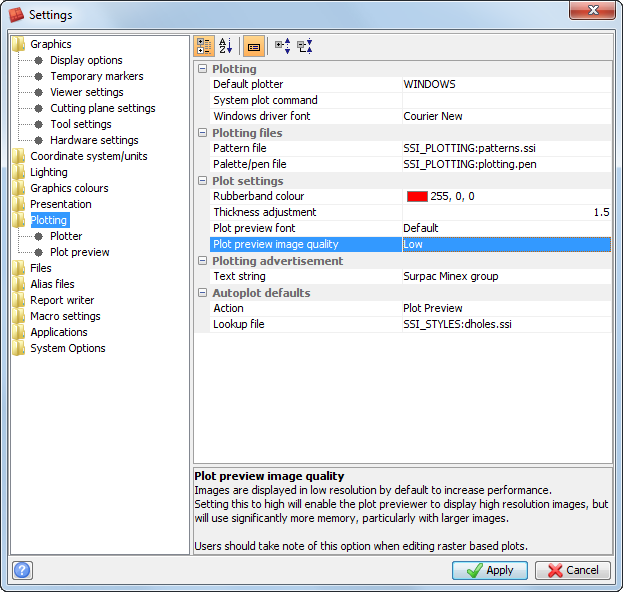
The plot is displayed in the Plot Preview window. The image quality is improved because you set the quality to high.