Importing and exporting maps and entities
Task: Import map and entity definitions
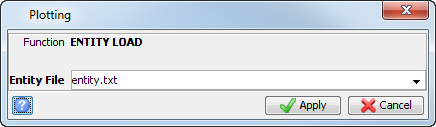
- Choose Plotting > Entity > Import.
- Enter the information as shown, and click Apply.
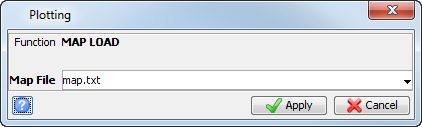
- Choose Plotting > Map > Import.
- Enter the information as shown, and click Apply.
Most of the entities you need are already loaded.
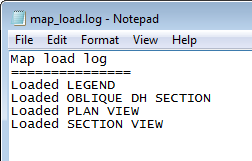
If you try to add an entity that already exists in the library, Surpac beeps. A log file is generated to list the entities loaded.
Task: Export map and entity definitions
- Choose Plotting > Entity > Export.
- Enter the information as shown, and click Apply.
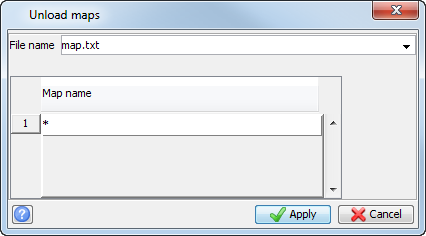
- Choose Plotting > Map > Export.
- Enter the information as shown, and click Apply.
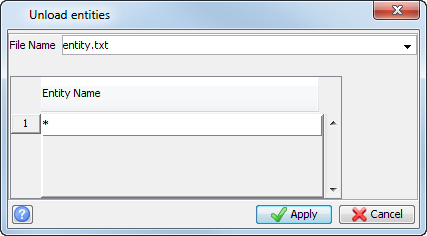
 Note: You can either choose which entities to unload by filling in the list, or unload all entities by using an asterisk (*).
The entities are downloaded to a file which you can load onto another computer.
Task: Create a list of map and entity definitions
- Choose Plotting > Entity > Report.
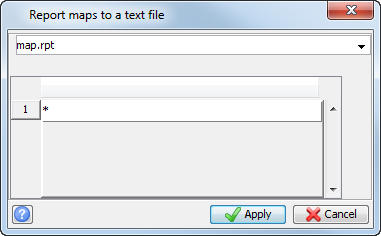
- Enter the information as shown, and click Apply.
- Choose Plotting > Map > Report.
- Enter the information as shown, and click Apply.
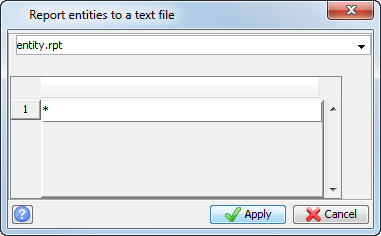
Note: You can either choose which entities to report by filling in the list, or report all entities using an asterisk (*).