


Thicknesses
Task: Calculate column thickness
- Open blockmodel.mdl.
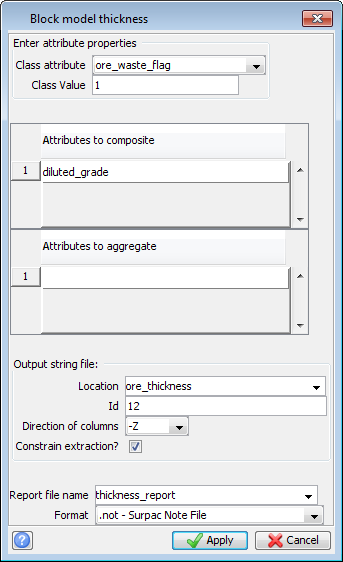
- Choose Column processing > Thickness.
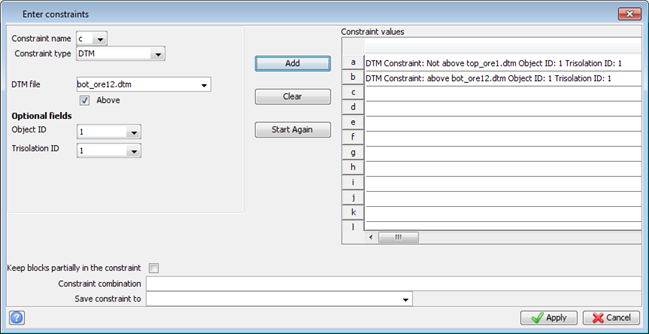
- Enter the information as shown, and click Apply.
- Enter the information as shown, and click Apply.
- Open ore_thickness12.strin Graphics.
- Choose Edit > String > Delete range, and delete string 2 from ore_thickness12.str.
- Save ore_thickness12.str.
- Choose Surfaces > DTM file functions > Create DTM from string file.
- Enter the information as shown, and click Apply.
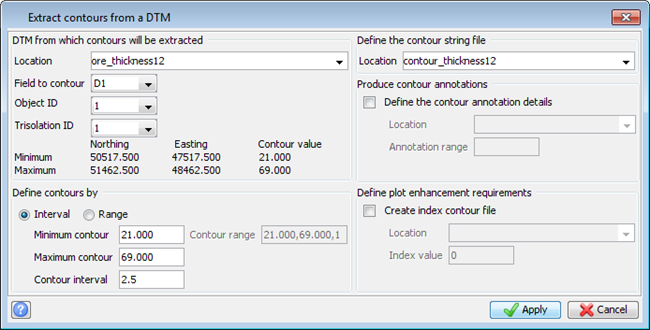
- Choose Surfaces > Contouring > Contour DTM file.
- Enter the information as shown, and click Apply.
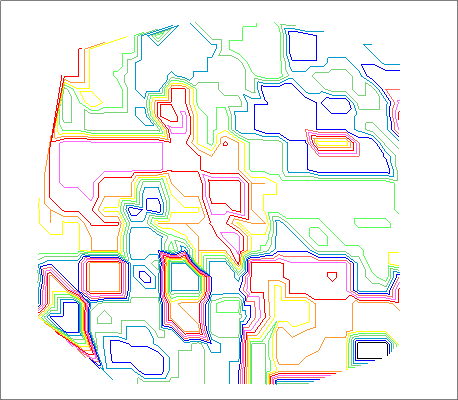
- Open contour_thickness12.str in Graphics.
A report is generated.
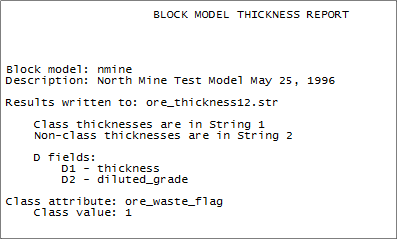
 Note: In the resultant string file, String 1 contains the ore thickness and average diluted grade in the first and second description fields. There is also a string 2 in this file which contains the thickness of all other material (in this case, this represents interburden thickness), and the average diluted_grade. String 2 must be deleted from this file before you can create a DTM of ore thicknesses and grades, or the values from strings 1 and 2 will be averaged when creating the DTM, which will give you a meaningless result.
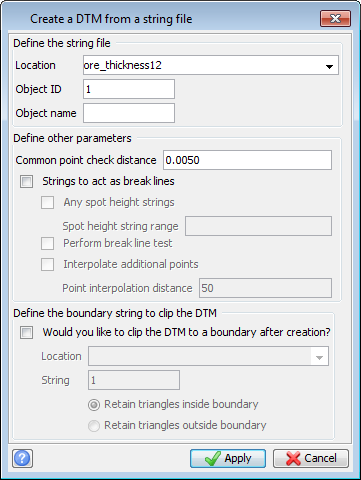
You can now extract contours of the ore thickness.
The contours are displayed.
Note: To see all of the steps performed in this task, run _14_thicknesses.tcl. You need to click Apply on any forms presented.