GuidoSlider
Overview
A GuidoSlider is an advanced widget that can be used to select a numeric value from within a given range. The user graphically selects the required value by sliding a knob over the bounded numeric range. A slider is useful for representing items such as percentages and scales to the user. The GuidoSlider will understand most of the switches that can be used for a GuidoField and has a number of special purpose switches described below.
Synopsis
GuidoSlider Name Body
Description
The GuidoSlider command when processed will define a rectangular pane on the form which can be orientated either vertically or horizontally. Within this pane is a graphic representation of a sliding knob similar to controls that can be found on stereo equipment. The control may also have graduation/tick marks and labels as defined by the various switches that can be applied to it.
Arguments
Name Name is a unique identifier that you assign and is used to differentiate this object from other Guido objects in the form definition. The name you assign will become the name of a variable in the Tcl interpreter that will contain the value as entered into the field on the form.
Body The body of the field may contain a number of switches to modify the default behaviour of the field. The body begins with an opening curly brace and ends with a closing curly brace. If there is no required body the curly braces {} are required as a place holder for this argument.
Switches Most switches that can be used on a GuidoField may be applied to the GuidoSlider. See the reference for GuidoField for further information.
| -orientation Horizontal|Vertical | The -orientation switch is used to determine the direction
of the slider which may horizontal (the default) or vertical.
-orientation Vertical |
| -paint_labels true|false | The -paint_labels switch determines whether numeric
labels appear on the slider to signify the range of values that can be
selected. By default labels are not drawn.
-paint_labels true |
| -paint_ticks true|false | The -paint_ticks switch determines whether tick marks
appear on the slider to signify the graduations as the slider is moved
forwards/backwards. The tick marks are further broken down into major
ticks and minor ticks and by using the -major_ticks and -minor_ticks
switches you can further refine the way the tick marks are drawn. By default
tick marks are not drawn.
-paint_ticks true |
| -major_ticks value | The -major_ticks switch determines the interval to
draw major tick marks on the slider. Major tick marks appear as longer
lines than minor tick marks. You must also specify -paint_ticks true
for tick marks to be drawn.
-major_ticks 25 |
| -minor_ticks value | The -minor_ticks switch determines the interval to
draw minor tick marks on the slider. Minor tick marks appear as short
lines between any major tick marks on the slider. You must also specify
-paint_ticks true for tick marks to be drawn.
-major_ticks 5 |
| -minimum value | The -minimum switch determines the start value for
the slider. It is specified in tenths of a unit, that is the value 1 equates
to 0.1, the value 10 equates to 1, the value 100 equates to 10, etc. The
default value of 0 is used if no minimum is specified.
-minimum 500 |
| -maximum value | The -maximum switch determines the end value for the
slider. It is specified in tenths of a unit, that is the value 1 equates
to 0.1, the value 10 equates to 1, the value 100 equates to 10, etc. The
default value of 1000 (equates to 100) is used if no maximum is specified.
-paint_ticks true for tick marks to be drawn.
-maximum 5000 |
| -maximum_width value | The -maximum_width switch determines the maximum size
that the slider component can grow to if the user resizes the form. By
default a slider will expand to occupy all available space. The maximum
width is specified in the same units and the standard -width switch.
-paint_ticks true for tick marks to be drawn.
-maximum_width 20 |
Common Guido switches reference
Examples
Example 1
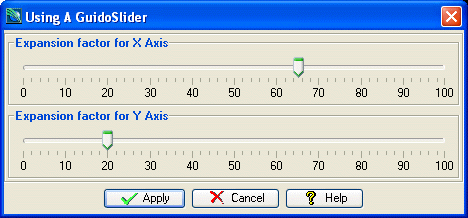
The example form below demonstrates using GuidoSliders to get some expansion factors. Note the use of the -default switch to set the initial value on each of the sliders. Also a -width 40 has been specified to make the slider a little larger than its prefered default size.
# GuidoSlider Example 1
# define the form
set formDef {
  GuidoForm form {
    -label "Using A GuidoSlider"
    -default_buttons
    -layout BoxLayout Y_AXIS
    GuidoPanel xPanel {
      -label "Expansion factor for X Axis"
      -border etched true
      -layout BoxLayout X_AXIS
      GuidoSlider xExpansion {
        -paint_labels true
        -paint_ticks true
        -major_ticks 10
        -minor_ticks 2
        -minimum 0
        -maximum 10
        -width 40
        -default 0
      }
    }
    GuidoPanel yPanel {
      -label "Expansion factor for Y Axis"
      -border etched true
      -layout BoxLayout X_AXIS
      GuidoSlider yExpansion {
        -paint_labels true
        -paint_ticks true
        -major_ticks 10
        -minor_ticks 2
        -minimum 0
        -maximum 10
        -width 40
        -default 20
      }
    }
  }
}
# Create and run the form
SclCreateGuidoForm formHandle $formDef {}
$formHandle SclRun {}
puts "Expand the X axis by $xExpansion percent"
puts "Expand the Y axis by $yExpansion percent"
|