GuidoLabel
Overview
A GuidoLabel is a display only widget and is used to insert informational text onto forms and not to input a value from the macro user. It is very flexible in that some text, an icon image, or both may be placed in the label. Text in your label can also be specified using standard Html keywords to produce formatted text on the form
Synopsis
GuidoLabel Name Body
Description
The GuidoLabel command when processed will define a piece of text and/or an icon image on the form.
Arguments
Name Name is a unique identifier that you assign and is used to differentiate this object from other Guido objects in the form definition.
Body The body of the label may contain a number of switches to modify the default behaviour of the label.
Switches Any of the common Guido switches can be used with a label but usually only the -label and/or -icon switches are used. See the examples below for further information. Common Guido switches reference
Examples
Example 1
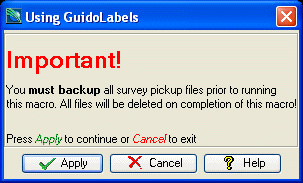
The example form below demonstrates using GuidoLabels that include Html tags to alter the standard appearance of text. Using Html tags allows you to select fonts, colours, bolding, etc. Note that you must begin the label with the tag <html> to indicate that it is a Html label.
# GuidoLabel Example 1
# define the form
set formDef {
  GuidoForm form {
    -label "Using GuidoLabels"
    -default_buttons
    -layout BoxLayout Y_AXIS
    GuidoLabel label1 {
      -label "<html><h1><font color=red>Important!</font></h1></html>"
    }
    GuidoLabel label2 {
      -label "<html>You <b>must backup</b> all survey pickup files prior to running</html>"
    }
    GuidoLabel label3 {
      -label "<html> this macro. All files will be deleted on completion of this macro!</html>"
    }
    GuidoLabel label4 {
      -height 1
    }
    GuidoLabel label5 {
      -label "<html>Press <i><font color=green>Apply</font></i> to continue or <i><font color=red>Cancel</font></i> to exit</html>"
    }
  }
}
# Create and run the form
SclCreateGuidoForm formHandle $formDef {}
$formHandle SclRun {}
|
Example 2
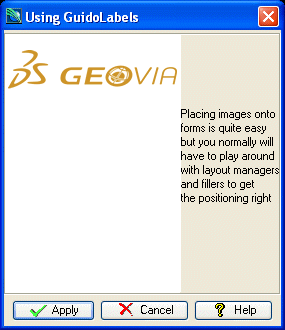
The example form below demonstrates using a GuidoLabel to place an image onto a form. Note that only gif, jpg, and png image files are supported. In order for the image to be read it must be placed under the SSI_RESOURCE: directory and is referenced relative to this path. You may also want to see the reference section on GuidoPanels and layout managers.
# GuidoLabel Example 2
# define the form
set formDef {
  GuidoForm form {
    -label "Using GuidoLabels"
    -default_buttons
    -layout BoxLayout X_AXIS
    GuidoLabel logo {
      -icon "images/logo.gif"
    }

    GuidoPanel textPanel {
      -layout BoxLayout Y_AXIS
      GuidoFiller spacer {
        -height 4
      }
      GuidoLabel lab1 {
        -label "Placing images onto"
      }
      GuidoLabel lab2 {
        -label "forms is quite easy"
      }
      GuidoLabel lab3 {
        -label "but you normally will"
      }
      GuidoLabel lab4 {
        -label "have to play around"
      }
      GuidoLabel lab5 {
        -label "with layout managers"
      }
      GuidoLabel lab6 {
        -label "and fillers to get "
      }
      GuidoLabel lab7 {
        -label "the positioning right"
      }
    }
  }
}
# Create and run the form
SclCreateGuidoForm formHandle $formDef {}
$formHandle SclRun {}
|