


Adding or Updating Tokens Using a .udt File
When you add or update tokens, you use a .udt file that you receive from GEOVIA to load the licences into Licence Manager and make them available to all client computers. Updating tokens does not affect or change any previously defined classes. Also, using a .udt file minimizes the chances of typographical errors.
 Tip: Before you add or update the tokens, create a backup copy of the previous version of the .udt file (if you have one).
Add or Update Tokens Using a .udt File
- Save the new .udt file to a location on the Licence Manager server computer.
- Insert the dongle into a port on the computer.
 Caution: If you have a parallel dongle, and a printer is connected to the parallel port, turn on the printer. Do not connect backup tape units or other similar devices to a parallel dongle. If you must use such a device, first remove the parallel dongle. Devices such as these can damage the dongle. Any dongle damaged by such actions incurs a replacement cost.
 - Start Licence Manager.
The Licence Manager window opens.
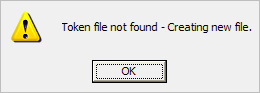
If you are starting Licence Manager for the first time, the following information message appears.
- Choose Service > Stop.
- Choose Service > Uninstall.
- Choose File > Open.
- In the File name box, select SSILM Update Files (*.udt), find and select the .udt file.
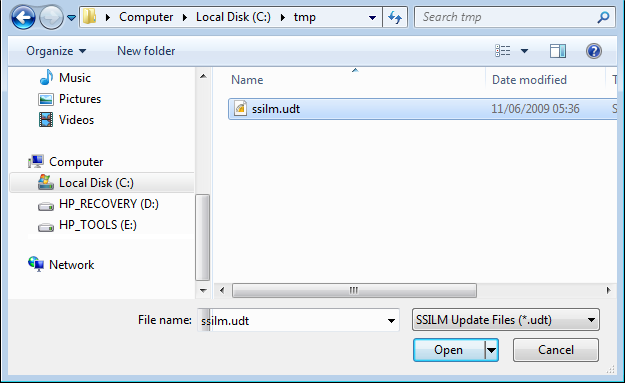
- Click Open.
The Update Tokens form appears.
The form displays a list of tokens, products, and versions contained in the update file. You select the versions you want to add or update.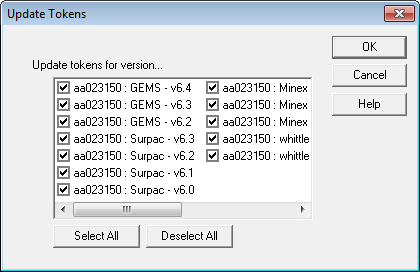
- Select the boxes for the tokens you want to update.
If the tokens in a particular program version are already defined in Licence Manager, Licence Manager automatically updates the existing tokens to the new tokens.
If the tokens in a particular program version do not exist, Licence Manager adds the tokens to the "default" class. - Click OK.
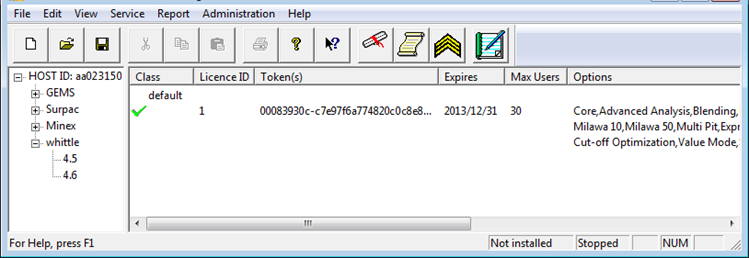
The right pane of the Licence Manager window is updated to show the new token information.
- Save the changes to the tokens file.
- To reinstall the Licence Manager service, choose Service > Install.
- To restart the service so that all licenses are distributed on the network, choose Service > Start.