


Adding or Updating Licences Using Self-Service Licensing
GEOVIA introduced the self-service licensing feature in Licence Manager 14.0. All versions of Licence Manager after Licence Manager 14.0 have this feature.
Self-service licensing permits you to download all the network licences your company has purchased as a single .udt file, from the GEOVIA support website.
To use self-service licensing, you need a GEOVIA dongle and a GEOVIA support account. If you do not have a GEOVIA support account, you can create one (see Create a Support Login).
- Insert the GEOVIA dongle into a port on the computer.
 Caution: If you have a parallel dongle, and a printer is connected to the parallel port, turn on the printer. Do not connect backup tape units or other similar devices to a parallel dongle. If you must use such a device, first remove the parallel dongle. Devices such as these can damage the dongle. Any dongle damaged by such actions incurs a replacement cost.
 - Start GEOVIA Licence Manager by double-clicking the desktop icon or choosing Start > All Programs > GEOVIA > GEOVIA Licence Manager <version>.
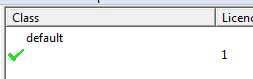
If Licence Manager has no tokens, the Request Licence form appears. If Licence Manager has at least one token already, the right pane of the Licence Manager window shows the token with a green check mark beside it.
- In Licence Manager, choose Service > Stop to stop the Licence Manager service.
Licence Manager stops distributing licences, and anyone who has a network licence loses it within a few moments. - If you do not have an updated tokens file (.udt file) saved to the computer, request one and download it to the computer:
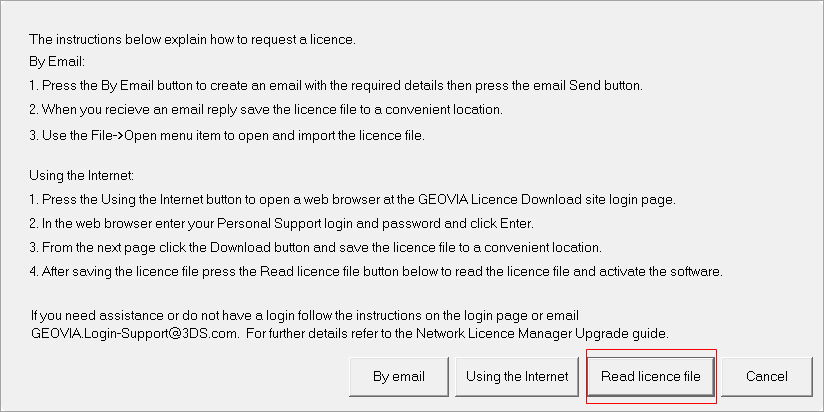
- If the Request Licence form is not visible, choose Administration > Request licence.
- Click Using the Internet.
- In the webpage, enter your GEOVIA support user name and password, and click Sign In.
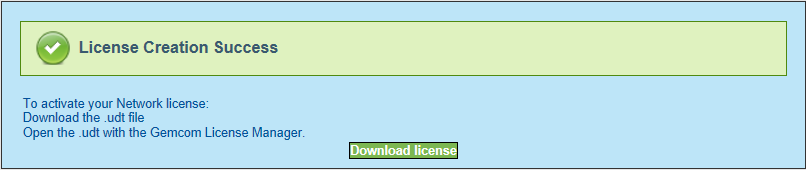
- Click Download license.
- Click Save, and save the .udt file to a local folder.
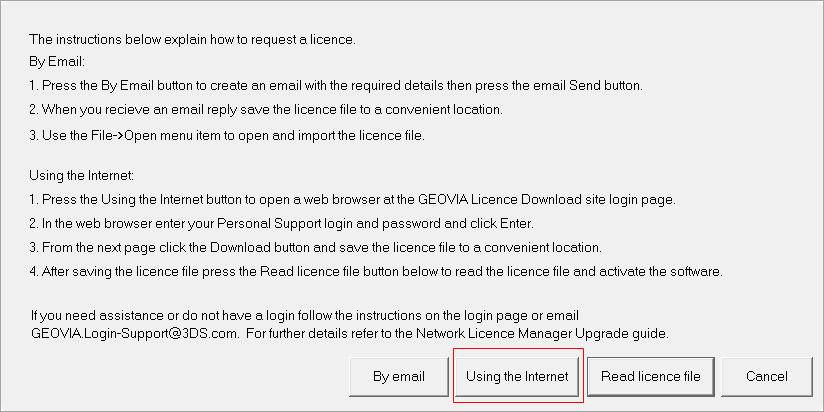
 Tip: Alternatively, to use email to request a licence instead of the GEOVIA support website, click By email.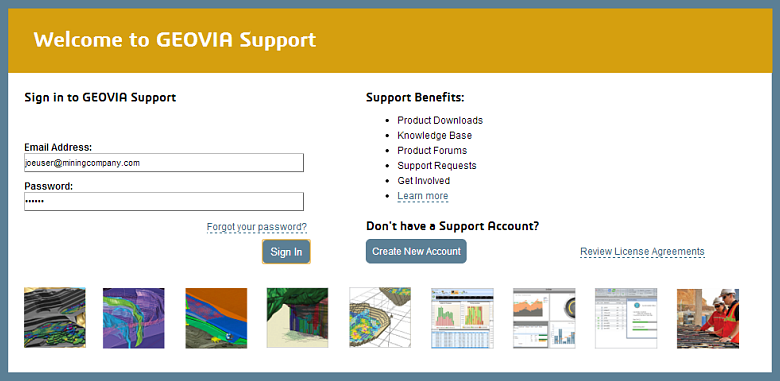
If your company has at least one network licence, you are prompted to download a .udt file.

- After you have downloaded the .udt file, or if you had already saved it to the computer, return to Licence Manager.
- In the Request Licence form, click Read licence file.
- Browse to the .udt file, and click Open.
- The left pane shows a list of the GEOVIA programs and versions for which there are licences.
- The right pane shows a green check mark
 next to each licence that is available for the selected program.
 -
To reinstall the Licence Manager service, choose Service > Install.
- To restart the service, choose Service > Start.
After you start the service, Licence Manager distributes licences across the network.
The details of the .udt file appear in Licence Manager.