


Creating a centreline
Task: View the data
- Open cl1.str in Graphics.
- Open floor1055.str in Graphics.
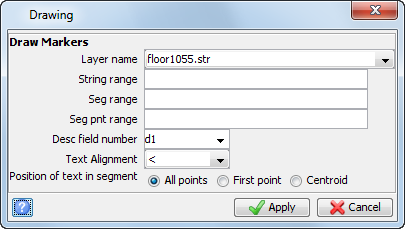
- Choose Display > Point > Markers.
- Enter the information as shown, and click Apply.
- Click Section view
 .
.
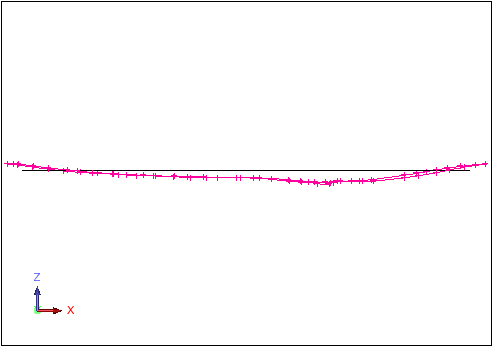
The floor and centreline strings are displayed.
Task: Create a DTM of a floor string
- Click Reset graphics
 .
. - Open floor1055.str in Graphics.
- Choose Surfaces > Create DTM from layer.
- Enter the information as shown, and click Apply.
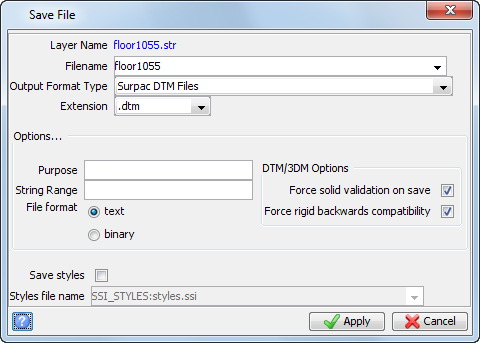
- Choose File > Save > string/DTM.
- Enter the information as shown, and click Apply.
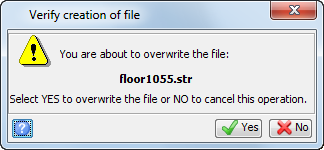
- Click Yes.

Task: Drape a centreline string over the DTM of the floor
- Click Reset graphics .
- Open floor1055.dtm in Graphics.
- Open cl1.str in Graphics.
- Click Section view .
- Choose Surfaces > Drape string over DTM.
- Follow the prompt at the bottom of the screen to click the centreline string.
- Enter the information as shown, and click Apply.
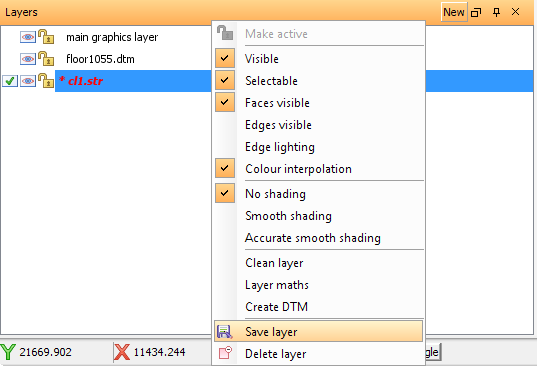
- In the Layers pane, right-click cl1.str.
- Choose Save layer.
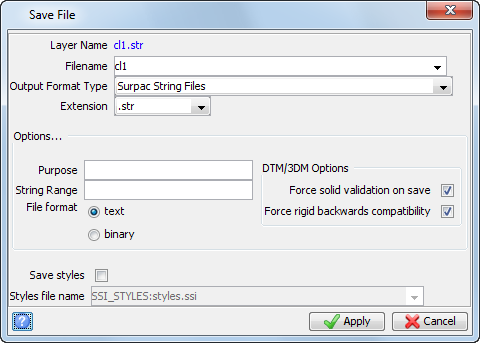
- Enter the information as shown, and click Apply.
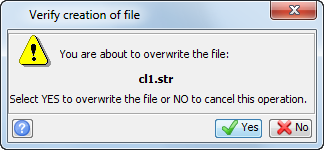
- Click Yes.
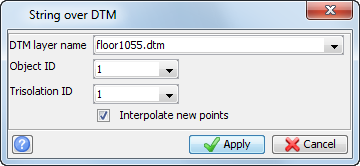
 Note: You must select Interpolate New points to create new points on the centreline wherever it crosses a triangle edge.
If you did not select Interpolate new points, you would get an output file with only the two end points.
You will see the string draped to match the contours of the DTM surface.
Task: Raise the centreline string above the floor
- Click Reset graphics .
- Open cl1.str in Graphics.
- Choose Edit > String > Maths.
- Enter the information as shown below, and click Apply.
- Click the string.
- Press ESC.
- Open floor1055.dtm in Graphics.
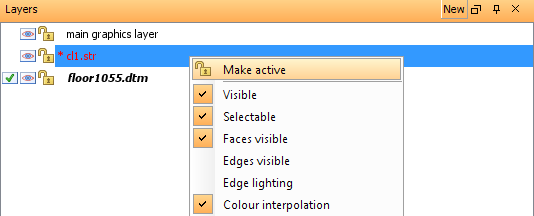
- In the Layers pane, right-click cl1.str, and choose Make active.
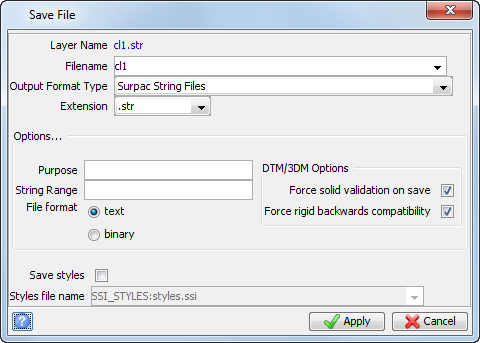
- Choose File > Save > string/DTM.
- Enter the information as shown, and click Apply.
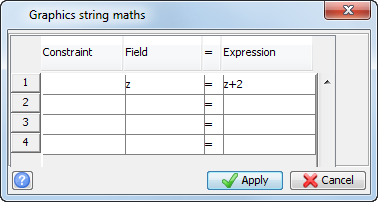
The centreline has been raised 2 metres vertically.
The centreline string is displayed 2 metres above the floor.

Note: To see all of the steps performed in this chapter, run 01_create_centreline.tcl. You need to click Apply on any forms presented.