Task: Start stope design project
You can use any of the following methods to run any of the Stope Design commands:
- click a button on the Underground Design toolbar
- type the name of the function into the function chooser
- select the command from the Design > Stope Design tools menu
Each step in this document uses one of the previous methods.
- Click
 on the Underground Design toolbar.
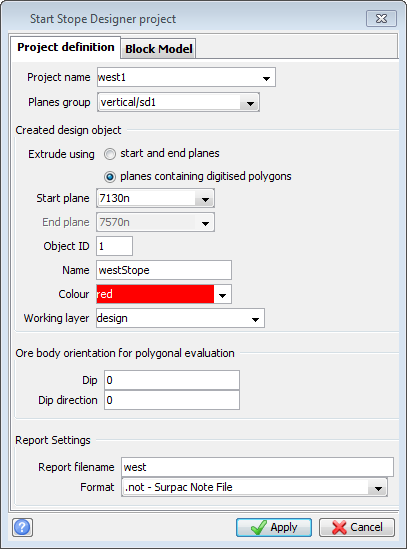
 - Fill in the following details into the Project definition tab of the Start stope design project form:
- Project name: west1
- Planes group: vertical\sd1
- End plane: 7570N
- Object ID: 1
- Name: westStope
- Report filename: west
- Select the Block Model tab.
- Fill in the Block Model tab as shown below.
- Click Apply.
- If plane 7130N is not the active plane, right-click it in the Planes panel, and choose Set active.
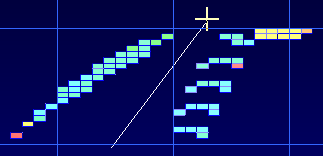
- Type CUTTING PLANE in the function chooser, and press ENTER.
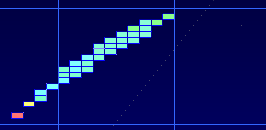
- Drag a line from the lower left to the top right to hide the eastern ore body.
- Press ESC to stop defining cutting planes.
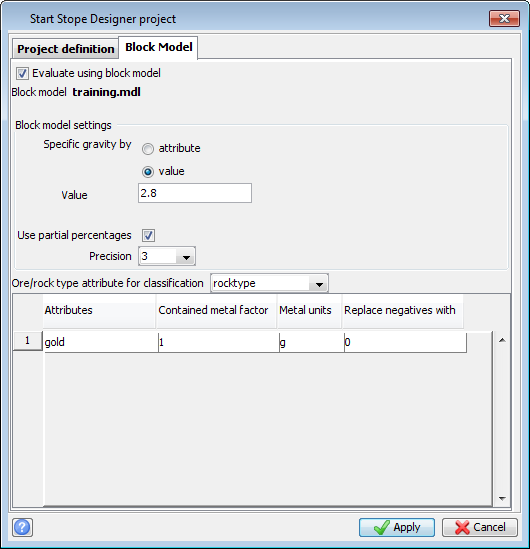
Because you have specified these block model details, the training.mdl block model will provide data like gold grade, volume, mass, and contained metal, to the stope design process. By using a Precision value of 3, any blocks that are partially inside the solid are sub-blocked into 512 blocks. Only the blocks and sub-blocks, whose centroids are within the stope you are designing, are included in volume calculations.
 Tip: In some situations you might find it useful to use a cutting plane to hide parts of the block model that are outside the area of interest.