


Task: Move points
At any time you can make adjustments to the polygons and recreate the temporary solid (and the final solid) quickly.
 Note: The Move tool works on the active plane, even if it is an oblique plane.
- Right-click in Graphics, and choose 2D planes mode.
- Hide the design_evaluation_solids layer.
- If the blocks are not displayed, choose Draw triangulations as triangles or polylines in the Planes panel.
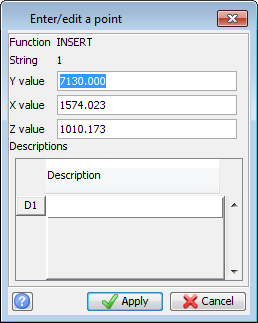
- Select Create > Points > Insert after an existing point, and click Apply in the Edit/Enter a point form.
- Create a point near the top of the polygon on the left.
- Press ESC to finish adding points.
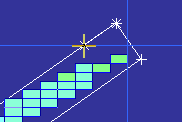
- Select Edit > Point > Move.
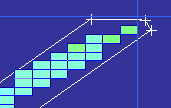
- Drag the point at the top to the right and down.
- Press ESC.
- On the Underground Design toolbar, click the Query block model
 button.
 - Click Apply.
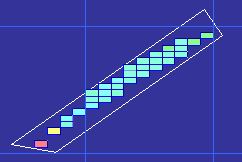
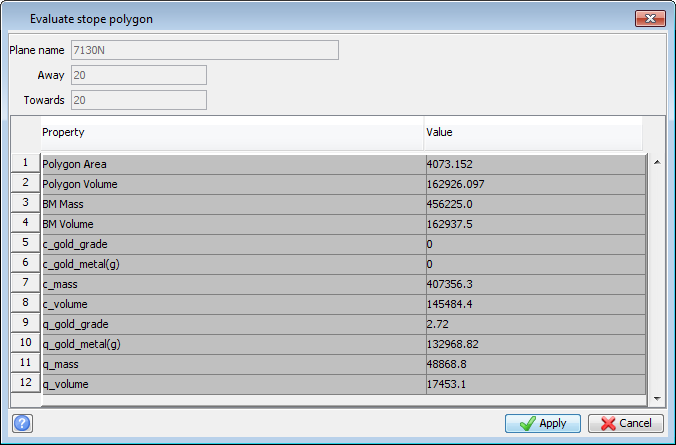
The Evaluate stope polygon form shows the same gold grade in the quartz as before but less mass and volume, in particular less mass and volume of country rock.