


Task: Create design object
After you have created polygons on each part of the stope, you can create a final solid from it to represent the stope.
- Right-click in Graphics, and select 3D planes mode.
- In the Planes panel, click Set large projections.
- Select Design > Stope Design tools > Create design object.
- Hide the design_evaluation_solids layer.
- A report is also created that shows details of the new stope.
- Select Design > Stope Design tools > Save Stope Designer project.
- Save the design layer as finalStope.
- the final solid that stope design previously created
- any new segments at each end of the solid
- Save the evaluation solids as evalSolids.
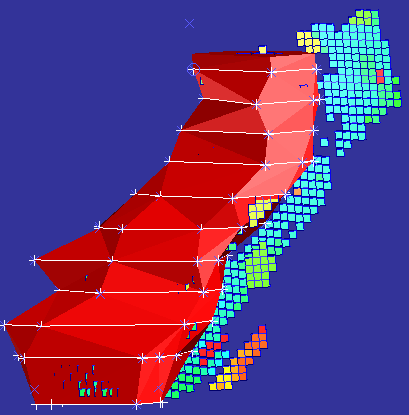
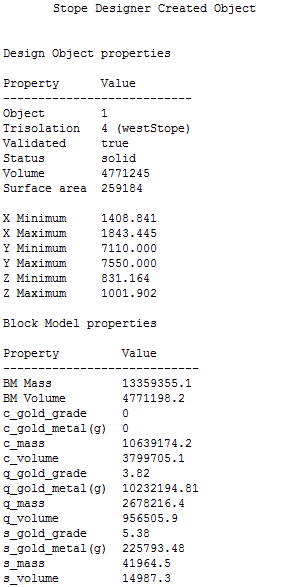
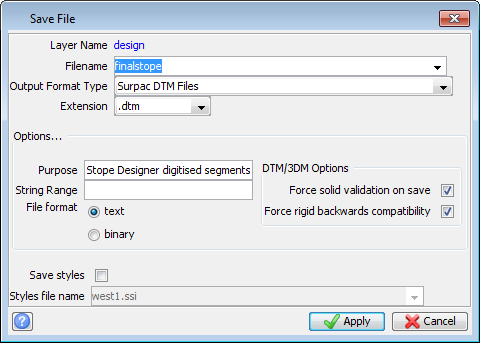
The new stope design object is saved as finalstope. In addition, the .sdproj file is saved, and also a .swa file that records the location of all data and your view of it.
 Caution: If you have already created the design object, and later want to move a point in a polygon, and then recreate the design object, you must first delete the following objects:
You cannot create the new object without deleting the end segments. If you do not delete the existing solid, stope design will merge the existing solid with the new solid, to create a new solid that is likely to be invalid.
 Tip: Use DRAW LINES to see the segments, and use SEGMENT DELETE to delete them. Use OBJECT DELETE to delete the solid.
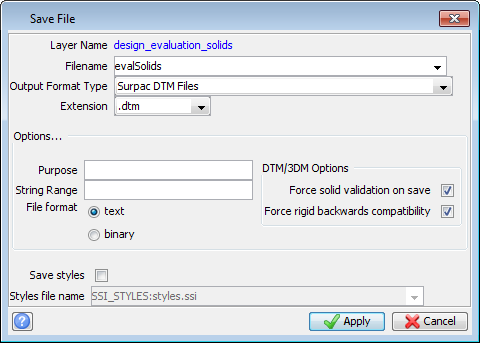
The polygons and the temporary solids are stored as evalSolids.