


Creating a solid
Task: View profiles
- Click Reset graphics
 .
. - Open drive_profile3x3.str in Graphics.
- Choose View > Zoom > Out.
- Choose Display > Strings > With colour fill.
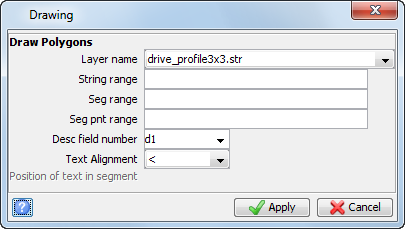
- Enter the information as shown, and click Apply.
- Choose Display > Dynamic 2D grid.
- Click Reset graphics .
- Open drive_profile4x3_5.str in Graphics.
- Choose View > Zoom > Out.
- Choose Display > Strings > With colour fill.
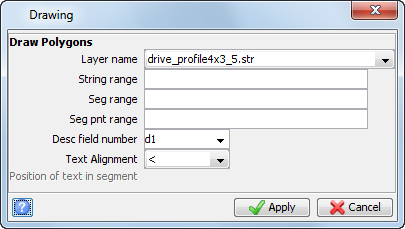
- Enter the information as shown, and click Apply.
- Choose Display > Dynamic 2D grid.
- Click Reset graphics .
- Open drive_profile3x3.str in Graphics.
- Open drive_profile3x4_5.str in Graphics.
- Choose View > Zoom > Out.
- Choose Display > Dynamic 2D grid.
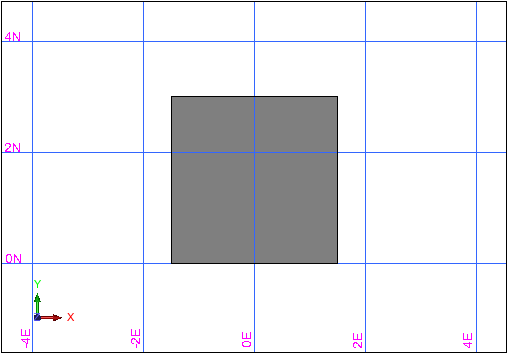
The profile is displayed.
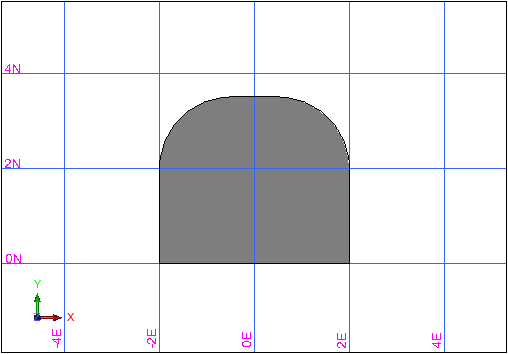
The profile is displayed.
Both profiles are displayed.
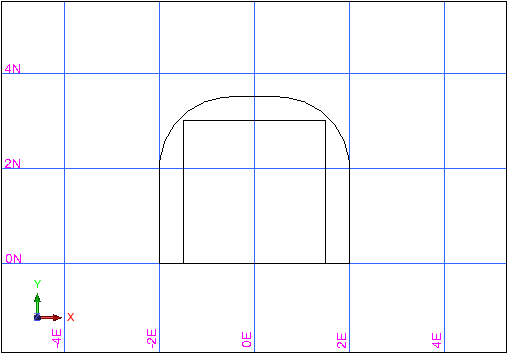
 Note: Both of the profiles are centered at point 0,0 on the floor of the profile.
Note: To see all of the steps performed in this task, run _05a_display_profiles.tcl . You need to click Apply on any forms presented.
Task: Create a solid using triangulate centreline and profile
- Click Reset graphics .
- Open ugdes1.str in Graphics.
- Choose Design > Underground tools > Triangulate using centre line & profile.
- Enter the information as shown, and click Apply.
- Click string 10.
- Press ESC.
- Choose Design > Underground tools > Triangulate using centre line & profile.
- Enter the information as shown, and click Apply.
- Click each of the individual segments of string 11.
- Press ESC.
- Choose Solids > Validation > Validate object/trisolation.
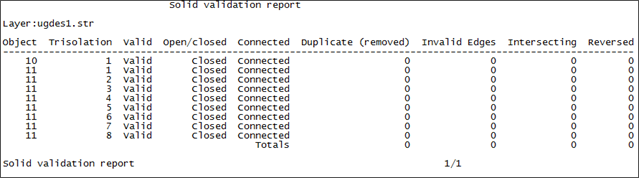
- In the Navigator, double-click valid1.not.
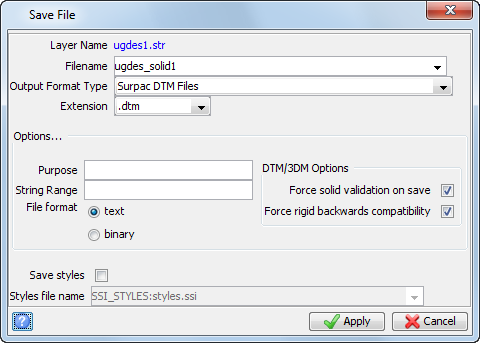
- Choose File > Save > string or DTM.
- Enter the information as shown, and click Apply.
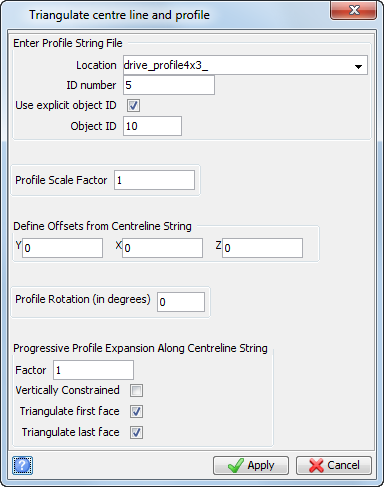
This profile is applied to string 10 only, that is, the centreline string.
The centreline solid is displayed.
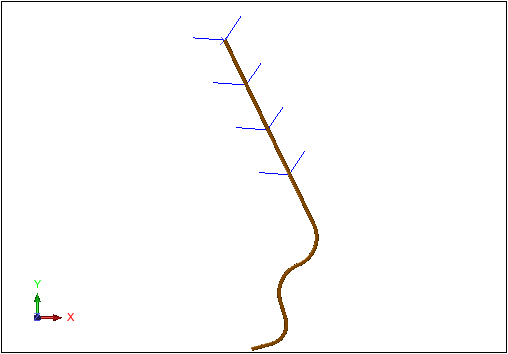
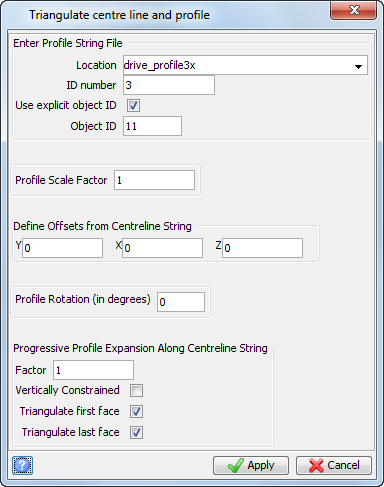
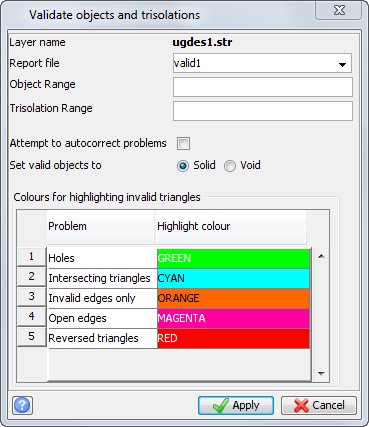
The report is opened in your default text editor.
Note: To see all of the steps performed in this task, run _05b_triangulate_centreline.tcl. You need to click Apply on any forms presented.
Task: Calculate volume of underground design
- Choose Solids > Solids tools > Report volume of solids.
- Enter the information as shown, and click Apply.
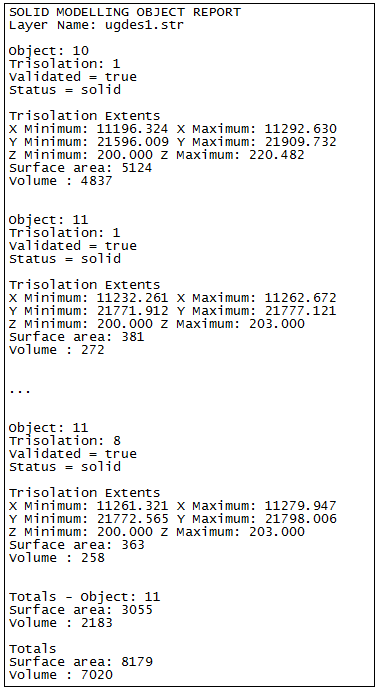
- In the Navigator, double-click ugdes_drive_volume1.not.
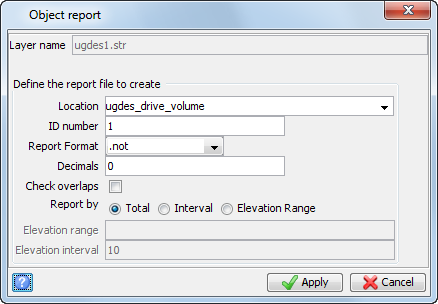
The report is opened in your default text editor.
Note: To see all of the steps performed in this task, run _05c_drive_volume.tcl. You need to click Apply on any forms presented.