


Creating road outlines
Task: Create a road outline of fixed width
- Click Reset graphics
 .
. - Open ugdes2.str in Graphics.
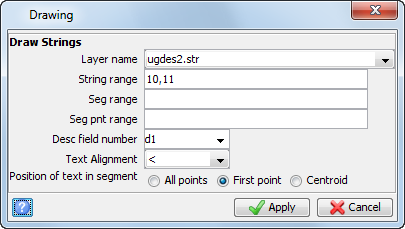
- Choose Display > Strings > With string numbers.
- Enter the information as shown, and click Apply.
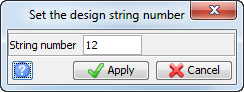
- Click the Design string number button
 displayed on the Status bar.
 - Enter the information as shown, and click Apply.
- Choose Design > Underground tools > Room & pillar from centrelines.
- Enter the information as shown, and click Apply.
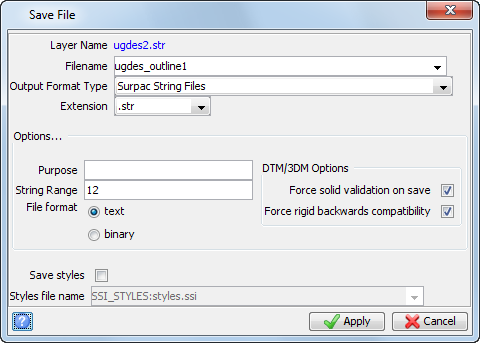
- Choose File > Save > string/DTM.
- Enter the information as shown, and click Apply.
- Click Reset graphics .
- Open ugdes_outline1.str in Graphics.
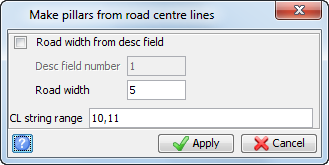
 Note: This sets the width of the road to be fixed at 5m for both strings 10 and 11.
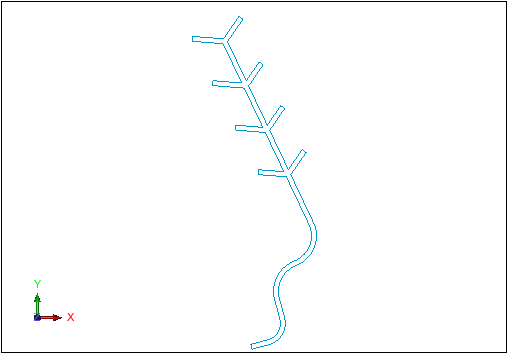
The road outline is displayed.
Note: To see
all of the steps performed in this section, run _04a_create_road_outline.tcl.
You need to click Apply on any forms presented.
Task: Create a road outline of variable width
- Click Reset graphics .
- Open ugdes2.str in Graphics.
- Choose Display > Strings > With string numbers.
- Enter the information as shown, and click Apply.
- Click the Design string number button displayed on the Status bar.
- Enter the information as shown, and click Apply.
- Choose File tools > String maths.
- Enter the information as shown, and click Apply.
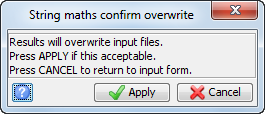
- Click Apply to overwrite the file.
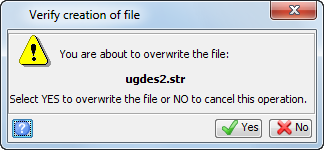
- Click Yes.
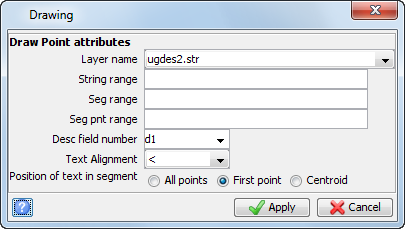
- Choose Display > Points > Attributes.
- Enter the information as shown, and click Apply.
- Choose Design > Underground tools > Room & pillar from centrelines.
- Enter the information as shown, and click Apply.
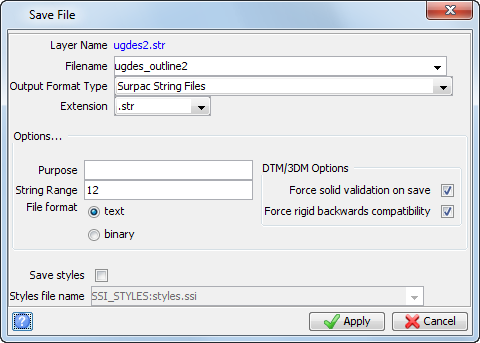
- Choose File > Save > string/DTM.
- Enter the information as shown, and click Apply.
- Click Reset graphics .
- Open ugdes_outline2.str in Graphics.
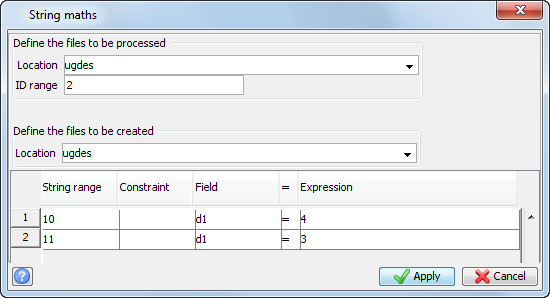
Note: This sets the width of the centreline to be 4m, and the access drives to 3m.
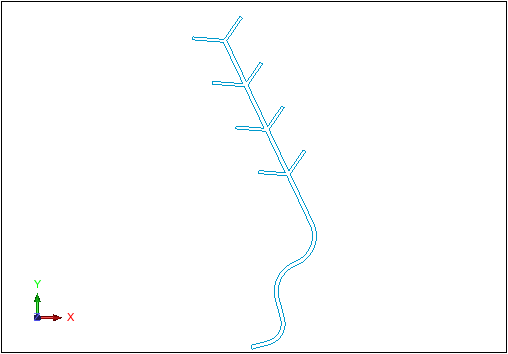
All drives are displayed.
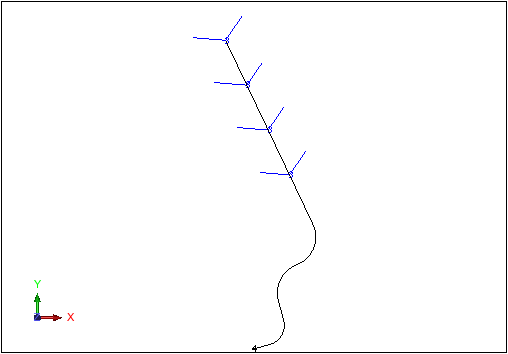
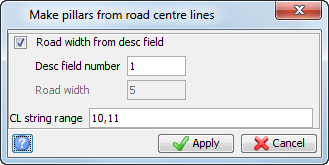
Note: This means that the d1 field is used to determine the width of the road for each string. In this case you have already set d1 to 4m for string 10, and d1 to 3m for string 11.
The road outline is displayed.
Note: To see
all of the steps performed in this section, run _04b_create_road_outline.tcl.
You need to click Apply on any forms presented.