


Viewing a streaming file in HTML
Task: View the HTML file
- In Windows Explorer, browse to the working directory, and open design.html in Internet Explorer.
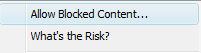
- Click on the warning bar and select Allow Blocked Content... .
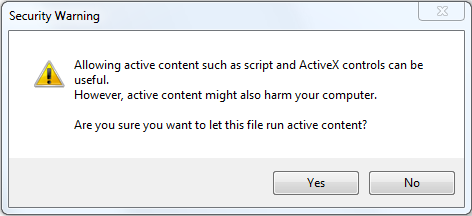
- Click Yes.
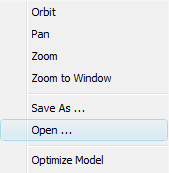
- Right-click on the control and select Open... .
- Navigate to the design.hsf file.
- Click Open.
An Internet security warning will appear on the page.
The Security Warning dialog box is displayed.
The control is displayed in the page.
 Note: If you have not previously installed the GEOVIA Software Stream Control, you will be prompted to download and install the control on your machine. After you have installed the GEOVIA Software Stream Control you will see it displayed in the page.
The streaming file is displayed.
Task: View the data
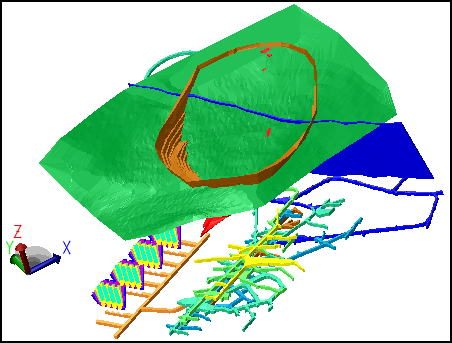
- Click and drag in the viewport to spin the data in three dimensions.
- Right-click anywhere on the image, and a shortcut menu is displayed:
- Select Zoom to Window, and then click and drag in the viewport to zoom the data.
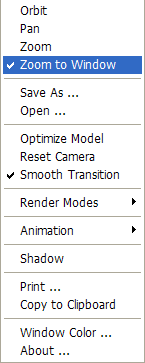
Some options, such as Shadow, are toggle functions.
The Window Color option allows you to set different background colours for the upper and lower halves of the viewport.
 Tip: To zoom out, select Reset Camera.