


Repairing a solid
When a solid is valid it does not contain geometric or topological errors. Some solids functions, such as reporting solids volumes, require the solids to be valid. If a solid is not valid, you can use the Solids Repair panel to repair the errors, and validate the solid.
Task: Repair a solid
- Click Reset graphics
 .
. - Open problem_solid_1.dtm in Graphics.
- Choose Solids > Validation > Solids repair.
- In Selections, click Move to next problem group
 to zoom into each group of problem geometry in this solid.
 - In the Selections drop-down, select All.
- Click Delete and fill
 .
. - Choose File > Save > string/DTM, and save your model as corrected_solid_1.dtm.
The Solids Repair panel is displayed in the right hand side of Graphics. The number of groups and individual errors triangles are identified in the Validation Errors table.
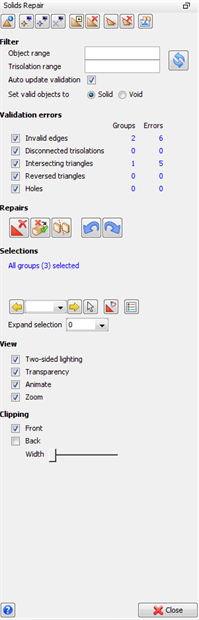
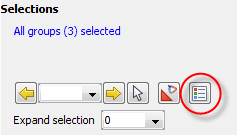
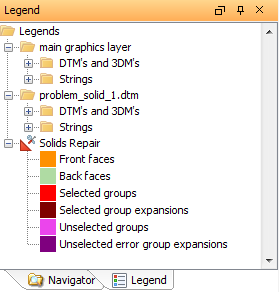
 Note: The groups of trisolation that contain validation errors are coloured for the types of problems they contain. To see a key for the which colours identify the different problem types, click the Legend button on the far right of the Selections options. The legend is displayed in the Legend pane on the left-hand side.
The problem geometry has been corrected.
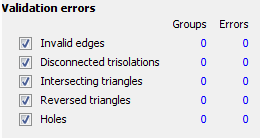
Note: The refresh icon changes to a green check mark  to show that the solid is valid.
Note:
- You can now use this solid to calculate a volume, or as a constraint in block model filling.
- To see all of the steps performed in this task, run _07b_solids_repair_simple.tcl. You need to click Apply on any forms presented.
Task: Repair a solid with complex problems
- Click Reset graphics .
- Open problem_solid_2.dtm in Graphics.
- Choose Solids > Validation > Solids repair.
- Click Delete and Fill .
- Click Split disconnected trisolations
 .
. - Click Delete and Fill .
- Click Delete invalid triangles
 .
. - Click Delete and fill .
- In Selections, click the Expand selection drop-down, and choose 1.
- Click Delete and fill .
The number of groups and errors in geometry are identified in the Validation errors table.
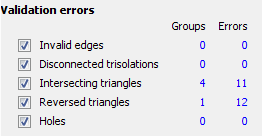
Some of the errors are corrected and the Validation errors table is updated.
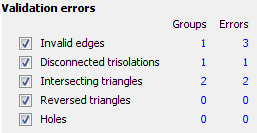
The disconnected trisolation is corrected and the Validation errors table is updated.
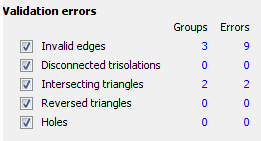
Some of the errors are corrected and the Validation errors table is updated.
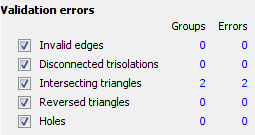
The intersecting triangles are corrected, and only holes remain.
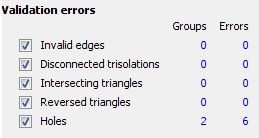
The holes are filled, but the intersecting triangles have been created again when filling the holes. This situation will continue if you keep using these functions with the current settings.
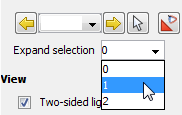
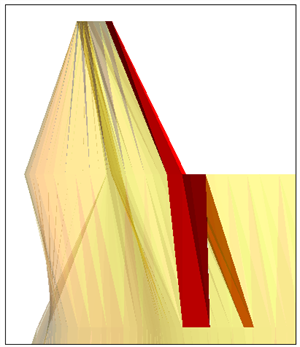
The expanded selection is displayed in Graphics.
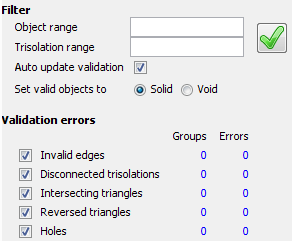
All errors are corrected and the solid is valid.
Note: To see all of the steps performed in this task, run _07c_solids_repair_multi_step.tcl. You need to click Apply on any forms presented.