


Triangulating using between segments
Task: Create a solid model
- Click Reset graphics
 .
. - Open mod1.str in Graphics.
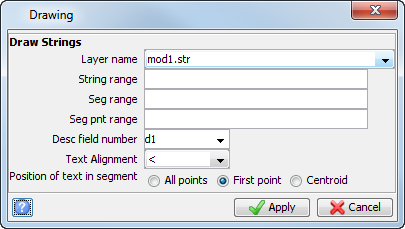
- Choose Display > Strings > With string numbers.
- Enter the information as shown, and click Apply.
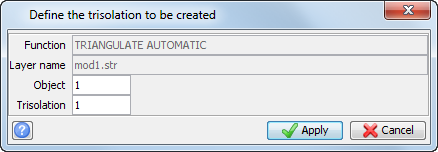
- Choose Solids > Triangulate > Between segments.
- Enter the information as shown, and click Apply.
- Click string 1.
- Click string 2.
- Press ESC.
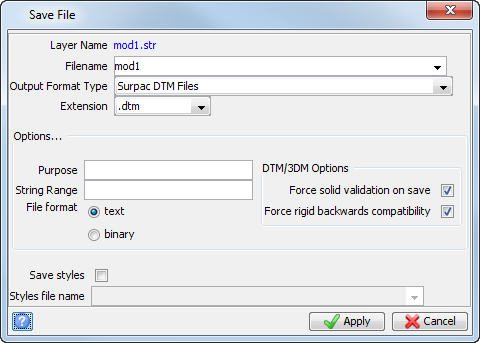
- Save mod1.dtm.
You are prompted to Select a point on the first segment to be triangulated.
You are prompted to Select a point on the next segment to be triangulated.
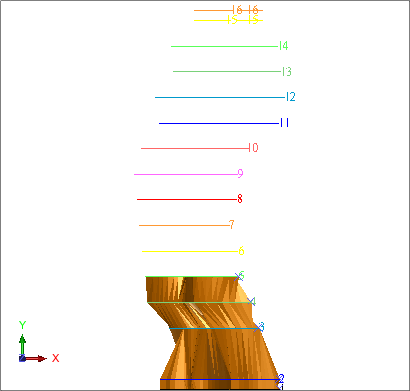
Continue using the Between segments function up to and including string 5.
The part of the solid created using triangulate between segments is displayed.
 Note: You can use the Between segments function indefinitely as long as the selected strings are still in the same active layer as the first string selected.
Note: To see all of the steps performed in this task, run
_02a_create_solid_automatic_triangulation.tcl. You need to click Apply on any forms presented.