


Triangulating Using Inside Segment and One Triangle
Task: Triangulate Inside a Segment
- Click Reset graphics
 .
. - Open mod7.dtm in Graphics.
- Choose Display > Hide surface/solid, and click Apply.
- Choose Display > Strings > With string numbers.
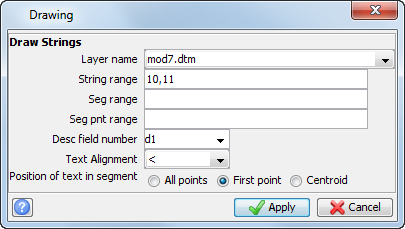
- Enter the information as shown, and click Apply.
- Choose Solids > Triangulate > Inside a segment.
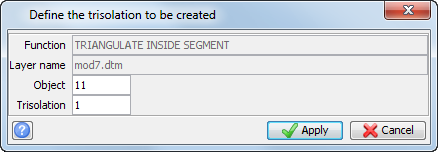
- Enter the information as shown, and click Apply.
- Click String 10, Segment 2. (for example, the segment located on the fault)
- Choose Solids > Triangulate > Inside a segment.
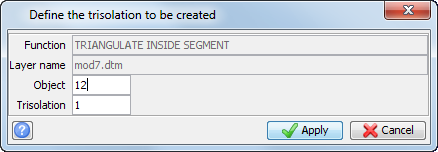
- Enter the information as shown, and click Apply.
- Click string 11, segment 2. (For example, the segment located on the fault)
- Press ESC.
- Save the result as mod7.dtm.
 Note: If you want to run manually through the material again, you need to copy
original_mod7.dtm, and save it as
mod7.dtm.
Note: If you want to run manually through the material again, you need to copy
original_mod7.dtm, and save it as
mod7.dtm.
Note: To see all of the steps performed in this task, run
_04d_triangulate_inside_segment.tcl. You need to click Apply on any forms presented.
Task: Triangulate Using the One Triangle Function
- Click Reset graphics .
- Open mod1.str in Graphics.
- Zoom in on any part of the file.
- Choose Display > Point > Markers and click Apply to display all the points in the segments.
- Choose View > Data view options > View by bearing & dip.
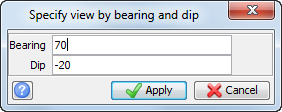
- Enter the information as shown, and click Apply.
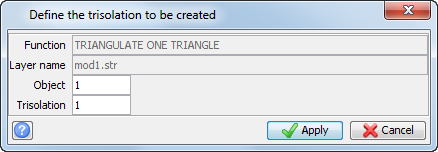
- Choose Solids > Triangulate > One Triangle.
- Enter the information as shown, and click Apply.
- As prompted, click a point on a string.
- As prompted, click a point on a following string.
- As prompted, click a point on the first string, adjacent to the first point you selected.
- Press ESC.
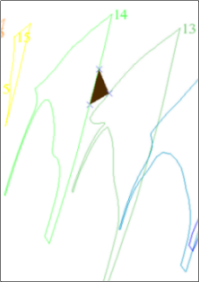
Note: A closed triangle is displayed. The software prompts you to select another point. If you select a point on the second string, a second triangle will appear. Using this process you can manually build up the triangulation.
Note: To see all of the steps performed in this task, run
_04e_triangulate_one_triangle.tcl. You need to click Apply on any forms presented.