


Triangulating Using Many Segments
Task: Create a Solid by Specifying a Range of Strings
- Click Reset graphics
 .
. - Open mod3.dtm in Graphics.
- Choose Display > Hide everything to erase all strings and objects.
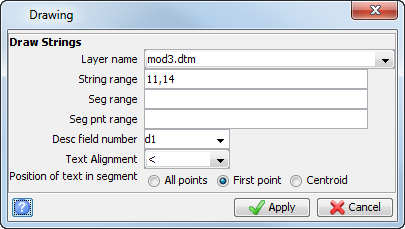
- Choose Display > Strings > With string numbers.
- Enter the information as shown, and click Apply.
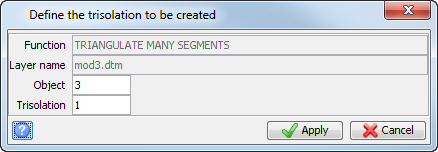
- Choose Solids > Triangulate > Many segments.
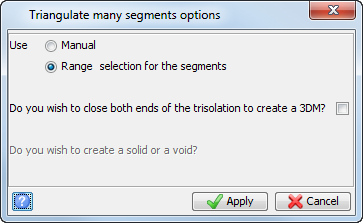
- Enter the information as shown, and click Apply.
- Enter the information as shown, and click Apply.
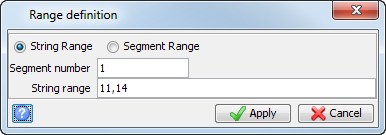
- Enter the information as shown, and click Apply.
- Save as mod3.dtm.
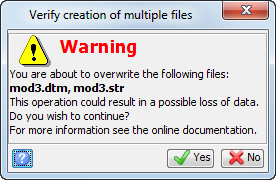
- Click Yes.
 Note: The range definition form could be applied with a blank string range to triangulate all strings in the current graphic layer.
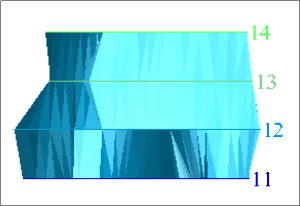
Selected segment image is displayed.
Note: If you want to run manually through the material again, you will need to copy original_mod3.dtm, and save it as mod3.dtm.
Note: To see all of the steps performed in this task, run _02c_create_solid_triangulate_many_segments.tcl. You need to click Apply on any forms presented.