


Preparing data
Task: Combine string files into one file
- Choose File tools > Combine/Split file options > Combine string files.
- Enter the information as shown, and click Apply.
- Choose File tools > Change string directions.
- Enter the information as shown, and click Apply.
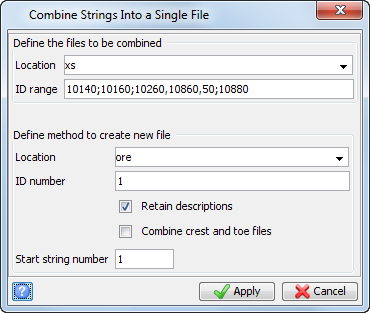
This will combine all sixteen files into one string file called ore1.str.
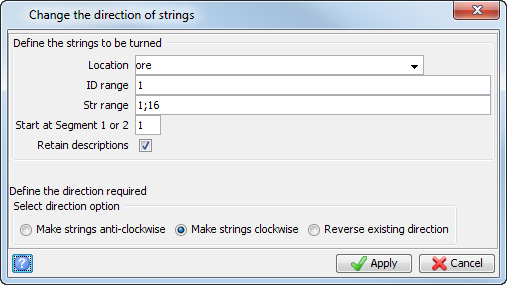
This will ensure that all digitised segments are set to clockwise. This string file is a series of sectional interpretations, representing a copper ore body.
Task: Check string file directions using string file summary
- Choose File tools > String summary.
- Enter the information as shown, and click Apply.
- Enter the information as shown, and click Apply.
- Close summary1.not.
- Click Reset graphics
 .
. - Open ore1.str in Graphics.
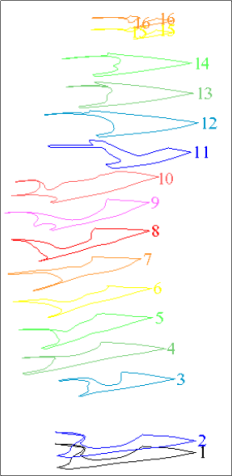
- Choose Display > Strings > With string numbers.
- Enter the information as shown, and click Apply.
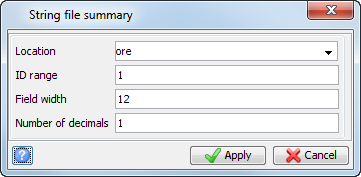
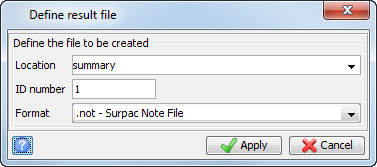
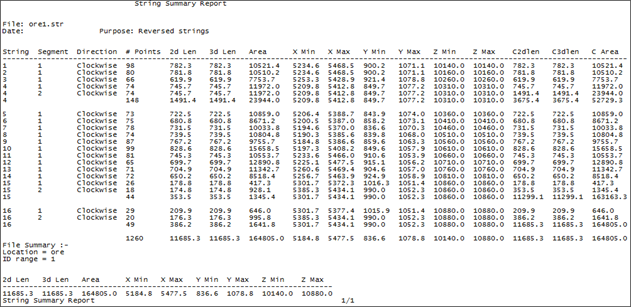
File summary1.not is displayed.
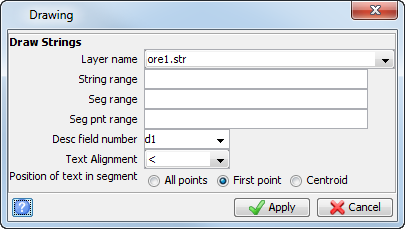
Ore 1 string is displayed.
 Note: The same results could be achieved by opening all the files into one layer and then saving the layer as
ore1.str.
Note: The same results could be achieved by opening all the files into one layer and then saving the layer as
ore1.str.
You can use this file to do a final check that all strings are closed and clockwise in direction.
Task: Transform data from section view to plan view
- Click Reset graphics .
- Choose File tools > String maths.
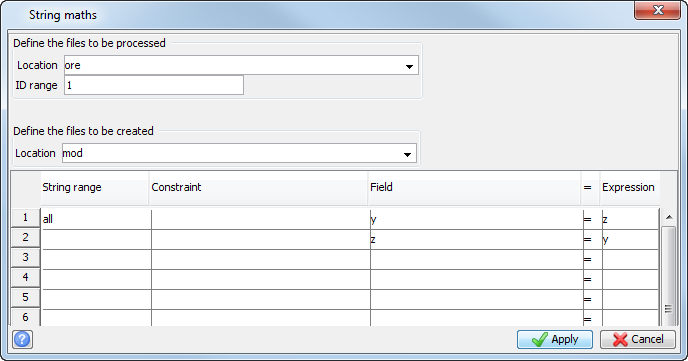
- Enter the information as shown, and click Apply.
- Open mod1.str in Graphics.
The plan view of the segments is displayed.
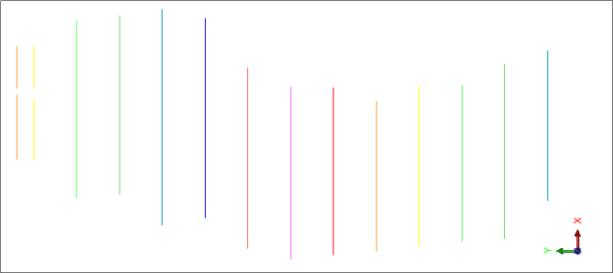
Task: Check and remove foldbacks
- Click Reset graphics .
- Open mod1.str in Graphics.
- Choose Edit > Layer > Clean.
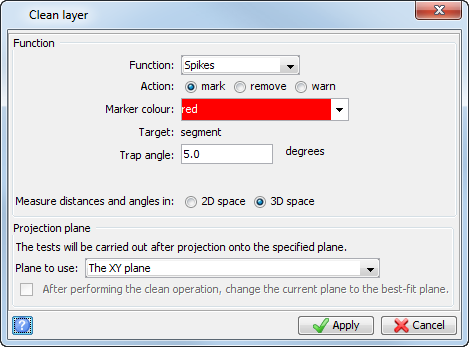
- Enter the information as shown, and click Apply.
- Zoom in on the highlighted area to view the foldback.
- Re-run the Clean function with Action set to remove.
- Save mod1.str.
Note: By using the Layer option, all strings are checked.
A temporary marker (a red circle) appears on one of the segments.
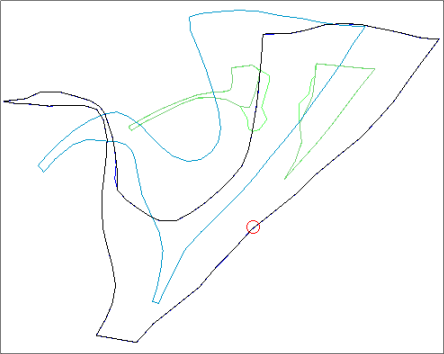
This will automatically remove the foldback.
Note: Any errors highlighted by the
Clean Layer function can also be manually edited if preferred.
Task: Highlight and remove duplicate points
- Click Reset graphics .
- Open mod1.str in Graphics.
- Choose Edit > Layer > Clean.
- Enter the information as shown, and click Apply.
- Re-run the Clean function with Action set to remove to delete any duplicate points.
- Save mod1.str.
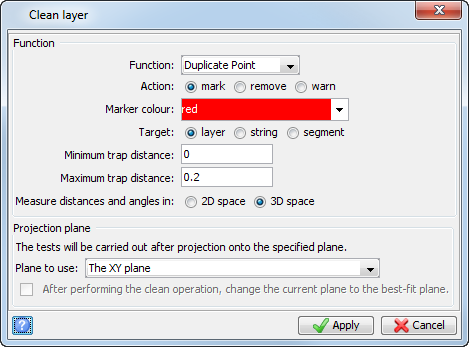
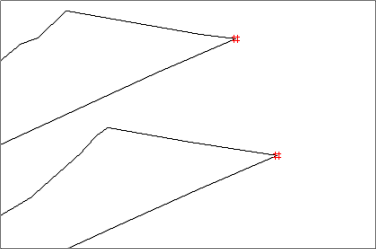
Note: Duplicate points are highlighted by a temporary marker (red hash symbol) as shown. Surpac will not triangulate points less than 0.05 units apart.
Note: To see all of the steps performed in this section, run
_01_data_preparation.tcl. You need to click Apply on any forms presented.