


Plotting to DraftSight
There are several ways to send data to DraftSight for printing or plotting.
 Note: DraftSight can load a .dwf plot only if Surpac is running. Otherwise licensing restrictions prevent DraftSight from displaying the .dwf plot.
Dragging in Graphics
- In the Surpac Navigator, expand the tutorials\plotting folder.
- Drag the file multi_section.dwf into Graphics.
DraftSight opens and displays the plot.
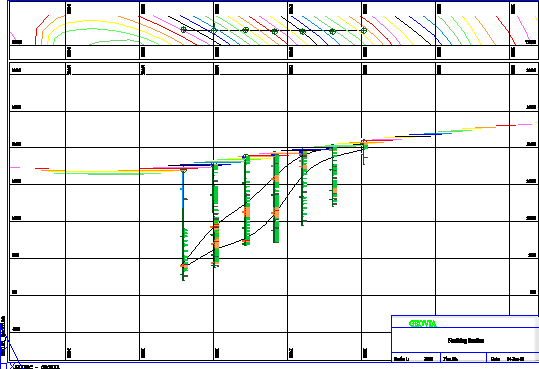
DraftSight displays data in 'Sheet tabs'. These sheet tabs are shown in the lower left of the window. The data is displayed by default on the Layout1 tab.
Opening a .dwf with the shortcut menu
- Right-click a .dwf in the Surpac Navigator.
- Use both commands to see the effect of using each of them.
The shortcut menu shows an Open with DraftSight command, and an Open in Plotting Window command.