Creating a DTM of a pit design
This section describes how to clean your pit design strings before creating a DTM, and how to create a DTM surface from the design.
Task: Clean pit design strings
- Click Reset graphics
 .
. - Open pitdesign2.str.
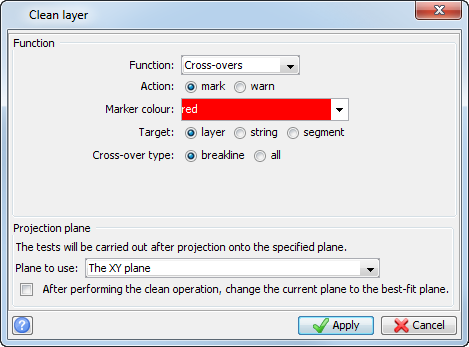
- Choose Edit > Layer > Clean.
- Enter the information as shown, and click Apply.
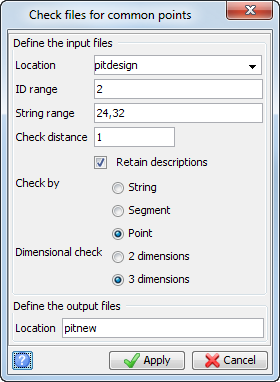
- Choose File tools > Check for common points.
- Enter the information as shown, and click Apply.
- Click Reset Graphics .
- Open pitnew2.str.
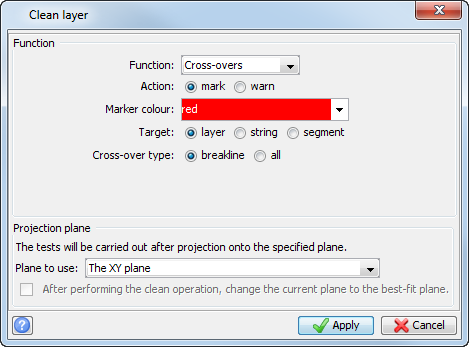
- Choose Edit > Layer > Clean.
- Enter the information as shown, and click Apply.
- When you are sure you have no intersections, save your file as pitdesign2.str
This function adjusts any points which are close (based on user inputs) to any other points so that they have exactly the same coordinates.
 Note: If you continue to have intersections, you may wish to clean them manually using the string edit tools in Graphics.
Task: Create a DTM of a pit design
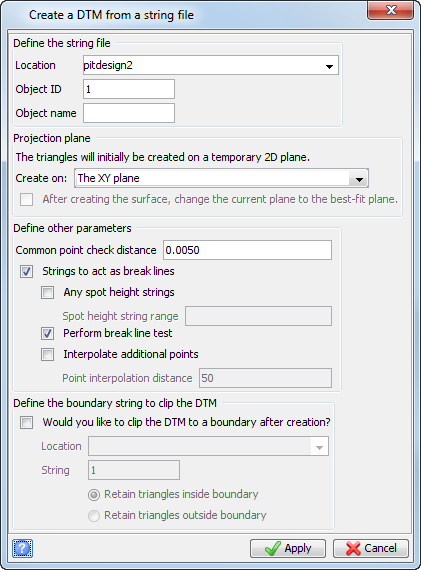
- Choose Surfaces > DTM File functions > Create DTM from string file.
- Enter the information as shown, and click Apply.
- Click Reset graphics .
- Open pitdesign2.dtm.
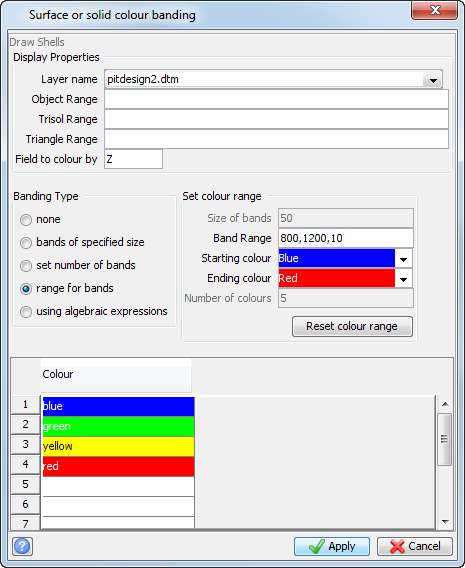
- Choose Display > Surface or solid with colour banding.
- Enter the information as shown, and click Apply.
- Choose Solids > Display > Condense colouring to give sharp boundaries to the colour bands.
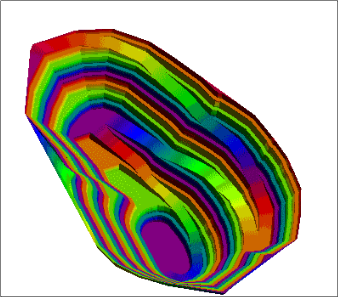
The pit with colour banding is displayed.