


Grade and tonnage calculations
This section describes how to create a block model constraint of blocks within a pit design, and how to generate a report of the tonnes and grade of material within the constraint.
Task: Create a block model constraint of material in a pit
In order to calculate grade and tonnage from a block model, you can create the constraint that represents the material in the pit beforehand.
- Open pitdesign.mdl.
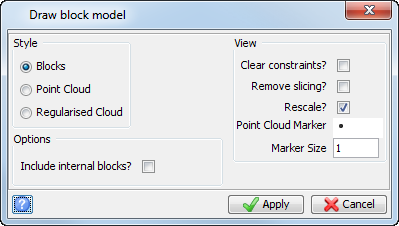
- Choose Block model > Block model > Display.
- Enter the information as shown, and click Apply.
- Choose Block model > Constraints > New graphical constraint.
- Enter the information as shown, and click Apply.
- Choose Block model > Display > Colour model by attribute.
- Enter the information as shown, and click Apply.
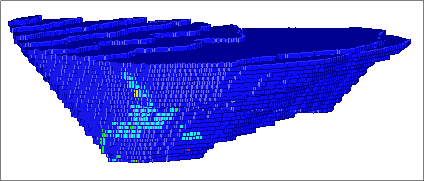
- Spin the model around to see the blocks coloured by gold grade.
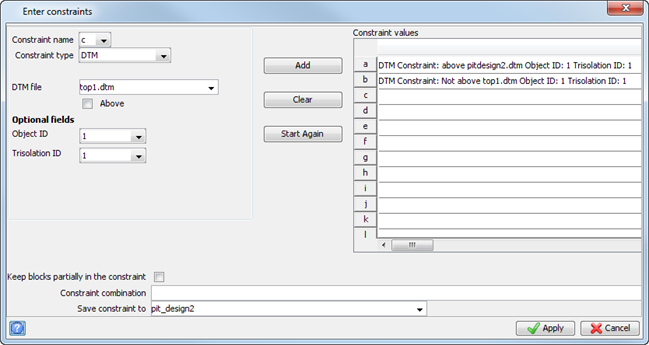
 Note: The constraint file pit_design2.con is created, which is a list of all blocks within this constraint.
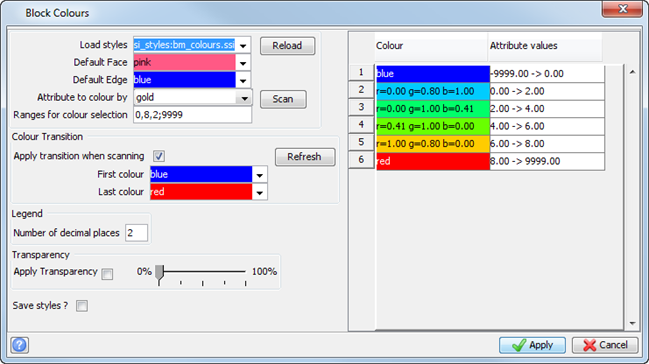
Most of the blocks are waste (gold=0), and are coloured dark blue.
Note: To see all of the steps performed in this task, run _15_create_pit_constraint.tcl. You need to click Apply on any forms presented.
Task: Calculate Grade and Tonnage of Material in Pit
- Open pitdesign.mdl.
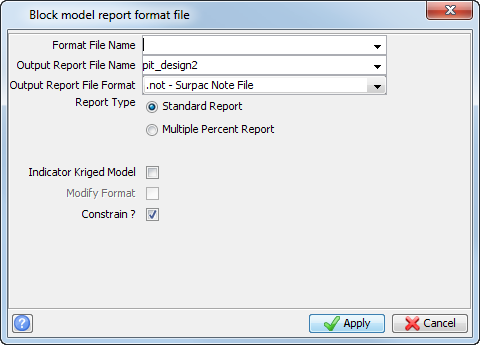
- Choose Block model > Block model > Report.
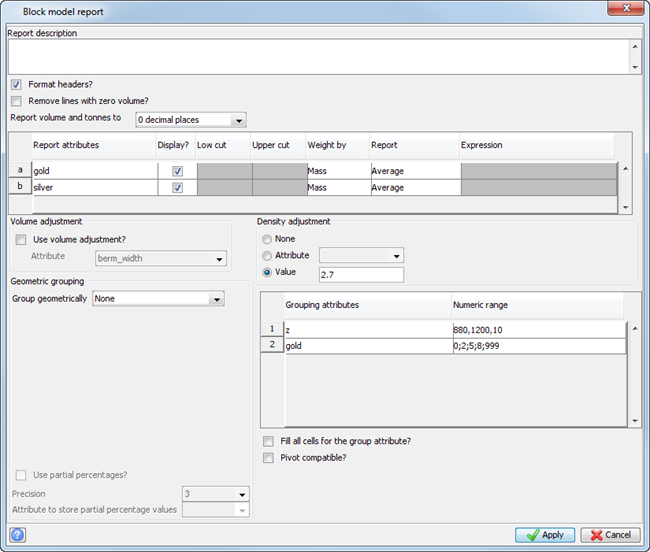
- Enter the information as shown, and click Apply.
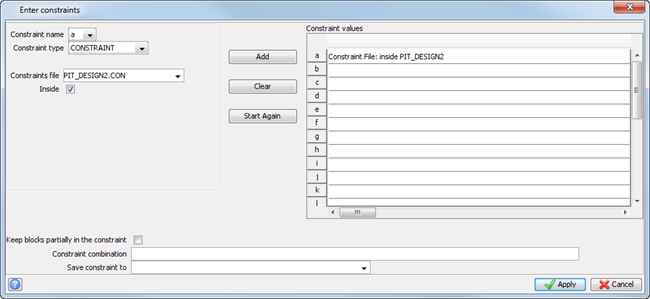
- Enter the information as shown, and click Apply.
- Enter the information as shown, and click Apply.
- The file pit_design2.not is displayed.
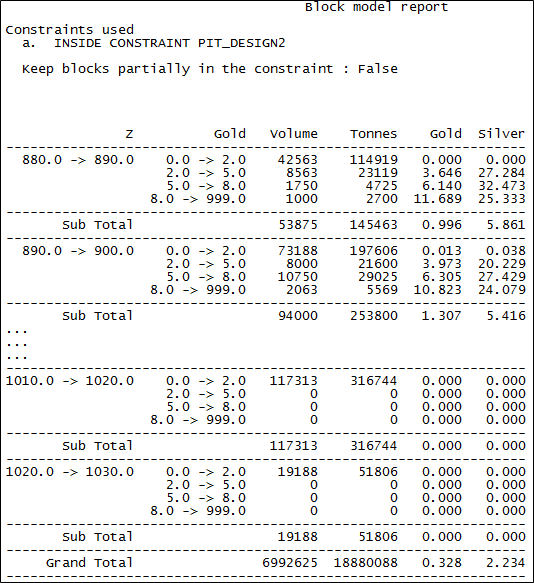
Note: Your report should be similar in format, but the numbers may not be exactly the same.
Note: To see all of the steps performed in this task, run _16_grade_and_tonnage.tcl. You need to click Apply on any forms presented.