


Getting help
You can use the following resources to help you solve a problem, understand how a function works, or enter data into a form:
- field help and form help
- online help
- tutorials
- support
- software request
Field help and form help
When you need to enter information, Surpac will display a form. The boxes on the form where you enter information are known as fields. From within a form you can access the Field help and Form help.
- By accessing Field help, you can get helpful information about each field.
- By access Form help, you can get helpful information about the entire form.
Task: Access field help and form help
- Click Reset graphics
 .
. - Choose File > Open > String/DTM file.
- Click the Location field, and right-click to display the shortcut menu.
- From the shortcut menu, select Field Help.
- Press TAB several times.
- Clear the Enable auto help check box.
- Press TAB several times.
- Select the Enable auto help check box.
- Click the X button in the upper right corner of the help window to close it.
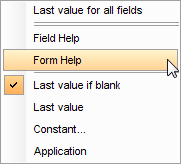
- Click and right-click in a field to display the shortcut menu.
- From the menu, select Form Help
- Close the form help, and click Cancel on the Open File form.
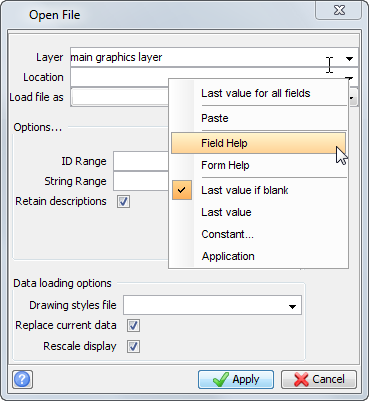
A window with help that is specific to the field you selected appears.
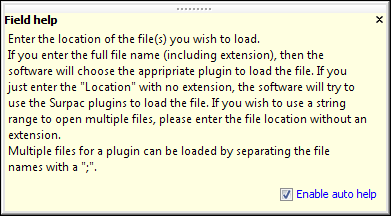
The help text changes as you tab to different fields in the form. This happens because the Enable auto help check box is selected.
The help text does not change.
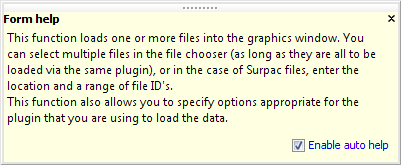
A window with help about the function Open file is displayed.
Online help
Online help contains more detailed information than field help and form help. The online help also has examples and troubleshooting information.
Task: Access online help from a form
- Choose Create > Digitise > Properties.
- Click the
 button at the lower left corner of the form.
 - Close the help window.
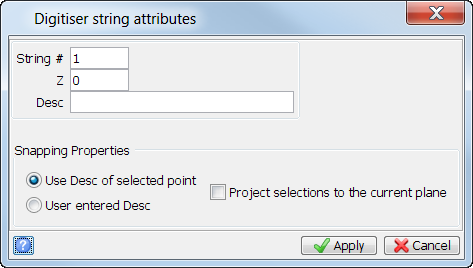
The online help for the DIGITISER function is displayed.
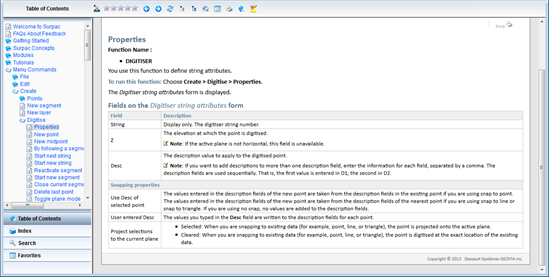
Task: Access help from the help menu
- In Surpac, from the Help menu, select Table of contents.
- In the lower left corner, click the Table of Contents tab.
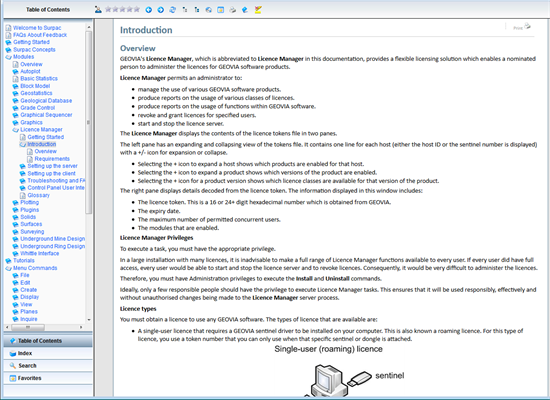
- In the table of contents, expand Modules, then Licence Manager, and click Introduction.
- Close the help window.
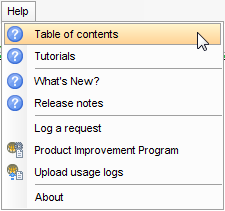
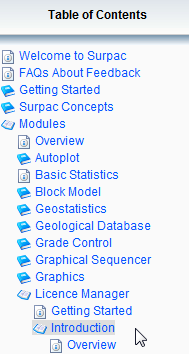
The help for the Licence Manager is displayed.
Task: Use the index to search for information
You can use the Index to find the information you need.
- In Surpac, from the Help menu, select Table of contents.
- In the lower left corner, click the Index tab.
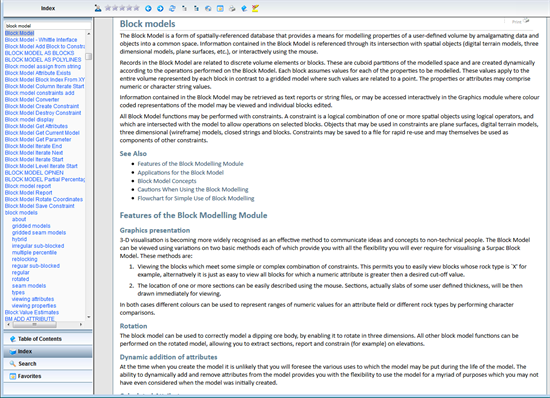
- In the text box at the top, slowly type each letter of the word Block Model.
- Press ENTER.
- Close the help window.
After you type each letter, the help system selects the index entry that is the closest match.
The help for Block Models is displayed.
Task: Search the online help
- In Surpac, from the Help menu, select Table of contents.
- Click the Search tab.
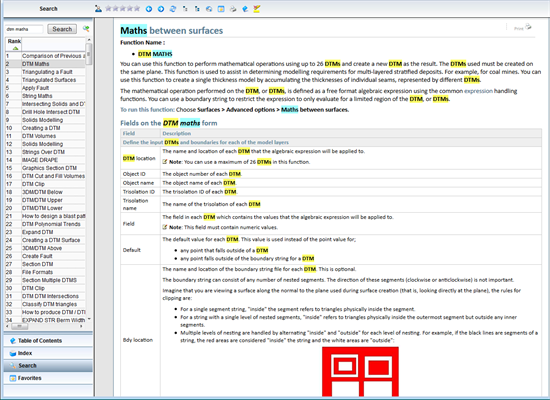
- Type the words DTM Maths, and click Search.
- Click the topic that is ranked 2 in the list, DTM Maths.
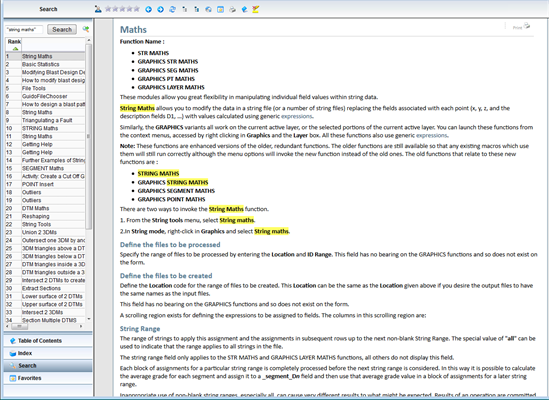
- Type “String Maths”(including the quotation marks) in the Search box, and click Search.
- Click the topic that is ranked 1 in the list, String Maths.
- You can see the text “String Maths” is highlighted.
This search returns all the help topics that contain both the words “DTM” and “Maths”. The topics that contain the most occurrences of these words are ranked higher in the list.
You can do a phrase search by enclosing your search in quotation marks.
This search returns all the help topics that contain exact phrase “String Maths”.
Tutorials
Tutorials are designed to teach you how specific functions work within a practical, task-based environment, by working through exercises using a specific dataset.
Surpac tutorials are available through the tutorials profile. When you install the software from the DVD, the tutorials are installed to the following folder location:
<shared_files>\demo_data\tutorials
where <shared_files> is the folder where the Surpac shared files are installed.
Each directory contains a tutorial in PDF format, as well as a data directory containing the files required to perform the exercises outlined in the tutorial.
Task: Access the tutorials profile
- Right-click in the blank area to the right of the main menus.
- From the shortcut menu, choose Profiles > tutorials.
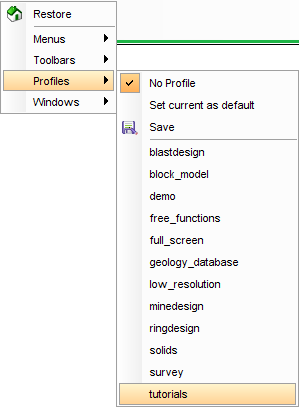
A set of menus for the tutorials are displayed.

To view the tutorials or run the macros for the tutorials, you must first click the menu item to change the directory to your chosen tutorial.
You can then either view the tutorial document as a PDF or run the macros that appear in the tutorial.
Internet download
You can also download the complete set of tutorials.
- In your web browser, type http://www.GEOVIAsupport.com.
- Log in to the GEOVIA support site.
- Click Downloads.
- Under GEOVIA Surpac, click Surpac Downloads.
- Click Tutorials.
 Note: You will need login credentials to enter the GEOVIA Support site. Contact your local support office if you do not have this information.
 Tip: The information offered on the support site may be more recent than those from the DVD installation.
Support
You can contact the GEOVIA support office by phone or email.
Task: Find support office contact details
- Choose Help > Table of Contents.
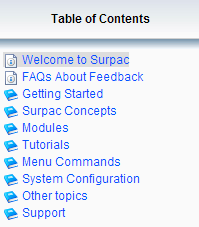
- In the lower left corner, click Table of Contents.
- Expand the Support book, and click Email Support.
The table of contents is displayed on the left side of the screen.
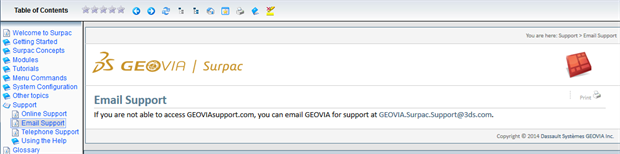
The contact details are displayed.