Create a 3D block model
Overview
This covers the basics of creating a block model, and adding attributes, which you must do before performing an estimation.
Requirements
In order to understand this information, you should understand the following concepts:
- Surpac menubars
- Surpac string files
- Surpac block models
- isotropy and anisotropy
- anisotropy ellipsoid
- the parameters which define an anisotropy ellipsoid
Task: Create a 3D block model
- Right-click in the blank area next to the menus, and choose Profiles > block_model.
- Run _09_create_block_model.tcl.
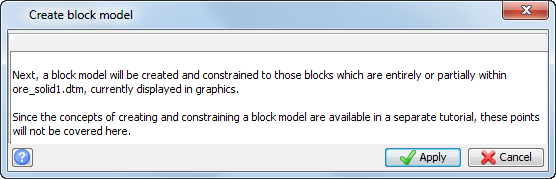
- Read the information on the first form, and click Apply.
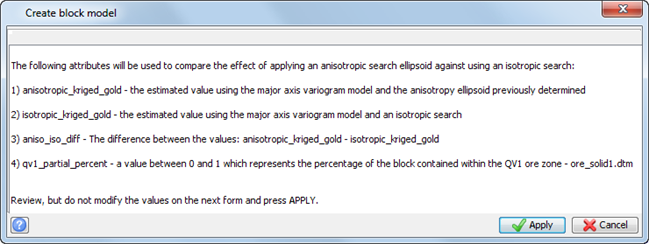
- Read the information on the second form, and click Apply.
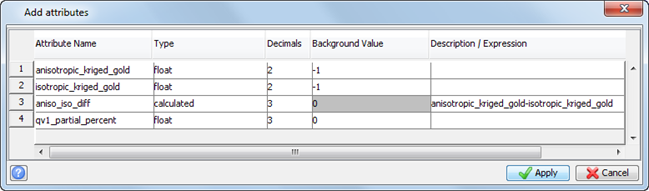
- View the Add attributes form, and then click Apply.
- Choose Block model > Close.
- Click Reset graphics
 .
. - Open geostats_example.mdl.
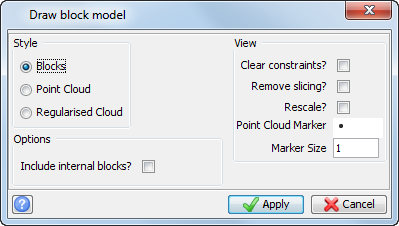
- Choose Display > Display block model.
- Enter the information as shown, and click Apply.
- Open qv1.con in Graphics.
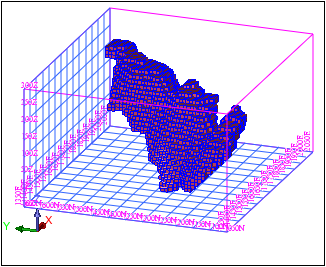
The model is displayed.