Drillhole investigation and interrogation
Identify drillhole
Task: Run identify drillhole
- Connect to surpac_training.ddb.
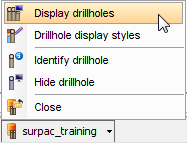
- Click surpac_training icon on the Status bar, and choose Display drillholes.
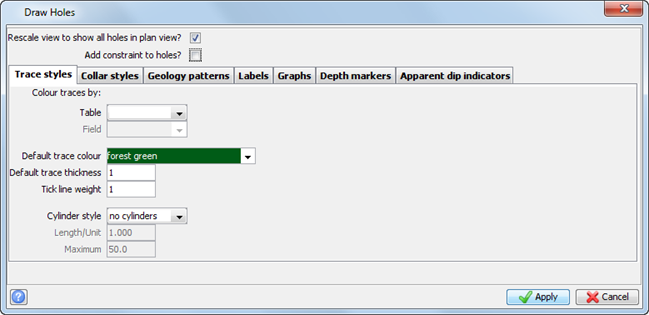
- Enter the information as shown, and click Apply.
- Choose Display > Identify drillhole.
- Follow the prompt and click in Graphics to select a hole.
- Press ESC.
A message similar to the following is displayed in the message window:
|
Hole ID: WRC001, Collar Y: 1682.69, Collar X: 7318.77, Collar Z: 191.48, Depth: 120.00 |
Graphically edit drillhole
Task: Run edit drillhole
- Choose Display > Edit drillhole.
- Follow the prompt, and click in Graphics to select the hole of interest.
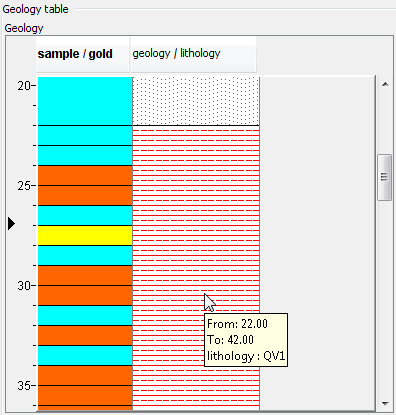
- Select the sample table and the gold field, and then click Add.
- Select the geology table and the lithology field, and then click Add.
- Hover the cursor over an interval to see the results.
- Click Apply.
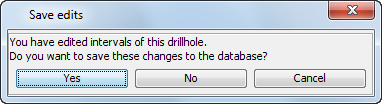
- Click No.
The results for hole WRC065 are displayed.
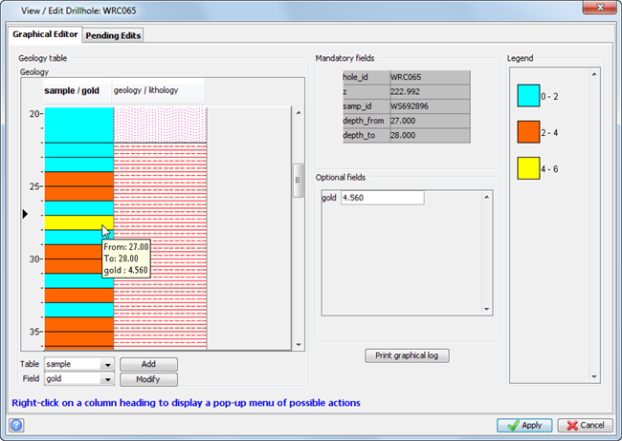
 Note: To remove charts from the editor, right-click on the field headings (in this case, sample/gold or geology/lithology) and choose
Remove from the shortcut menu.
Note: To remove charts from the editor, right-click on the field headings (in this case, sample/gold or geology/lithology) and choose
Remove from the shortcut menu.
Note: If permissions in the external database allow write-back functions, you can use this function to edit the drillhole database directly.
If you have made changes, the Save edits form is displayed to prompt you to save or discard the changes.