


Viewing DTMs
Task: Colour a DTM by elevation
- Click Reset graphics
 .
. - Open pit1.dtm in Graphics, and rotate it.
- Choose Display > Surface or solid with colour banding.
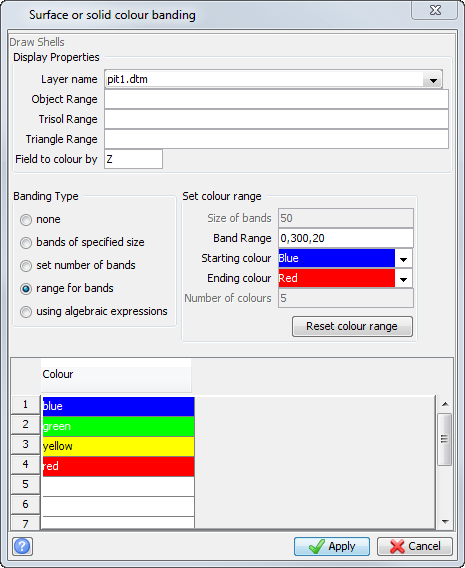
- Enter the information as shown, and click Apply.
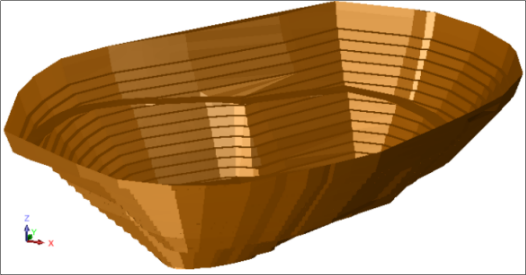
An oblique view of the pit is displayed.
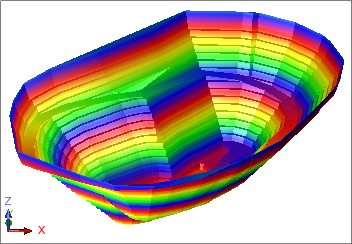
The coloured pit is displayed.
 Note: To see all of the steps performed in this task, run _02_colour_dtm_by_elevation.tcl. You need to click Apply on any forms presented.
Task: Perform graphical animation
In this task, you will digitise a string to follow and use the View along string function to fly in the direction of the string.
- Click Reset graphics .
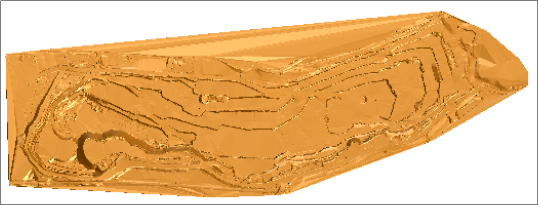
- Open eom_pit.dtm in Graphics.
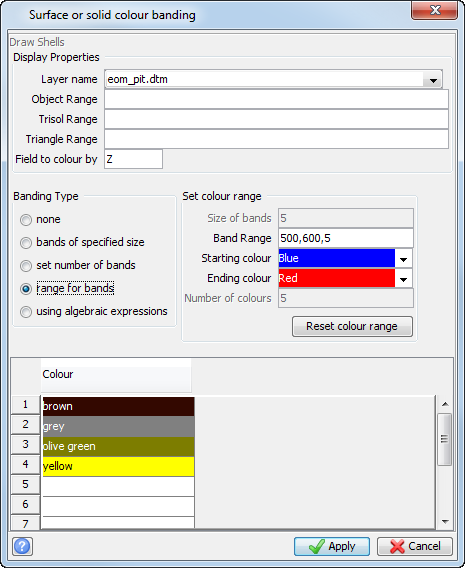
- Choose Display > Surface or solid with colour banding.
- Enter the information as shown, and click Apply.
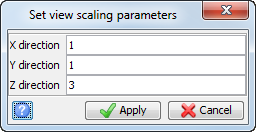
- Choose View > Data view options > View scale factors.
- Enter the information as shown, and click Apply.
- On the Status bar, click the design string button
 .
. - Set the Design string number to 500, and click Apply.
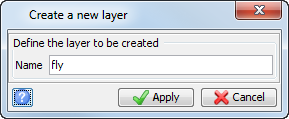
- In the Layers Pane, click New.
- Type fly as the name of the new layer, and click Apply.
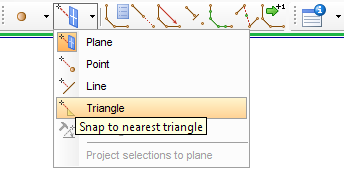
- Click Snap Mode, and select Triangle.
- Click
 Digiteriser Digitise.
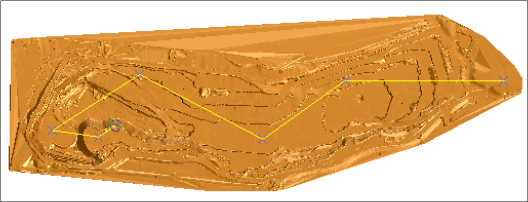
 - Click points for the flight path.
- Press ESC.
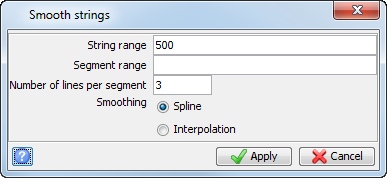
- Choose Edit > String > Smooth.
- Enter the information as shown, and click Apply.
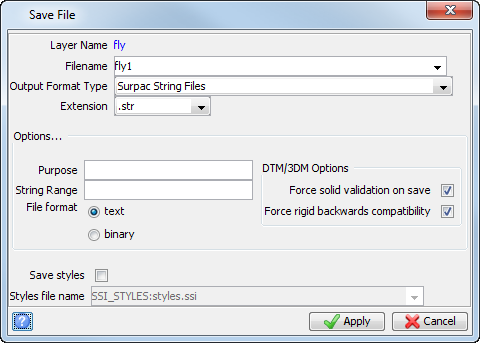
- Save this string as fly1.str.
- In the Layers pane, right-click the eom_pit.dtm layer, and click Selectable.
- Choose View > Data view options > View along a string.
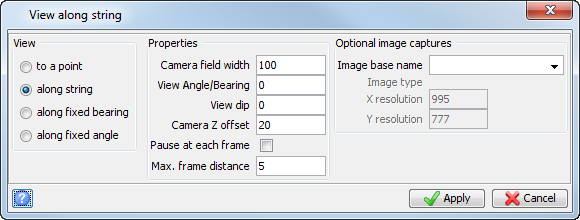
- Enter the information as shown, and click Apply.
- Click any point on string 500 to start the animation.
 Tip: To give a more realistic view, increase the Z scale by a factor of 3.
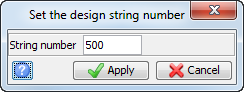
Next you will create a layer for the design string.
The flight path in the pit is displayed.
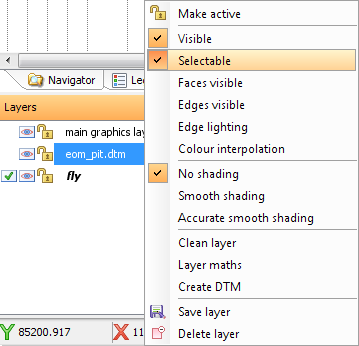
Note: After you click Selectable, the padlock becomes closed to indicate that the layer is no longer selectable. This ensures that when you start the animation, only the string is selected and not the DTM.
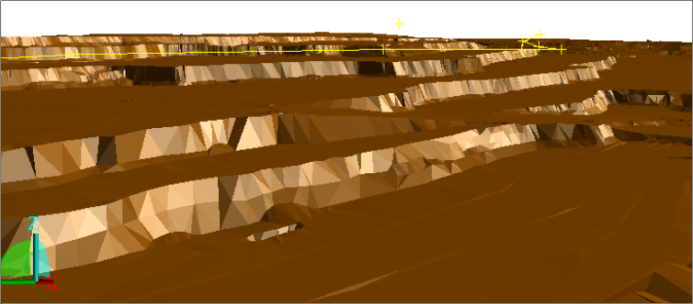
The inside of the pit is displayed.
Note: To see all of the steps performed in this task, run _03a_fly_through.tcl. You need to click Apply on any forms presented.
Task: Save images of a graphical animation
- Click Zoom All
 .
. - Choose View > Data view options > View along string.
- Enter the information as shown, and click Apply.
- To start the animation, click any point on string 500.
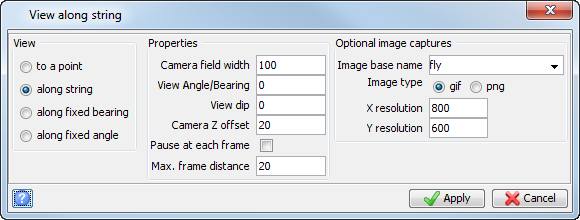
Note: This process produces many output files so the Max. frame distance has been changed to capture an image every 20 metres.
Notes:
- You can use the output files (fly001.gif, fly002.gif…) to create an animated gif file using other software.
- To see all of the steps performed in this task, run _03b_fly_through_save_images.tcl. You need to click Apply on any forms presented.