


Transforming a DTM
Task: Transform a DTM to a different coordinate system
-
Click Reset graphics
 .
. - Open topo1.dtm in Graphics.
- Open pit2.dtm in Graphics.
- Click Zoom to extents.
- Choose File tools > Transformations > 2D Transformation of DTM file.
- Enter the information as shown, and click Apply.
- Old points are the coordinates in the old system. New points are the coordinates of the same two points in the new system.
- A Z correction of -800 is applied to move the pit 800 metres lower.
- Verify that the transformation parameters are correct on the Verify transformation parameters form.
- Select the Accept these adjustments check box, and click Apply.
- Open transformed_pit2.dtm.
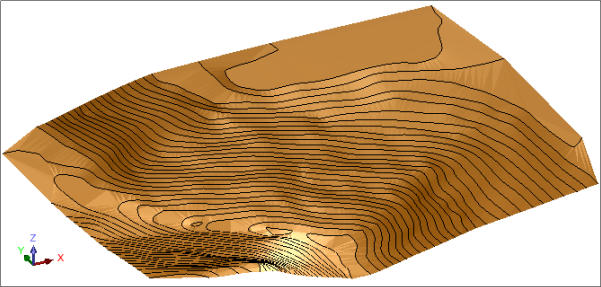
topo1 is displayed.
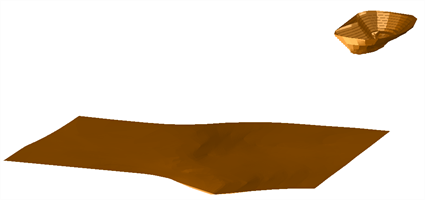
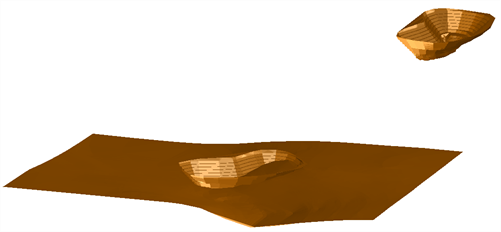
Both the DTM surfaces are displayed.
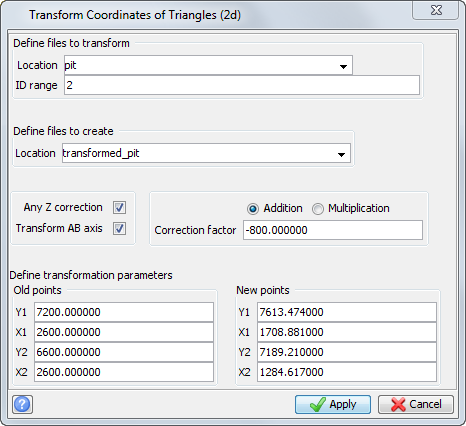
This creates a new dtm called transformed_pit.
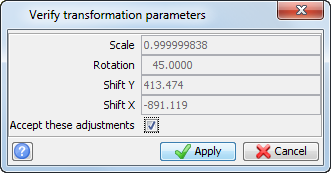
If the grids are plane metric grids, the scale factor should be 1.0. Any variation represents an error. In the example, there is an error of 5 mm in 10 m.
 Note: By default, the rotation is displayed in DDD.MMSS format. Shift Y is the difference between Y1 (old) and Y1 (new) as entered on the Transform Coordinates of Triangles (2d) form. Shift X is the difference between X1 (old) and X1 (new). In other words, the shifts are the difference in Nothing and Easting between the coordinates of the first point in the two systems.
Note: To see all of the steps performed in this task, run _04_transform_DTM.tcl. You need to click Apply on any forms presented.