


Sectioning a DTM
Task: Create a DTM section axis line
- Click Reset graphics
 .
. - Open pit1.dtm in Graphics.
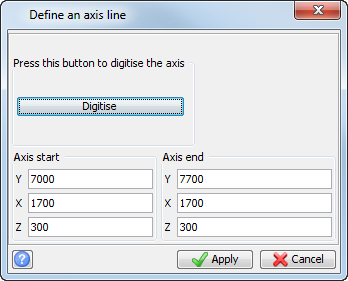
- Choose Create > Section axis by coordinates.
- Enter the information as shown, and click Apply.
- Save pit1.dtm.
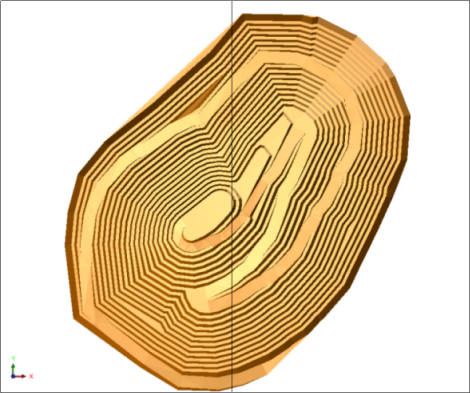
The pit with axis line is displayed.
 Note: To see all of the steps performed in this task, run _07a_create_section_axis_line.tcl. You need to click Apply on any forms presented.
Task: Create DTM sections
- Click Reset graphics .
- Open pit1.dtm in Graphics.
- Choose Display > Section axis line.
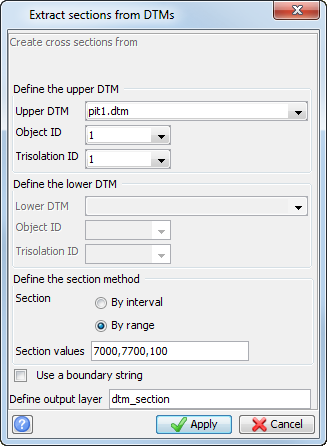
- Choose Surfaces > Create sections from DTM.
- Enter the information as shown, and click Apply.
- Enter the information as shown, and click Apply.
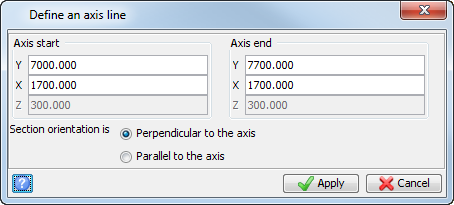
Note: The first section is extracted from the axis start. Sections are not extracted past the axis end point.
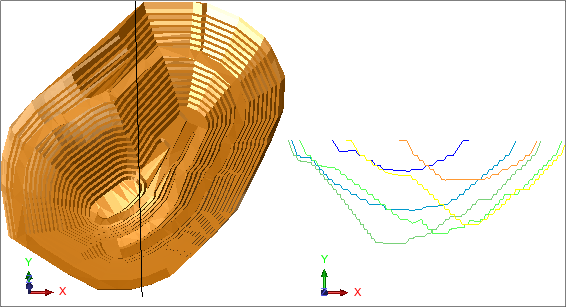
The axis line is displayed on the left. The resulting section coordinates are displayed on the right.
Note: To see all of the steps performed in this task, run _07b_sectioning_pit.tcl. You need to click Apply on any forms presented.