


DTM volume calculations
Task: Create a boundary string using the file-based method
In this case, you will display the DTMs only for clarity.
- Click Reset graphics
 .
. - Open pit1.dtm and topo1.dtm in Graphics.
- Choose Surfaces > DTM File functions > Line of intersection between 2 DTMs.
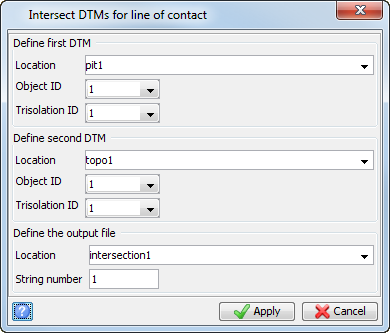
- Enter the information as shown, and click Apply.
- Open intersection1.str.
- Click Faces Off
 .
.
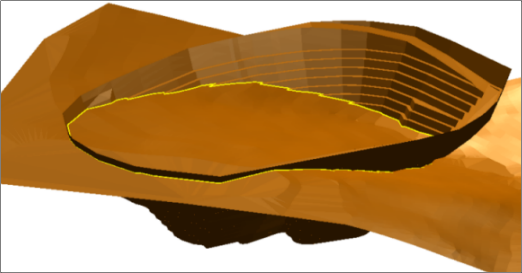
The pit with topography is displayed.
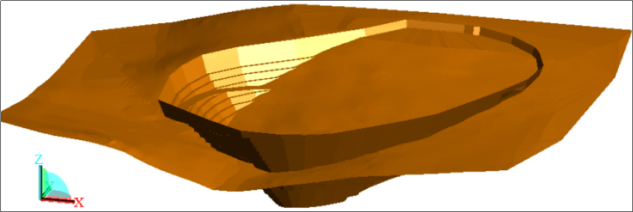
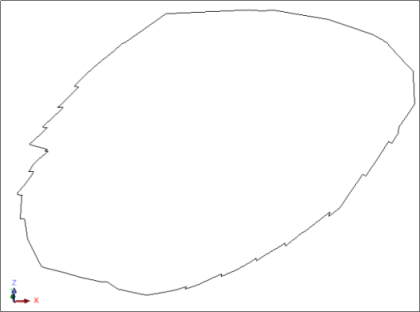
The boundary string is displayed.
 Note: To see all of the steps performed in this task run _04a_create_boundary_string_file_based.tcl. You need to click Apply on any forms presented.
Task: Create a boundary string using the graphics-based method
In this case, the DTMs must be displayed in Graphics because the function uses graphics layers to determine its input and output.
- Click Reset graphics .
- Open topo1.dtm and pit1.dtm in Graphics.
- Choose Surfaces > Clip or intersect DTMs > Line of intersection between DTMs.
- Enter the information as shown, and click Apply.
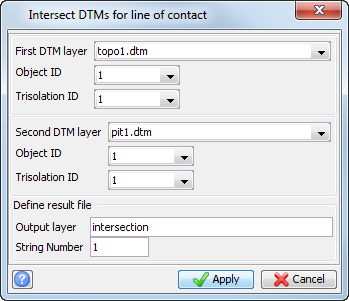
Note: In the graphics-based method, you must save the string in the intersection layer to a string file if you want to use it for further processing.
The pit intersection line is displayed.
Note: To see all of the steps performed in this task, run _04b_create_boundary_string_graphics_based.tcl. You need to click Apply on any forms presented.
Calculate the volume between two DTMs
Task: Calculate cut and fill volumes
Note: In order to perform this task, the file intersection1.str must exist. If it does not exist, run macro _04a_create_boundary_string_file_based.tcl.
- Click Reset graphics .
- Choose Surfaces > Volumes > Cut and fill between DTMs.
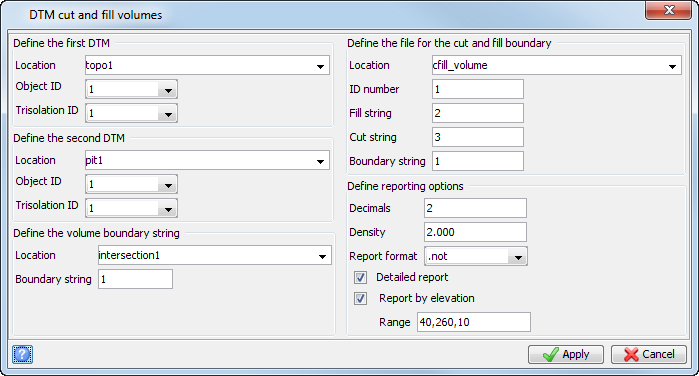
- Enter the information as shown, and click Apply.
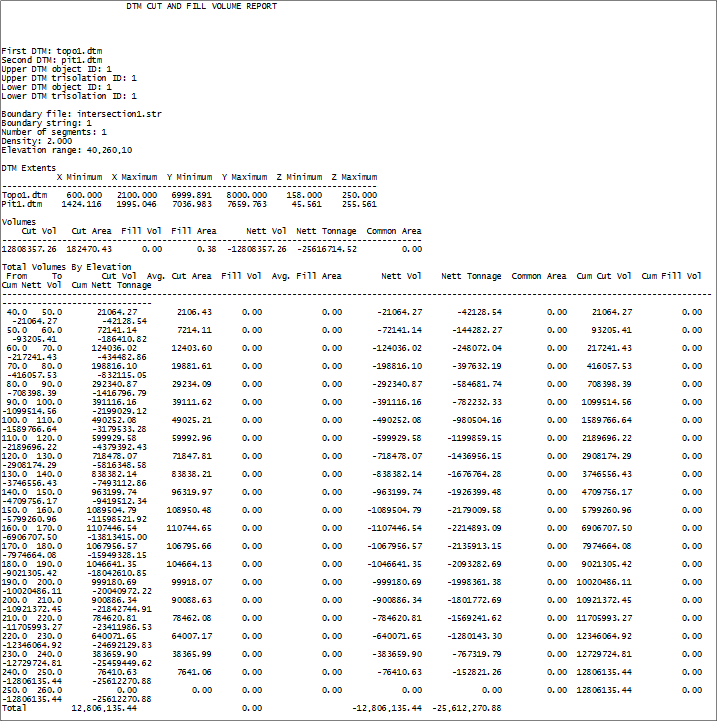
The DTM cut and fill report opens in your default text editor.
Note: To see all of the steps performed in this task, run _05a_cut_and_fill_volumes.tcl. You need to click Apply on any forms presented.
Task: Net volume between DTMs
- Open pit2.dtm in Graphics.
- Choose Display > Strings > With string numbers.
- Enter the information as shown, and click Apply.
- Open dhc2.dtm in Graphics.
- Right-click in the area next to the menu titles, select Toolbars, and click Scale and transparency.
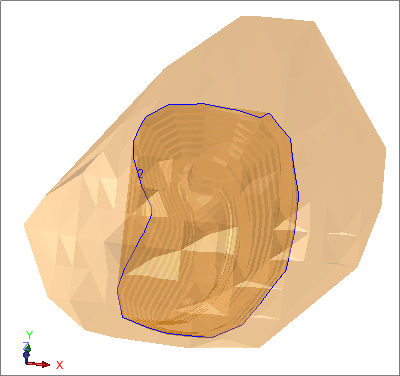
- Drag the transparency slider to set the transparency of triangles to 50%.
- Choose Surfaces > Volumes > Net volume between DTMs.
- Enter the information as shown, and click Apply.
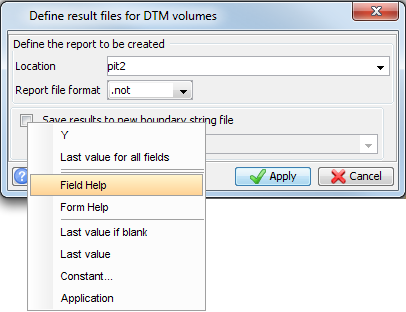
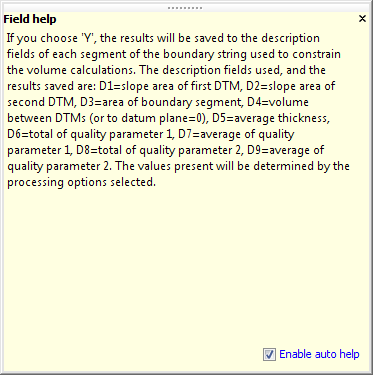
- Click, then right-click the Save results to new boundary string file check box as shown, and select Field Help.
- Close Field help.
- Select the Save results to new boundary string file check box, and type "bdyres2" in the Location field.
- Click Apply.
- Leave the next two forms blank, and click Apply on both.
- Close pit2.not.
- Click Reset graphics .
- Open bdyres2.str in Graphics.
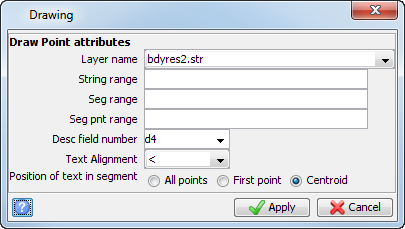
- Choose Display > Point > Attributes.
- Enter the information as shown, and click Apply.
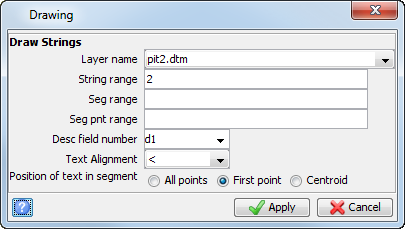
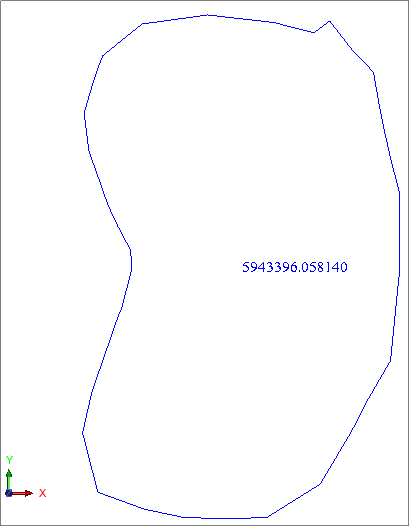
The plan view of the pit is displayed.
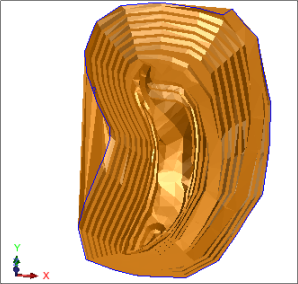
Note: String 2 of pit2.str is used as the boundary string for the volume calculation.
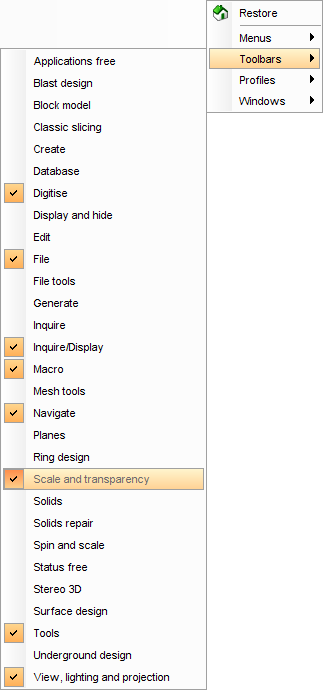

The DTM displayed is transparent.
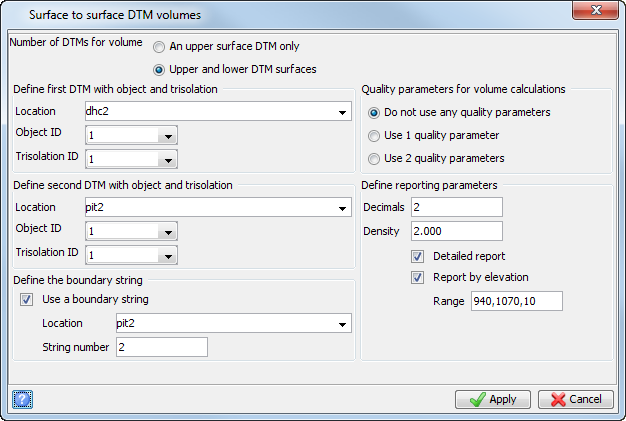
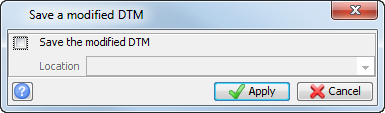
Next you are prompted to save the triangles from each DTM that the boundary string clips.
Note: It is not necessary to save the modified DTMs.
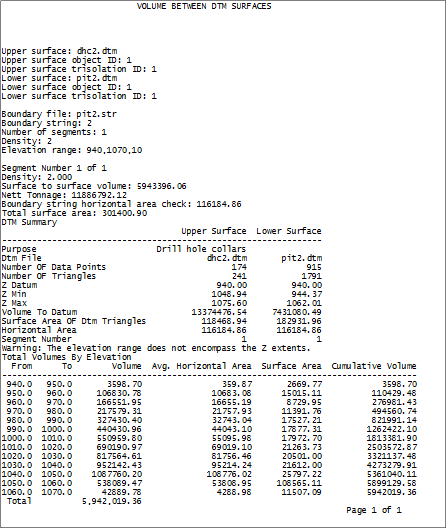
The DTM surfaces report log pit2.not opens in your default text editor.
The boundary string is displayed.
Note: To see all of the steps performed in this task, run _05b_net_volumes_between_dtms.tcl. You need to click Apply on any forms presented.