


DTM/DTM intersections
Task: Create an upper triangles surface of two DTMs
- Click Reset graphics
 .
. - Open dump1.dtm in Graphics.
- Open topo_dump1.dtm in Graphics.
- Choose Surfaces > Clip or intersect DTMs > Upper triangles of 2 DTMs.
- Enter the information as shown, and click Apply.
- Follow the prompts highlighted on the Status bar.
- Press ESC.
- Save the file as upper_surface.dtm.
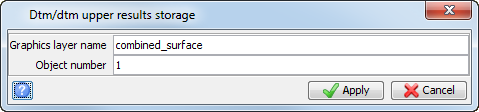
 Note: The layer name cannot be the same as any of the current layers.
Note: The image will be displayed in a different colour until the calculation function is deselected.
The DTM is displayed.
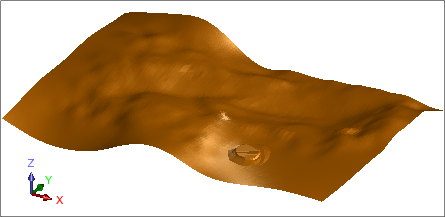
Note: To see all of the steps performed in this task, run _11a_upper_triangles_of_2_dtms.tcl. You need to click Apply on any forms presented.
Task: Create a lower triangles surface of two DTMs
- Click Reset graphics .
- Open topo1.dtm in Graphics.
- Open pit1.dtm in Graphics.
- Choose Surfaces > Clip or intersect DTMs > Lower triangles of 2 DTMs.
- Enter the information as shown, and click Apply.
- Follow the prompts highlighted on the Status bar.
- Press ESC.
- Save the file as lower_surface.dtm.
Note: The image will be displayed in a different colour while the function is running.
The DTM with pit is displayed.
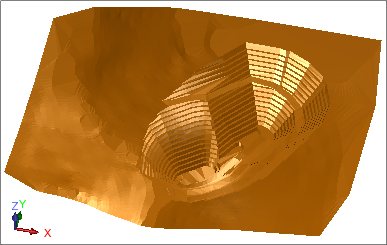
Note: To see all of the steps performed in this task, run _11b_lower_triangles_of_2DTMs.tcl. You need to click Apply on any forms presented.
Task: Create solid by intersecting two DTMs
- Click Reset graphics .
- Open topo1.dtm in Graphics.
- Open pit1.dtm in Graphics.
- Choose Surfaces > Clip or intersect DTMs > Create solid by intersecting 2 DTMs.
- Enter the information as shown, and click Apply.
- Follow the prompts highlighted on the Status bar.
- Press ESC.
- Save the file as pit_solid.dtm.
- Choose Solids > Solids tools > Report volume of solids.
- Enter the information as shown, and click Apply.
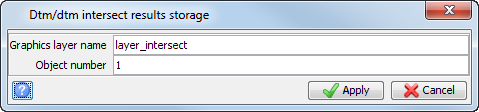
Note: The layer name cannot be the same as any of the current layers.
Note: You must select the upper DTM (topography) first, followed by the lower DTM (pit). The image will be displayed in a different colour until the calculation function is deselected.
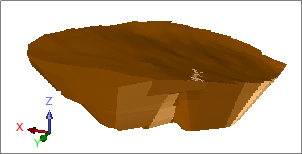
The solid from the DTM intersection is displayed.
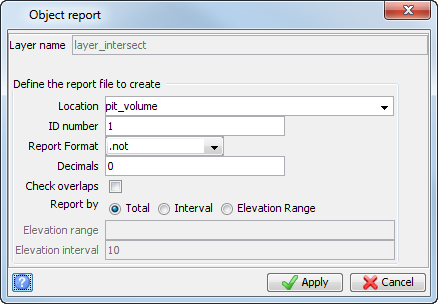
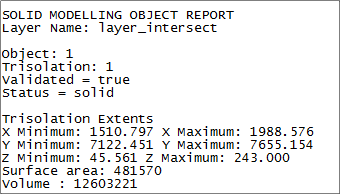
The solids object report log opens in your default text editor.
Note: To see all of the steps performed in this task, run _11c_create_solid_intersecting_2_dtms.tcl. You need to click Apply on any forms presented.