


Clipping a DTM
Task: Clip a DTM – file-based method
- Click Reset graphics
 .
. - Choose Surfaces > DTM File functions > Create DTM from string file.
- Enter the information as shown, and click Apply.
- Close the log file generated in the previous step.
- Open back1665.dtm in Graphics.
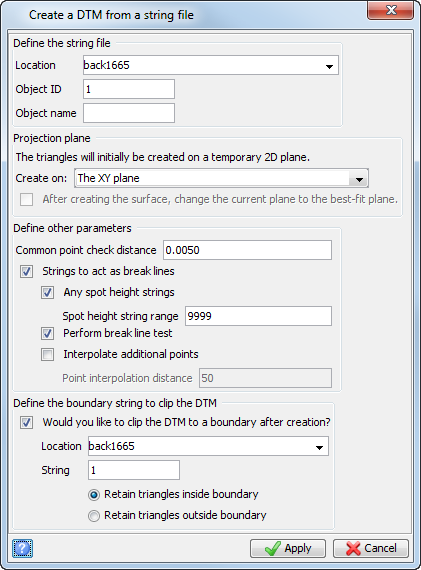
 Note: In this case, you are using the same string to clip the
DTM as was used to define the boundary of the DTM. Because the operation is performed directly on the input files, there is no need to save the DTM file manually.
Note: In this case, you are using the same string to clip the
DTM as was used to define the boundary of the DTM. Because the operation is performed directly on the input files, there is no need to save the DTM file manually.
The clipped DTM is displayed.
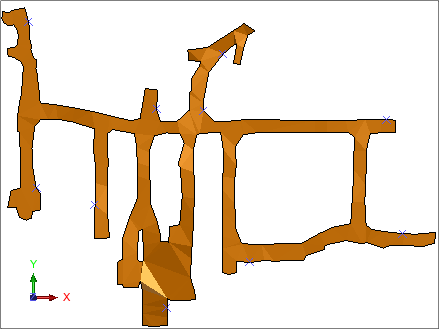
Note: To see all of the steps performed in this task, run _06a_clip_dtm_file_based.tcl. You need to click Apply on any forms presented.
Task: Clip a DTM – graphics-based method
- Click Reset graphics .
- Open lev1665.str in Graphics.
- Choose Inquire > Segment properties and select each segment.
- Choose Surfaces > Create DTM from layer.
- Enter the information as shown, and click Apply.
- Choose Surfaces > Clip or intersect DTMs > Clip DTM with string.
- Select any point on the string.
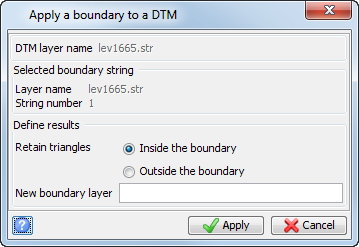
- Enter the information as shown, and click Apply.
- Save as lev1665.dtm.
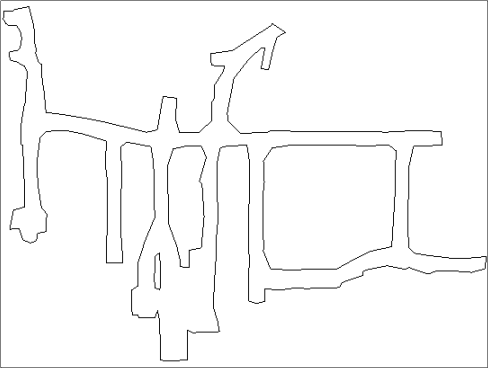
Note: The pillars are all anti-clockwise and the drives are all clockwise.
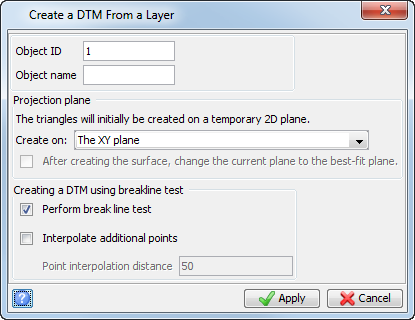
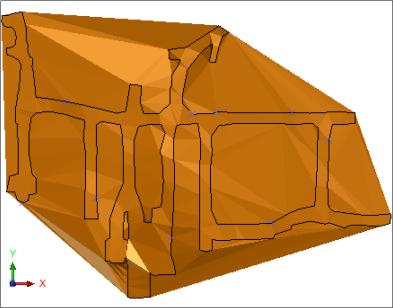
This is one way of beginning to create a 3D model of these underground workings.
Note: To see all of the steps performed in this task, run _06b_clip_dtm_graphics_based.tcl. You need to click Apply on any forms presented.