


Setting up for this tutorial
Setting the work directory
A work directory is the default directory for saving Surpac files. Files used in this tutorial are stored in the folder <shared_files>\demo_data\tutorials\drill_and_blast.
Where <shared_files> is the directory in which the Surpac shared files were installed.
In Windows 7, and Windows 8, the default path is
C: \Users\Public\GEOVIA\Surpac\66\demo_data\tutorials\drill_and_blast.
Task: Set the work directory
- In the Navigator, right-click the drill_and_blast folder.
- From the shortcut menu, select Set as work directory.
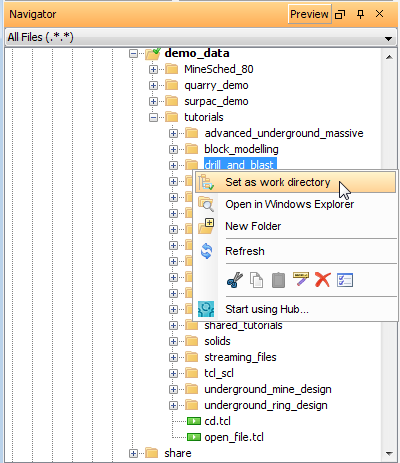
The name of the work directory is displayed in the title bar of the Surpac window.
Displaying the toolbar and menubar
Task: Display the blastdesign toolbar and menubar
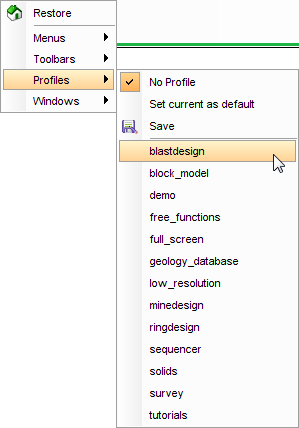
When working with the drill and blast tools, it is helpful to use the blastdesign profile. This displays the Blast design menu bar and toolbar.
- Right-click in the blank area next to the menus at the top of the Surpac main window.
- From the shortcut menu, choose Profiles > blastdesign.
 Note: For more information on setting up profiles and customising menus and toolbars, see the
Introduction tutorial.
Note: For more information on setting up profiles and customising menus and toolbars, see the
Introduction tutorial.