Setting up for this tutorial
Setting the work directory
A work directory is the default directory for saving Surpac files. Files used in this tutorial are stored in the folder <shared_files>\demo_data\tutorials\block_modelling.
Where <shared_files> is the directory in which the Surpac shared files were installed.
In Windows 7, and Windows 8, the default path is
C: \Users\Public\GEOVIA\Surpac\66\demo_data\tutorials\block_modelling.
Task: Set the work directory (Windows 7)
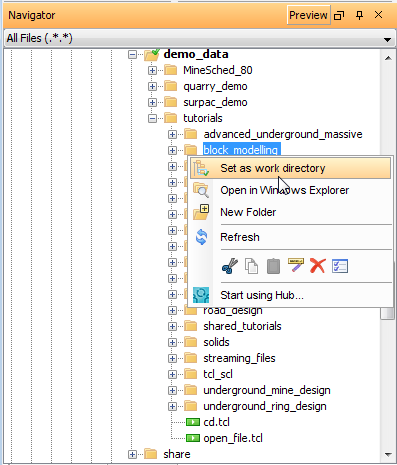
- In the Surpac Navigator, right-click the block_modelling folder.
- Select Set as work directory.
The name of the work directory is displayed in the title bar of the Surpac window.
Displaying the toolbar and menu bar
Task: Display the Block Modelling toolbar and menu bar
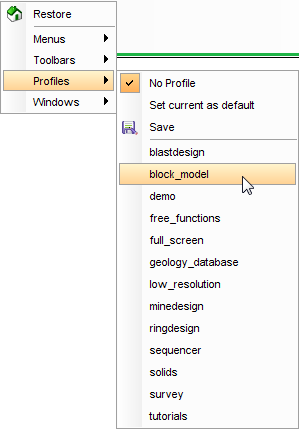
When working with the block modelling tools, it is helpful to use the block_model profile. This displays the Block model menu bar and toolbar.
- Right-click in the blank area next to the menus at the top of the Surpac main window.
- From the shortcut menu, choose Profiles > block_model.