


Creating model attributes
An attribute contains the information or the properties of the model space. This can be either a number with decimal places, an integer, or a character code.
Create model attributes
Task: Create model attributes
Before creating any attributes you will look at the information stored in the drillhole database, and decide what will be extracted in the compositing process.
- Open training2.mdl.
- Connect to db1.ddb.
- Right-click in the blank area next to the menus at the top of the Surpac main window.
- From the shortcut menu, choose Profiles > geology_database.
- From the Geology Database menu, choose Edit > View table.
- Enter the information as shown, and click Apply.
- Click Apply on the blank constraints form to look at the entire table.
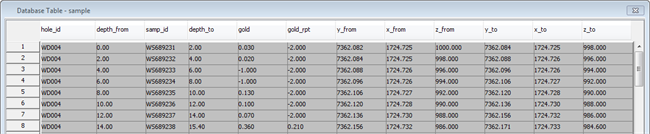
- After looking at the data in the sample table, click Apply.
- Choose Database > Close.
- Right-click in the blank area next to the menus at the top of the Surpac main window.
- From the shortcut menu, choose Profiles > block_model.
- Choose Attributes > New.
- Enter the information as shown, and click Apply.
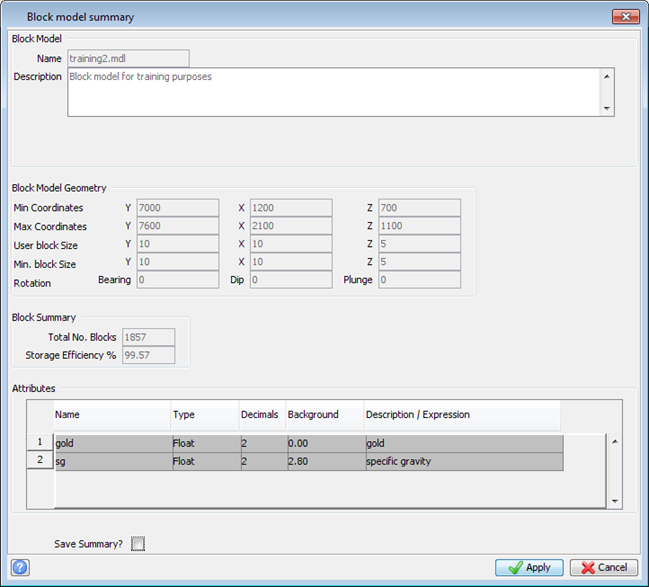
- Choose Block model > Summary.
- After viewing the form, click Apply.
- Choose Block model > Save.
- Click Yes to write the attributes into the block model.
- Choose Block model > Close.
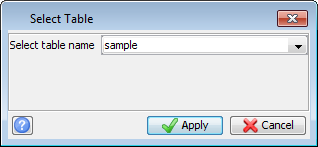
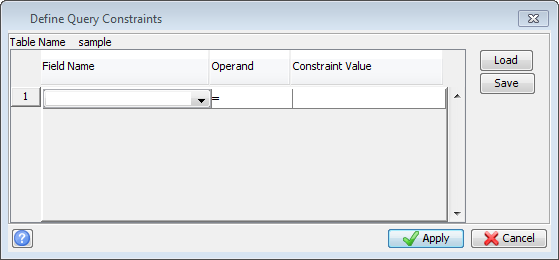
This table data is typical of the data from a geological database that you can use to fill a block model.
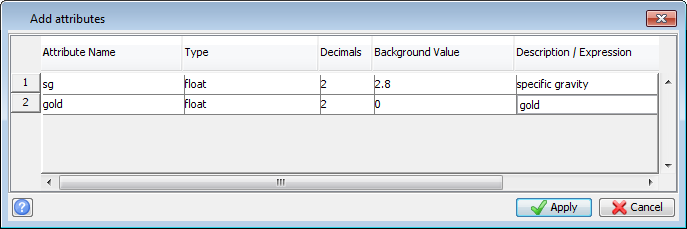
 Note: Using real, instead of float, will significantly increase the size of the block model. You would choose float when the attribute will contain approximately eight significant digits or fewer.
The Verify creation of file form appears.
Note: To see all of the steps performed in this task, run
_02_create_model_attributes.tcl. You need to click Apply on any forms presented.