Running Interpolator
Running Interpolator
Task: Run Interpolator
- Connect to sanitised.mdl.
- Choose Interpolator > Run.
- Enter the information as shown, and click Apply.
- Click the Interpolation Parameters tab.
- Change the No of Y Desc Pts and No of Z Desc Pts to 2 for all runs, and then click Apply.
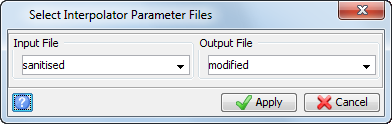
 Note: If you used the same name for the input and output files, parameters in the original file can be updated.
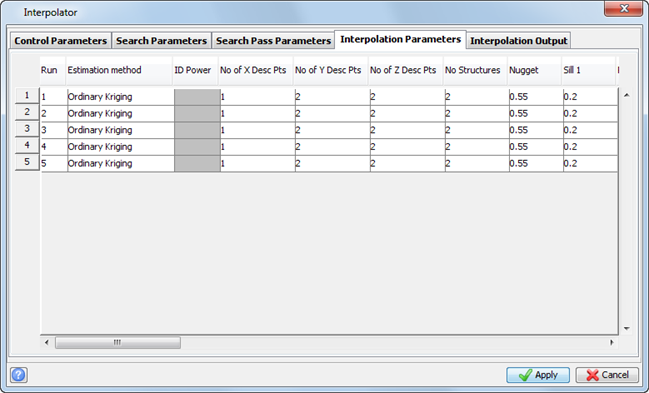
Surpac will now execute each of the “runs”, as defined by the parameters.
When it is complete, you see a message in the message window stating that the model has been saved, for example "Model c:/documents and settings/all users/GEOVIA/surpac/65/demo_data/tutorials/interpolator/sanitised.mdl saved", and the block model is closed.
Task: View output
- Connect to sanitised.mdl.
- Choose Display > Display block model.
- Enter the information as shown, and click Apply.
- Open ore_zone1.con in Graphics.
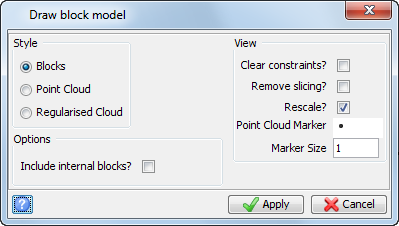
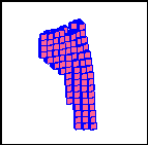
The constrained block model is displayed.
Task: Colour the model by attribute
- Choose Display > Colour model by attribute.
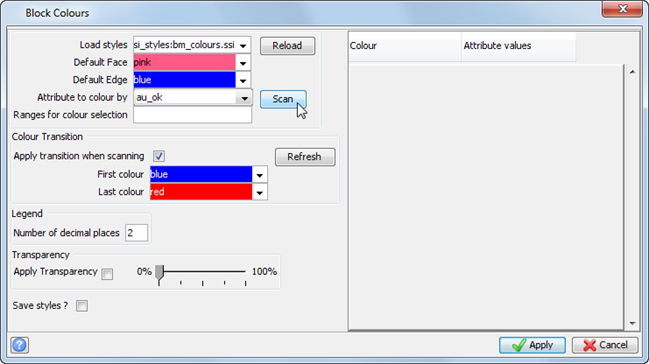
- Select the Attribute to colour by to au_ok, and then click Scan.
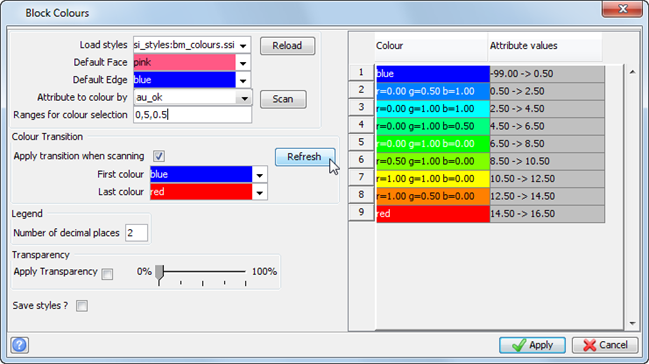
- In the Ranges for colour selection field, delete the current range and type 0,5,0.5, then click Refresh.
- Click Apply.
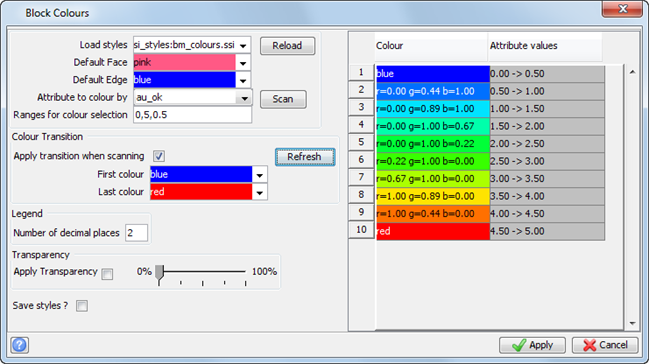
The coloured block model is displayed.
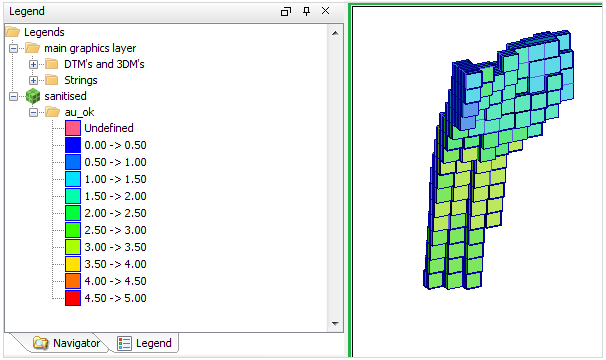
Task: Review values for a block
- Choose Attributes > View attributes for one block.
- Click any block.
- Click Apply.
- Press ESC.
- Choose Block model > Close.
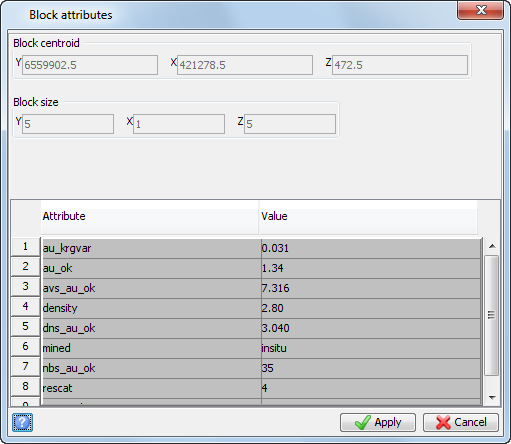
The block attribute values are displayed.