


Edit Working File
Probably the main frame for this application, there are a large number of things that the frame can be used to do. It can:
- View message details
- View the current edits in the working file
- Filter the displayed message
- Perform Text Replacement
- Sort the displayed messages
- Add a new message
- Edit an existing message
- Delete an existing message
- Remove a change from the work file
The work frame is a tool for viewing all the messages in the system (in the Master and Work databases). On the left of the frame is a list of all the message keys, and by simply selecting a key from this list, all the information currently available for the message is displayed in the panel on the top right of the frame.
There are several filtering and searching functions that can be used to bring this list down to manageable proportions, or to search the list for an existing message similar to the one you wish to create.
All pending operations (all operations in the Work database) are displayed in the panel on the bottom right. Each operation is listed as an addition, a modification or a deletion.
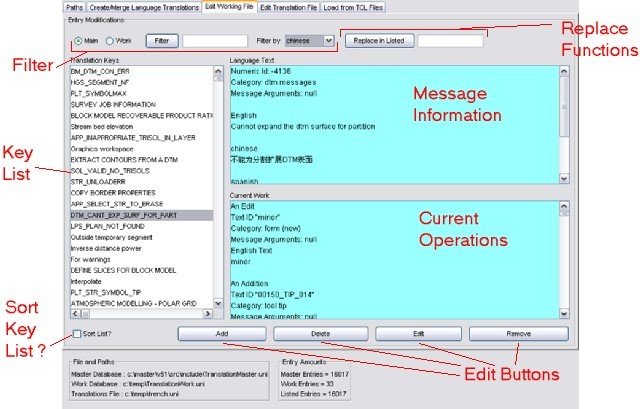
Filtering Operations
With such a large number of messages in the system finding a message is often hard, so it is also useful to cut down the size of the list when looking for or adding a new message. The filtering functions allow you to do this.

- Main radio button
- Work radio button
- Filter button and text field
- Filter by drop-down menu
- Entry ID
- Category
- English Text
- Translated Languages
This displays all keys in the current master database.
This displays all keys in the current work database.
Clicking either of these radio buttons will reset the list, removing any currently active filters.
To filter the entries by a keyword, enter the desired text in this text field and click the Filter button. When a filter is applied, it acts only on messages currently listed in the entries list. It is therefore possible to create complex searches by filtering the results of previous searches, on all of the main or work entries. This filter uses a case-insensitive, keyword search, so partial matches in upper or lower case will be included. Note that clicking Filter when the text field is empty will have no effect.
This menu indicates the message field that will be used for subsequent filter operations, and includes the following options:
This will apply the search for the given keyword to the message ID's in the message list.
All messages in the system have a category associated with them. This option allows you to find all messages in the entry list of a particular category. Simply select this option, and then select the category you want from the newly visible Category drop-down menu that will appear to the right of this one. Note that this option does not require a keyword search, so the filter text field is disabled while this option is selected.

This will apply the search for the given keyword to the English text of each message in the entry list.
Any other languages found in the main or work databases will be listed after English text. Select any of these languages to apply the filter to listed entries using the translation for that language as per English text.
An example filter:
to search in the main file for all new style form messages containing the English text "block model" and an ID containing "save", the user would do the following:
- Click the Main radio button to reset the list
- Select Category from the Filter by drop-down menu
- Select form (new) from the now visible Category drop-down menu
- Click the Filter button and observe the effect on the list
- Select English Text from the Filter by drop-down menu
- Type the text "block model" in the Filter text field, click Filter again
- Select Entry ID from the Filter by drop-down menu
- Type the text "save" in the Filter text field, click Filter again
The entry list now contains only those entries that satisfy the above query.
Text Replacement
A text replacement function is made available when the user selects English Text or another language from the Filter By drop-down menu:

The text in the Filter field is taken as the text to search for, and the replacement text should be entered into the field next to the Replace in Listed button. Applying the replacement will search in all currently listed entries, in the text of the language selected in Filter by, and replace all matches. By using consecutive filter operations, the user can refine the list of affected entries according to very specific requirements.
In order for a text replacement to succeed, it must not result in multiple files containing the exact same English text, or result in the creation of entries which have existing keys. If this occurs, the replacement is cancelled.
If the entries affected by the text replacement are in the main file, they are not changed directly. Instead, a copy is made during replacement, and any changes are committed to this copy instead. The copy is then added to the work file as an edit, unless there is a conflict, in which case it is abandoned.
If the entries affected are in the work file, then changes are made directly to the work file, wherever possible.
Sort the displayed messages

This check box allows you to sort the messages alphabetically. When checked, the list of message keys will always be sorted. When unchecked they are displayed in the same order as they occur in the database file. (ie no order).
The sort is case-sensitive, meaning that messages with upper case characters will always be displayed before messages with lower case characters in their keys.
Add a new message
Adding a new message is a simple matter of clicking the "Add" button on the bottom of the frame, or double clicking on an entry in the main entries list. A dialogue will appear, asking you to enter the english text. If the key is to be identical to the message text, there is no need to enter the english text in the text area - it will be automatically assigned from the message key.
However, long messages (rule of thumb - messages over 100 characters) should be given a message key that is separate to the english text. To make these standard, they should be in all upper case characters, and contain no spaces. They must not be the first few words of the english text, as otherwise problems could occur later.
Messages with variable arguments are a little trickier. Any message with variable arguments should be given a separate message key (see above). Follow this link for more information on variables in messages and how to enter them.
We currently have 2 ways of displaying a message in Surpac. The old way, and the new way. In the old method, the message key was also associated with a numeric ID. The new way does not require this. All new messages should be created without a numeric ID, but it may at some stage be necessary to create an old-style message. To do this - simply select the "Use numeric ID" check box on the add form and a numeric ID will be automatically assigned to your new message. It is vital that any message using a numeric ID has no spaces in the message key.
All new messages must also be assigned a category. Please make sure you use the drop-down list of categories to put your message in it's appropriate category. If an appropriate category does not exist for your message, simply enter a useful category name in that drop-down box. Please do this sparingly so that we do not create a large number of useless categories.
Edit an existing message
Editing a message is also a simple exercise. Select the message key you wish to edit from the work message key list, and then press the "Edit" button, or just double click the entry. You will have a new screen displayed, which allows you to edit the message text, add variable arguments, or change the category of the message.
It is not possible to change the message key of the message. This is due to the fact that the message may be (unbeknownst to you) being used elsewhere in the system. Changing the message key will mean that any translations on the old key will not be used by the other message. If you have a message that you wish to change the key for, simply leave the old message alone and add a new key.
If the message key is the same as the english text DO NOT change the english text. Add a new message instead. Editing the text of a message is a very dangerous thing to do and should be mostly avoided in favour of adding new messages. It's very hard to be certain that your message is not being used in unexpected places.
Editing a message will remove all of the translations for that message, and so the message will have to be re-translated. This is yet another reason to be careful when editing messages.
Delete an existing message
Select the message you wish to delete from the main message key list, and then press the "Delete" button. You will be prompted to confirm that you wish to delete the message, and once you accept that, the message deletion will be included in your work file. The deletion only becomes permanent once the work file is merged into the master file.
Remove a work operation
This option allows you to remove an edit operation from the work file. This operation may be an addition, a deletion, or an edit. First display the work entries list, and then select the message you wish to remove from the message key list, and then press the "Remove" button. Take care with this operation as changes are permanent and applied immediately without confirmation. You will have to re-do the operation to get it back.