


Shortcut menu for fields
When you click the right mouse button in the current field (or option button or check box) a shortcut menu is displayed.
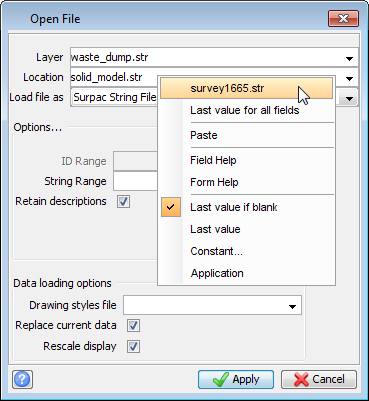
At the top of the menu, the five values previous entered in the field are displayed. Selecting one of these values copies it into the current field. Following these items is Last value for all fields. Selecting this item reverts every field on the form to its value the last time the form was applied (so that the form can be applied using the same values as the previous application of the form).
Following these items are the Cut, Copy and Paste items (where appropriate) and Field Help, Form HelpAuto Help items.
Field Help
Selecting this item displays the field help for the current field. The field help information is automatically updated for any fields selected later. The help is displayed in a text area on the bottom of the current form. When the form is closed, the help will not reappear for subsequent forms, unless this menu option is selected again.
Form Help
Selecting this item displays the form help for the current form. The help is displayed in a text area on the bottom of the current form. When the form is closed, the help will not re-appear for subsequent forms, unless this menu option is selected again.
Auto Help
As mentioned above, the form and field help does not stay active between forms. Selecting Auto help makes the form and field help window appear for every form until you either select it again, or shut down the software. When a form appears, the Form help is displayed in the help area. When you move to the first field to start entering data into the form, the field help will appear for that field, and all subsequent fields as you input values into the form.
At the bottom of the menu are four extra items, Last Value if blank, Last value, Constant... and Application. These items determine the default value of the field when it is initially displayed.
Last Value if blank
Selecting this item causes the field to retain the last value entered where the application does not supply a value. For example, if selected for the Layer field of the Recall a File form, this option would not alter the field, but if selected for the Location field of the same form, the last file location would be presented.
Last Value
Selecting this item causes the field to retain the last value regardless of any other value inserted by the application. For example, if selected for the Layer field of the Recall a File form, this option would present the name of the layer the previous application of this form used.
Constant...
Selecting this item allows entry of a value to use for this field every time the form is displayed.
Application
Selecting this item causes the field to behave in the same way that it did in previous versions of the software, displaying any value entered in the field by the application.