


Defaults management
The defaults management system is a database that stores the last values that have been entered on a form. There are several options to choose from that determine the initial value that appears for each field of a form when it is displayed:
- Last value if blank - if the software normally puts a value in the field, that value will be used. Otherwise, the last value will be used.
- Last value - uses the last value entered in the field, regardless of any value that the application might automatically put in the field
- Constant - uses the value specified, no matter what values were entered previously, or what value the software might have entered
- Application - always uses the values from the software - it works like previous versions of the software before defaults management
When a form is displayed for the second time, you see the previous values. By right-clicking on the currently active field, check box or combo box, a shortcut menu is displayed. Note that this will only work on the currently active field - you must first click or tab into a field to make it active.
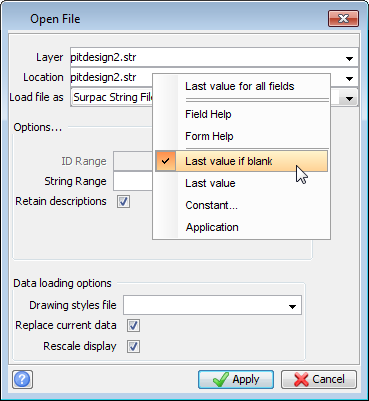
From this shortcut menu, you can:
- Set all values on the form to the last values entered
- View the help for that specific field
- View the help for the form (help for the entire concept of the function)
- Select a previously entered value for that field
- Cut or copy the value from the field into the Windows buffer
- Reset the value to be stored for that specific field to something other than the default value
Some fields are dependent upon other values, and so having the last value entered is not the best. For example, on the RECALL FILE form, the name of the styles file to be used is obtained from the header record of the selected string file. In this case, using the last value for the name of the styles file is not the best solution.
There are four files related to setting, storing, and retrieving user default values:
- defaults.ssi
On startup, Surpac will read the file SSI_ETC:defaults.ssi, and look for two settings:
bypass system defaults
default_type
If bypass system defaults=on, the software will not store or use any default values.
If bypass system defaults=off, the software will use default values.
The setting for default_type can be "Last_value_if_blank", "Last_value", or "Application". This is the value that will be used for any field whose value is not set in sysdefaults.ssi or userdefaults.ssi, as explained below. - sysdefaults.ssi
When Surpac starts, it will read the file SSI_ETC:sysdefaults.ssi, and allocate a default value ("Last value if blank", "Last value", "Application", or "Constant") for specific individual fields. Fields not specified in this file will receive the value designated by default_type variable in SSI_ETC:defaults.ssi. There is a special value in SSI_ETC:sysdefaults.ssi, and that is: CONSTANT "__callback_target". When a field has been set to CONSTANT "__callback_target", you will notice that when you right click on the field, you will be unable to change this default value to "Last value if blank", "Last value", "Application", or "Constant". This value has been set by Surpac Software, as specific values on a form relate to the internal workings of the software. If there is a setting in sysdefaults.ssi that you think should be changed, please contact your local Surpac Software support office. - userdefaults.ssi
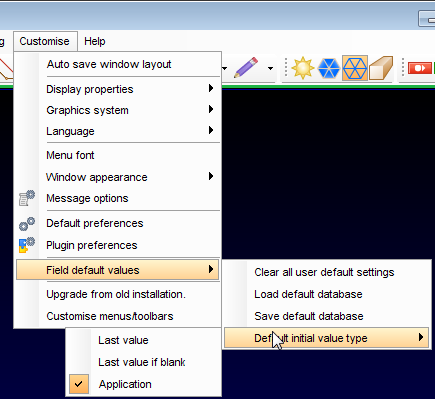
On the majority of fields, you can override the default value of a field by right clicking on the field, then selecting a different default value. When you exit the software, or when you select Customise - Field default values - Save default database, these values will be saved to a file called userdefaults.ssi. If you started up the software with no profile, this file will be written to the SSI_ETC: directory. If you started up with a profile, it will be written to the profile directory. For example if you started with the "geology1" profile, the file C:\Program Files\GEOVIA\Surpac\66\share\profiles\geology1\userdefaults.ssi would be created. All values in userdefaults.ssi can be ignored in the current session with Customise - Field default values - Clear all user default settings (see image below). To permanently delete specific values in userdefaults.ssi, edit the file with a text editor. To permanently delete all values in userdefaults.ssi, delete the file. - lastval.ssi
The values entered into each field are saved into the file lastval.ssi. Like userdefaults.ssi, this file is stored in the SSI_ETC: directory if you started with no profile, or stored in the profile directory if you did start with a profile. Lastval.ssi will store the five most recently entered values for the field.
During normal use of Surpac, there should be no reason to manually edit these files, the software will maintain them appropriately.