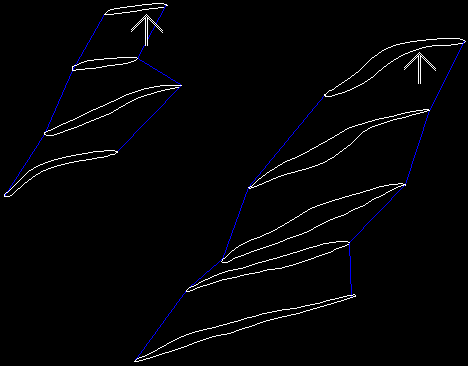
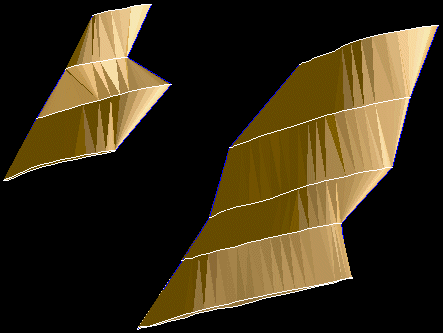
Triangulate Multiple Connected Segments
Choose this function if you have two groups of closed segments that are connected together, and you want to triangulate between them. This situation arises when you have a bifurcation, or needing to triangulation from two to three closed segments, or any complicated situation like that. This is a tricky situation to triangulate, but it can be done.
To run this function: Choose Solids > Triangulate > Connected segments > Multiple, or...
Several isolated sets of connected segments can be triangulated at once. Triangles will be created from the first set of selected segments to the second set of triangulated segments, creating one or more open trisolations. Any connected (control) segments will be used in the triangulation. This function can also be used for bifurcations. After creating the solid, you should validate the solid to check for errors in the triangulation. A valid solid will be formed when all segments cross at coincident points, and sufficient control strings exist. Invalid solids can be created when:
- Lines pass through or very near to points.
- Two or more points are very close to one another, but not coincident.
- Two lines intersect in 3D, but do not contain any points where they intersect.
These problems can be solved by ensuring that wherever two segments cross, they contain exactly coincident points. If all segments cross at coincident points, adding more control strings near the error can also help. Control strings can be open or closed, and be of any string or segment number and direction, but must be snapped to existing points.
An important thing to note is that you do not have to pick closed segments that are adjacent to each other. You can pick any two groups of closed segments, and the connected parts between them will be triangulated. This makes triangulating many simple cross sections very quick and easy.
There are some general guidelines that should be followed to get the most out of this function. For a description of the algorithm used to create the triangulation, go here.
 Note: The algorithm used uses a semi-random approach to producing the
final triangulation. This will cause consecutive runs of the functions
to potentially cause different results. If a particular data set is producing
good results sometimes, and bad results other times, it is an indication
that more control is required to consistently produce a good solid.
Note: The algorithm used uses a semi-random approach to producing the
final triangulation. This will cause consecutive runs of the functions
to potentially cause different results. If a particular data set is producing
good results sometimes, and bad results other times, it is an indication
that more control is required to consistently produce a good solid.
Form options
Object and Trisolation
The Object and Trisolation fields defined what object will be created.
Selection Method
- Graphical. With this method, you graphically select what segment to triangulate from and to. First you are prompted what segments to triangulate from. You continually click on segments to select them. You then press escape to finish selecting this group. You are now prompted to select the closed segments we are triangulating to. Select as many segments as needed, and then hit ESC to finish. It is important that you select groups of segments that are close together, and do not fall on opposite sides of the other groups of segments. If this happens, an invalid solid will most likely be produced.
- Segment range. This option allows you specify a range of segments to triangulate from and to. You can specify as many segments to triangulate between as you like, but they should follow the same restrictions as for the graphical selection of segments.
Triangulation algorithm
This option is used to control the normal generating aspect of the triangulation procedure (described in detail here). This option is generally only turned off if you are having trouble creating a valid triangulation, and there are some difficult situations that the algorithm has to deal with. Some of these could be:
- The segments that connect the closed cross sections lie on exactly the same plane as that cross section. This makes some of the work incredibly difficult.
- There are more than four line segments coming out of any one point. This is a situation that should be avoided in general, but turning off this option may help.
Examples:
Graphical selection of one segment connecting to two segments
Select a series of segments to triangulate from. Press ESC to finish.
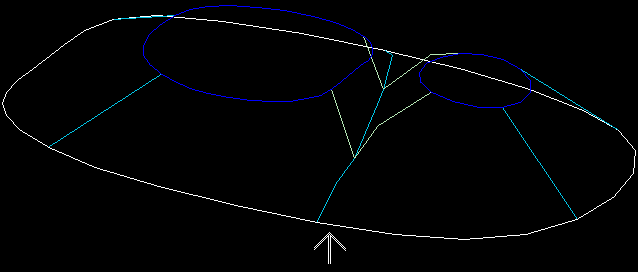
Select a series of segments to triangulate to. Press ESC to finish.
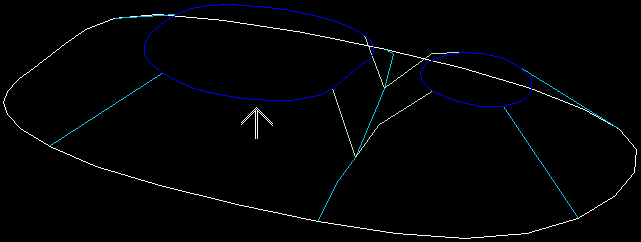
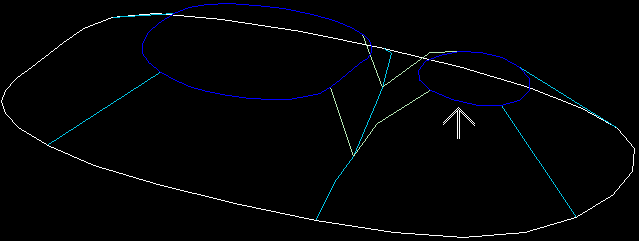
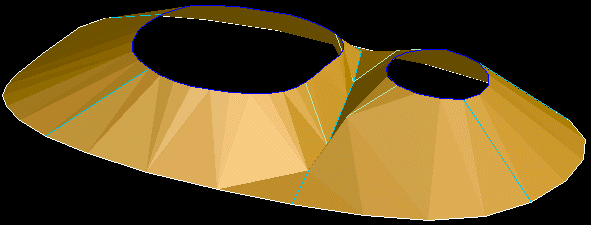
Graphical selection of two segments connecting to two segments
Select a series of segments to triangulate from. Press ESC to finish.
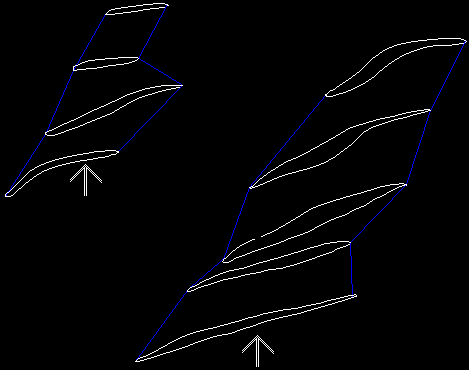
Select a series of segments to triangulate to. Press ESC to finish.